
On this page
- Does Click to Chat have analytics?
- What you still need
- The Analytics tab, card by card
- Reading Click to Chat clicks by page in GA4
- From click to ad conversion
- Questions Click to Chat’s events can’t answer
- “How many clicks did we get last week?” without opening GA4
- “Did the clicks from visitors who refused cookies count?”
- “Which pages produced yesterday’s 3 WhatsApp clicks, with their UTM tags?”
- “What about the phone number and the Telegram link?”
- Logging Click to Chat clicks in WordPress
- Read next
- FAQ
- Official sources
Does Click to Chat have analytics?
Yes. The free plugin sends an event to Google Analytics, a data layer event to Google Tag Manager and a Meta Pixel event when someone clicks its WhatsApp button. Google Ads conversions with ID and label are PRO.
What you still need
A page report needs GA4. A list of each click with its page, campaign and referrer, readable inside WordPress, needs a click log such as WhatsLink next to Click to Chat.
Click to Chat can already send each WhatsApp click to Google Analytics, Google Tag Manager, and the Meta Pixel from its free version; on new installs these events are switched on by default. To see which pages drive Click to Chat conversations, read that event in GA4 by page. What Click to Chat does not keep is a record of the clicks inside WordPress.
Below is what each setting in its Analytics tab does, how to turn the events into a page report and an ad conversion, and the questions those events can’t answer. Checked against the Click to Chat WordPress.org page, the HoliThemes documentation, and the plugin’s current code on 24 October 2026.
The Analytics tab, card by card
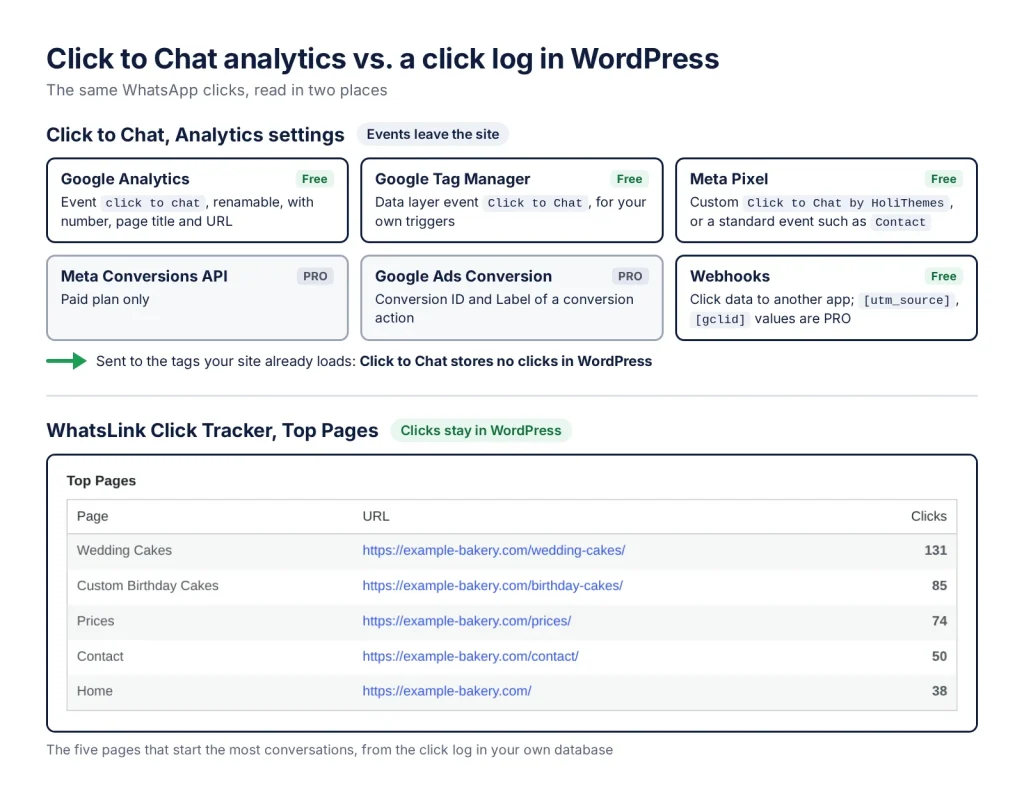
Open Click to Chat in the WordPress admin and go to the Analytics settings. Click to Chat does not install any of these tags: it uses the ones your site already loads.
- Google Analytics: sends an event named
click to chatby default, with the WhatsApp number, page title, and page URL as parameters. You can rename the event and change the parameters. - Google Tag Manager: pushes a data layer event,
Click to Chatby default, with the number, page title, and URL, for your own triggers. - Meta Pixel: sends a custom event,
Click to Chat by HoliThemesby default, or a standard event you pick, such asContactorLead. - Meta Conversions API: PRO.
- Google Ads Conversion: PRO. You enter the Conversion ID and Label of a Google Ads conversion action.
- Webhooks: sends click data to another application; values from cookies and URL parameters, such as
[utm_source]or[gclid], are PRO.
Reading Click to Chat clicks by page in GA4
First rename the event: Google’s event naming rules for GA4 ask for letters, numbers, and underscores only, with no spaces, so use a name such as whatsapp_click. Then:
- Click the WhatsApp button on your site and check Reports → Realtime, which covers the last 30 minutes: the event appears under “Event count by event name”.
- In Explore, start a Free form exploration with the dimension “Page path and screen class” and the metric “Event count”, filtered on your event name.
- Each row is a page with its Click to Chat clicks. GA4 records the page with every web event, so this works without Click to Chat’s own
urlparameter.
Click to Chat’s own parameters (number, title, url) only show up in reports after you register them as custom dimensions in GA4 (Admin → Custom definitions). The number parameter is worth it if different pages use different WhatsApp numbers.
To see which campaign sent the visitor, add Session source / medium to the same exploration: GA4 attributes the event to the session it belongs to. For more on that, read WhatsApp UTM Tracking: How to Attribute WhatsApp Traffic in WordPress.
From click to ad conversion
Google Ads, free plugin: mark the GA4 event as a key event, link GA4 to Google Ads, and create a Google Ads conversion based on it. No extra code, but the data goes through GA4 first.
Google Ads, Click to Chat PRO: create a conversion action in Google Ads (Goals → Conversions), then paste its Conversion ID and Label in the Google Ads Conversion card. The Google tag must already be on the site.
Meta Ads: switch the Pixel event from the custom name to the standard Contact event, which Meta defines as someone contacting your business by phone, SMS, email, or chat. You can then pick it as the conversion event in Ads Manager. Step-by-step setup for both platforms: How to Track WhatsApp Clicks as Conversions in Google Ads and Meta Ads.
Questions Click to Chat’s events can’t answer
“How many clicks did we get last week?” without opening GA4
Click to Chat stores no clicks in WordPress. Every number lives in Google Analytics, Tag Manager, or Meta, so you need access to those accounts to read it.
“Did the clicks from visitors who refused cookies count?”
If your consent setup blocks the Google tag or the Pixel for a visitor, Click to Chat has nowhere to send that click, so your GA4 and Meta totals can be lower than the real number of clicks.
“Which pages produced yesterday’s 3 WhatsApp clicks, with their UTM tags?”
GA4 can tell you, in aggregate, after processing. There is no list where you scroll through yesterday’s clicks one by one with the page and campaign next to each, and the UTM values only travel in Click to Chat’s own events with PRO.
“What about the phone number and the Telegram link?”
Click to Chat’s events cover its own WhatsApp buttons. A tel: link in your header or a Telegram link in a page needs separate tracking.
Logging Click to Chat clicks in WordPress
WhatsLink Click Tracker answers those four questions from inside WordPress. Its readme lists Click to Chat’s floating widget, shortcodes, and ctc_chat buttons among the tested buttons, and it needs no change to your Click to Chat settings.
- Every click is a row in the WhatsLink Click Tracker admin menu: page title, page URL, date, UTM source, medium, and campaign, and the referrer.
- The click is sent to your own WordPress site, not to an analytics service, and no IP address or location is stored.
- Top Pages lists the five pages that start the most conversations; the date filter switches between 7 days, 30 days, and all time.
- Telegram (
t.me) and phone (tel:) clicks land in the same log.
With WhatsLink PRO you can export the clicks to CSV, filter reports by UTM source, medium, and campaign, receive daily or weekly summary emails, and send each click to Google Ads, the Meta Pixel, and GA4. If Click to Chat already sends a conversion to the same destination, keep one sender, or every click counts twice.
Read next
What WhatsLink adds to Click to Chat
- Tested with the floating widget, shortcodes and ctc_chat buttons
- One row per click: page, date, UTM source, medium, campaign, referrer
- Top Pages and a 7-day, 30-day or all-time filter
- Telegram and phone clicks in the same log
- No IP address or location stored
- PRO: CSV export, UTM report filters, email reports, Ad Conversions
FAQ
Does Click to Chat for WhatsApp have analytics?
It sends events rather than keeping its own reports. The free plugin sends an event to Google Analytics, a data layer event to Google Tag Manager and a Meta Pixel event on each click. It stores no clicks in WordPress.
What is the Click to Chat event called in Google Analytics?
click to chat by default, with the WhatsApp number, page title and page URL as parameters. You can rename it in the plugin's Analytics settings, for example to whatsapp_click.
Can I track Click to Chat clicks as Google Ads conversions?
Yes. With the free plugin, mark the GA4 event as a key event and import it into Google Ads. With Click to Chat PRO, enter the Conversion ID and Label of a Google Ads conversion action in its settings.
Can Click to Chat send the Meta Contact event?
Yes. In the Meta Pixel settings, switch the event type from Custom Event to Standard and choose Contact. The Pixel must already be on your site.
Does WhatsLink work with Click to Chat?
Yes. WhatsLink Click Tracker is tested with Click to Chat's floating widget, shortcodes and ctc_chat buttons, and logs each click in WordPress without changing the plugin.