
On this page
- WhatsApp Channel Analytics: Inside and Outside WhatsApp
- WhatsApp Channel analytics: can you see link clicks?
- Who clicked through from your Channel to your website?
- Tag Channel links with campaign parameters
- How to check that your Channel tracking works
- Getting the relevant click log in WordPress
- FAQ
- Official sources
WhatsApp Channel Analytics: Inside and Outside WhatsApp
WhatsApp Channel analytics tells you about followers and engagement inside your Channel. To measure website visits or purchases after an update, you need tracking on the destination website.
A website’s WhatsApp button creates a third measurement point: someone leaving your site to open WhatsApp, not arriving from your Channel.
WhatsApp Channel analytics: can you see link clicks?
Channels are one-way broadcasts in WhatsApp’s Updates area, not ordinary chats. WhatsApp documents follower counts, growth and reach over the last 30 days—including accounts reached, top regions, follows and unfollows—alongside emoji reactions and poll results. Admins can also see how many times each update was viewed.
Keep followers, accounts reached, and update views separate:
- Followers describe your subscribed audience. Reach and views describe exposure.
- None proves that somebody opened a link. WhatsApp’s documented native reporting does not list outbound-link clicks, purchases on your website, or named link-clickers.
Who clicked through from your Channel to your website?
Website analytics can attribute recorded traffic to a tagged Channel link. That answers which campaign or update brought visitors, not which named WhatsApp follower visited. A purchase requires its own website event; adding campaign parameters does not create purchase tracking.
Keep the direction of travel visible in your reporting. A Channel-to-site visit is acquisition traffic. A click on your website’s WhatsApp button is outbound contact intent, not proof of a conversation. For the broader distinction between chat data and website events, read WhatsApp Analytics: Chat Stats and Website Click Tracking.
- Channel → website: Measure recorded arrivals and subsequent website actions using destination analytics.
- Website → WhatsApp: Measure a website button click separately from any message the visitor may send.
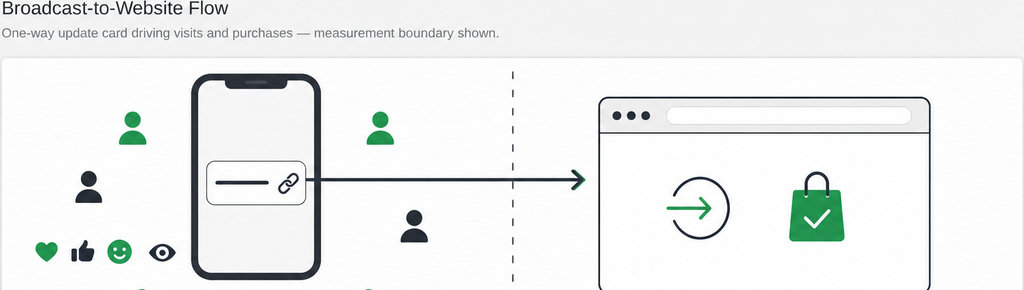
Read more WhatsApp tracking guides
Explore how link attribution and website click tracking answer different questions. Read more WhatsApp tracking guides
Tag Channel links with campaign parameters
Add UTM parameters to the website URL you publish. One workable convention is utm_source=whatsapp, utm_medium=social, utm_campaign=product_updates, and utm_content=update_a. These values are your naming convention, not a WhatsApp requirement. Change utm_content for each update you want to compare. For example, publish:
https://wa.me/15551234567?text=Hi%2C%20I'd%20like%20a%20quote.%0ARef%3A%20pricing-pageKeep names consistent so spelling variations do not split reports. The WhatsApp UTM Tracking guide explains campaign attribution in more detail.
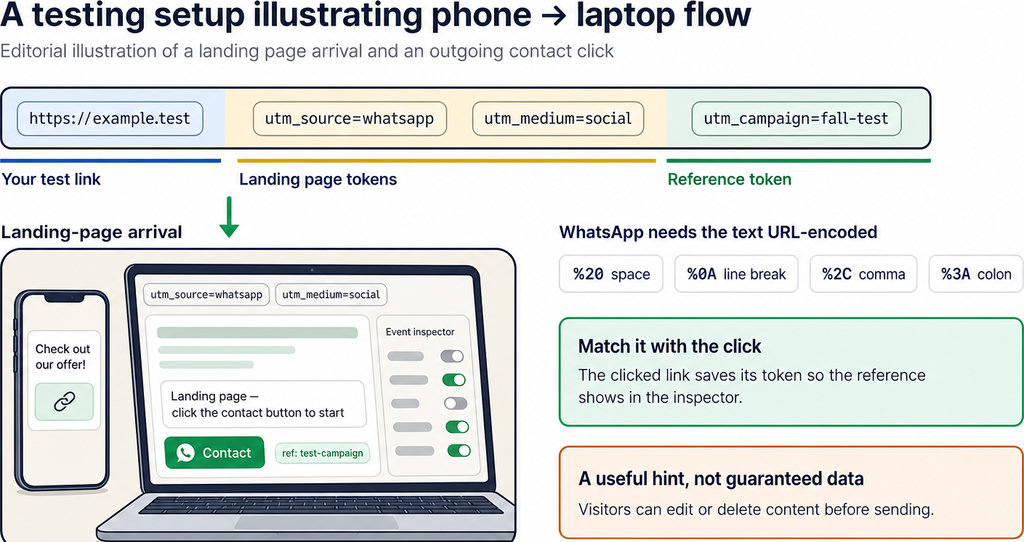
- A pre-filled reference code belongs to a different flow: a click-to-chat link that opens a message field. The visitor can edit the text or leave without sending it. Do not treat that code as Channel reporting or evidence of a sent message.
- Tag the destination website link, not just a campaign document or spreadsheet. The parameters must reach the landing page for website analytics to read them.
How to check that your Channel tracking works
- Open the published link from WhatsApp and confirm that it reaches the intended page. Check that redirects preserve the campaign parameters.
- Test measurement separately: enable debugging for your test session and inspect the relevant website events in GA4 DebugView. Google’s DebugView documentation explains the setup.
- A successful page load does not prove a recorded analytics event. Consent choices, blocked scripts, or an incorrect configuration can affect collection. For WhatsApp Channel analytics, report recorded visits as visits—not as a complete count of every tap inside WhatsApp.
- Test the outgoing click separately if that landing page also has a WhatsApp contact button. WhatsLink Free records the page, UTM parameters and referrer of website WhatsApp clicks. Those fields describe the website-side click context; they do not reveal native Channel activity.
Getting the relevant click log in WordPress
Use native Channel reporting for followers and update engagement, and website analytics for attributed arrivals. WhatsLink is a website WhatsApp-click tracker, not a native Channel analytics integration. Do not choose it to import Channel insights or assume support for Channel invitation links.
For website contact buttons, a WordPress click log helps you see where contact intent occurred. To evaluate those buttons rather than Channel updates, follow WhatsApp Button CTR: How to Measure and Improve It. Keep the dashboard’s data source explicit.
Send WhatsApp clicks to your ads and your team with WhatsLink PRO
- PRO sends website WhatsApp clicks to Google Ads, the Meta Pixel and GA4 as conversions
- It exports clicks as CSV and emails every click
- It does not connect directly to a CRM
- Get WhatsLink PRO: https://wpsani.store/downloads/whatslink-click-tracker-pro/
FAQ
Can I identify the follower who clicked?
Campaign tags do not identify a WhatsApp follower. They label traffic recorded on your website.
Are update views the same as followers?
No. Followers represent subscriptions, while update views measure viewing activity. Do not substitute one metric for the other.
Do UTM parameters count every Channel link tap?
No. They label destination traffic when analytics collects it. A tap that never produces a recorded website visit will not appear as one.
Does WhatsLink provide a Channel analytics dashboard?
No. Its website click reporting is separate from native Channel insights. Use it for supported website-to-WhatsApp clicks, not follower growth or update views.