
On this page
- Two kinds of WhatsApp click tracking
- Which one you need
- The short answer
- Comparison: what each option records and where
- What each one does, in practice
- Joinchat
- Click to Chat
- Chaty and Social Chat
- GA4, Tag Manager, and Site Kit
- Why chat widgets slip past link-based tracking
- Don’t count the same click twice
- How to test a click tracker before you choose
- WhatsLink as a tracking layer next to your chat plugin
- Read next
- FAQ
- Official sources
Two kinds of WhatsApp click tracking
Some tools send each click as an event to Google Analytics, Tag Manager or the Meta Pixel, where you read it next to the rest of your traffic. Others keep a log inside WordPress, one row per click, readable without any analytics account.
Which one you need
If you only want totals in GA4, your chat plugin may be enough. If you want to see which page and campaign each click came from, across every contact button on the site, add a click log next to the chat plugin.
The best WhatsApp click tracking plugin for WordPress depends on where you want the numbers. Chat plugins such as Joinchat and Click to Chat already send their own button’s clicks to Google Analytics 4 and the Meta Pixel; WhatsLink Click Tracker keeps a per-click log inside WordPress for every WhatsApp, Telegram, and phone link on the site, and its PRO add-on sends those clicks to GA4, Google Ads, and Meta.
This comparison covers the four chat plugins WhatsLink is tested with, the free Google tools, and WhatsLink itself. Every cell was checked on the vendor’s official page or WordPress.org page on 24 October 2026; features change, so check again before you buy.
The short answer
- You use Joinchat and only need totals in GA4: it already sends a
generate_leadevent and shows daily click totals in a dashboard widget. - You use Click to Chat: the free version sends a Google Analytics event, a Tag Manager event, and a Meta Pixel event; entering a Google Ads conversion ID and label is a PRO feature.
- You use Chaty or Social Chat: their plugin pages list Google Analytics tracking only in the paid plans.
- You want every click in WordPress, with the page, UTM values, and referrer, across any button plugin plus Telegram and phone links: WhatsLink free.
- You want clicks as ad conversions without code: WhatsLink PRO, or your chat plugin’s own Google Ads setting. Use one, not both.
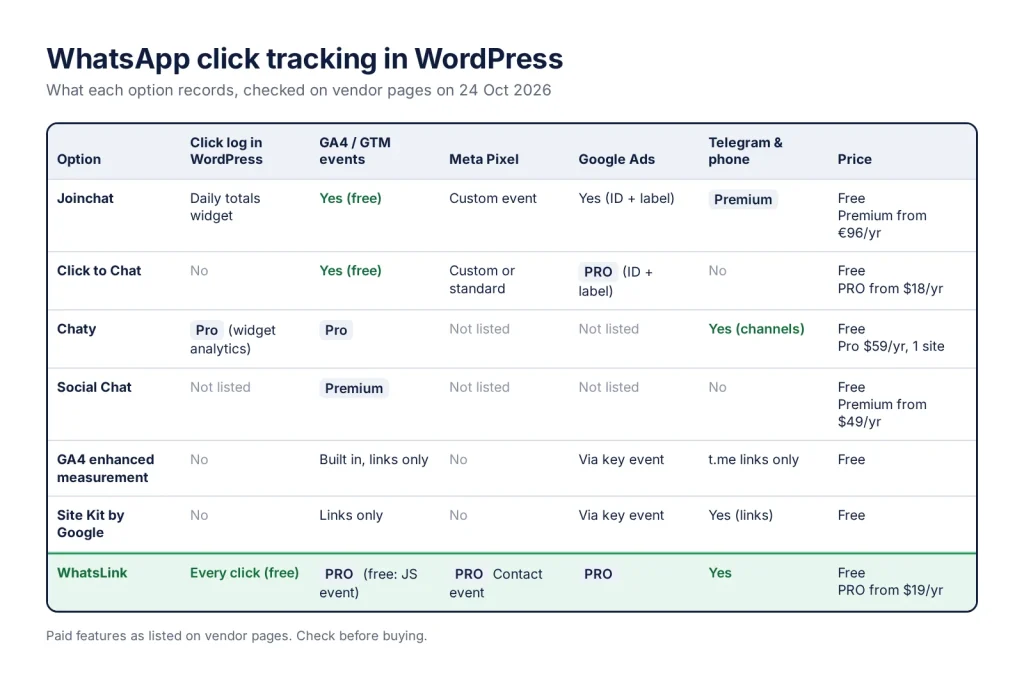
Comparison: what each option records and where
| Option | What it records, and where | GA4 / Tag Manager | Meta Pixel | Google Ads | Telegram and phone | Price |
|---|---|---|---|---|---|---|
| Joinchat | Daily click totals in a WordPress dashboard widget, plus events in your analytics tools | GA4 generate_lead; Tag Manager event JoinChat | Custom event JoinChat | Conversion, after you enter ID and label | Extra channels in Premium only | Free; Premium from €96/year |
| Click to Chat (HoliThemes) | No click log in WordPress; events in your analytics tools | Event click to chat (renamable); Tag Manager data layer event | Custom event, or a standard event such as Contact | PRO: conversion ID and label | No | Free; PRO from $18/year |
| Chaty (Premio) | Widget analytics in Pro | Google Analytics in Pro | Not listed | Not listed | Yes, as widget channels | Free; Pro $59/year for 1 site |
| Social Chat (QuadLayers) | No click log listed | GA4 events in Premium | Not listed | Not listed | No, WhatsApp only | Free; Premium from $49/year |
| GA4 enhanced measurement | Outbound click events in GA4, links only | Built in | No | Through a key event imported into Google Ads | t.me links yes; tel: links are not links to another website | Free |
| Site Kit by Google | contact_link_click events in GA4, links only | GA4 event, when its Plugin conversion tracking is on | No | Through a key event imported into Google Ads | Yes, as link types | Free |
| WhatsLink Click Tracker | One row per click in your WordPress database: page, date, clicked link, UTM, referrer | Free: a whatslink:click browser event you can push to Tag Manager; PRO: whatsapp_click, telegram_click, phone_click | PRO: standard Contact event | PRO: conversion action | Yes, t.me and tel: | Free; PRO from $19/year |
Google Tag Manager is not in the table because it records nothing by itself: it sends what you build with triggers and tags, for free.
What each one does, in practice
Joinchat
Joinchat detects Google Analytics, Google Tag Manager, and the Facebook (Meta) Pixel already on your site and sends an event when a visitor opens WhatsApp: generate_lead to GA4, JoinChat to the data layer, and a custom JoinChat event to the Pixel. A Google Ads conversion is sent once you add your conversion ID and label. Since version 6.2.0 its Clicks Counter shows daily totals in a dashboard widget. Telegram, phone, and other channels come with Premium.
Click to Chat
Click to Chat has an Analytics tab with Google Analytics, Google Tag Manager, and Meta Pixel settings in the free plugin. You can rename the GA event and choose a custom or standard Pixel event. The Meta Conversions API and direct Google Ads conversions (ID and label) are PRO. It covers WhatsApp chats, groups, and sharing, not Telegram or phone.
Chaty and Social Chat
Chaty is a multi-channel widget: WhatsApp, Telegram, phone, SMS, and 20+ other channels are free, but Google Analytics click tracking and widget analytics are listed as Pro. Social Chat lists GA4 events among its Premium features. With either free version, clicks are only visible if you track them another way.
GA4, Tag Manager, and Site Kit
With enhanced measurement on, GA4 records an outbound click event with link_url when a visitor clicks a link to another domain, which includes wa.me and t.me. Site Kit by Google (version 1.188.0 and later) adds a contact_link_click event for phone, email, WhatsApp, Telegram, and other messaging links when you turn on its Plugin conversion tracking setting. Tag Manager’s “Just Links” trigger, by Google’s definition, fires only on <a> elements.
Why chat widgets slip past link-based tracking
Click to Chat, Joinchat, and Social Chat can open WhatsApp from JavaScript when their button is clicked, instead of through a normal link. GA4 outbound clicks, Site Kit’s link event, and a “Just Links” trigger all wait for a link click, so a widget click can go unrecorded while the hand-made wa.me link in your footer is counted.
Each chat plugin’s own events cover only its own button. If your site mixes a widget, buttons in page content, and a tel: number in the header, no single chat plugin counts all of them. WhatsLink listens for both link clicks and WhatsApp windows opened from JavaScript, so the widget and the hand-made links land in the same log.
Don’t count the same click twice
If you run a chat plugin and WhatsLink PRO together, you have two senders: Joinchat, for example, sends generate_lead and WhatsLink PRO sends whatsapp_click for the same tap. That is fine in GA4 as long as you mark only one of them as a key event. In Google Ads, keep one conversion action per click: the chat plugin’s Ads setting or WhatsLink PRO’s, not both. The guide to tracking WhatsApp clicks as conversions in Google Ads and Meta Ads covers the setup.
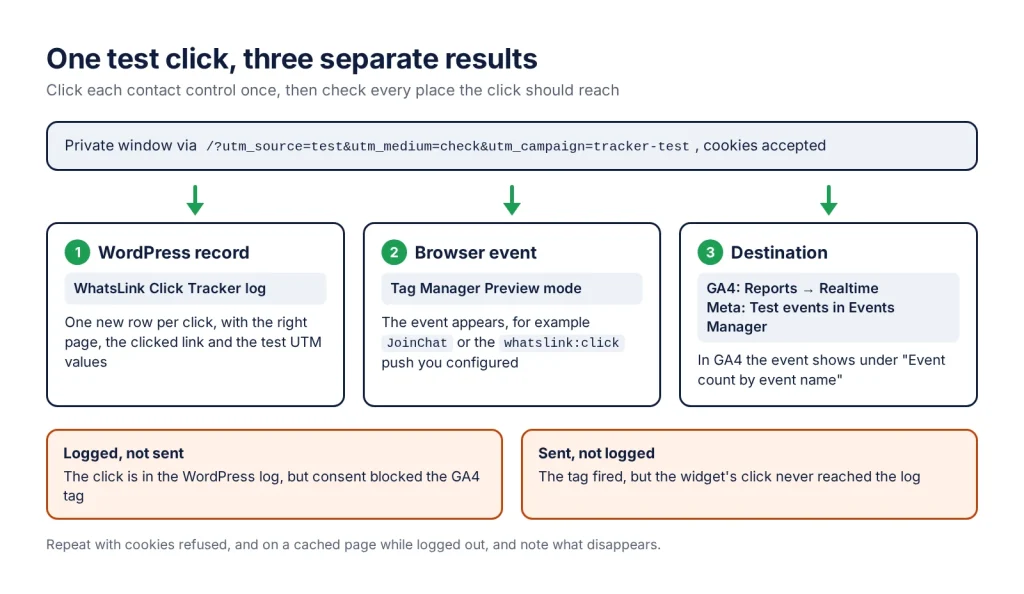
How to test a click tracker before you choose
Install the candidate on a staging copy, or on the live site at a quiet hour, and test with the buttons visitors really use.
- List every contact control: the floating widget, buttons inside pages, a WooCommerce product button, the phone number in the header, a Telegram link.
- Open the site in a private window through a test URL such as
/?utm_source=test&utm_medium=check&utm_campaign=tracker-testand accept cookies. - Click each control once, on mobile and on desktop.
- Check the WordPress record: in WhatsLink, one new row per click, with the right page, clicked link, and the test UTM values.
- Check the browser event: in Tag Manager’s Preview mode, the event appears (for example
JoinChator thewhatslink:clickpush you configured). - Check the destination: in GA4, Reports → Realtime shows the event under “Event count by event name”; for Meta, use Test events in Events Manager.
- Repeat with cookies refused, and on a cached page while logged out, and note what disappears.
Treat steps 4, 5, and 6 as three separate results. A click can be logged in WordPress while the GA4 tag is blocked by consent, or a tag can fire while the widget’s click never reaches the log.
WhatsLink as a tracking layer next to your chat plugin
WhatsLink does not replace your button plugin. WhatsLink Click Tracker is free on WordPress.org and is tested with Click to Chat, Joinchat, Chaty, and Social Chat (named WP Social Chat in its readme). It logs each WhatsApp, Telegram, and phone click with the page title, page URL, date, UTM source, medium, and campaign, and the referrer, in its own WhatsLink Click Tracker admin menu. It stores no IP address or location. UTM values are read from the address of the page where the click happens.
WhatsLink PRO adds Ad Conversions (Google Ads, the Meta Pixel Contact event, and GA4 events, using the tags already on your site), report filters by date and UTM, a trend chart, CSV export, and email reports. It is an add-on: the free plugin must stay active.
For how each chat plugin looks and behaves, rather than how it is tracked, read WhatsApp Chat Plugins for WordPress Compared.
Read next
What WhatsLink adds to any chat plugin
- Logs WhatsApp, Telegram and phone clicks: links, buttons and chat widgets
- Page title, page URL, date, UTM source, medium, campaign and referrer per click
- Tested with Click to Chat, Joinchat, Chaty and WP Social Chat
- Top Pages, date filter and search in its own admin menu
- No IP address or location stored
- PRO: clicks sent to Google Ads, the Meta Pixel and GA4, CSV export, email reports
FAQ
Which WordPress WhatsApp plugins track clicks for free?
Joinchat sends a generate_lead event to GA4, a JoinChat event to Tag Manager and the Meta Pixel, and shows daily click totals in a dashboard widget. Click to Chat sends events to Google Analytics, Tag Manager and the Meta Pixel. WhatsLink Click Tracker logs every WhatsApp, Telegram and phone click inside WordPress. The free versions of Chaty and Social Chat list Google Analytics tracking as a paid feature.
Does Google Analytics 4 track WhatsApp clicks without a plugin?
Partly. With enhanced measurement on, GA4 records an outbound click event for links to other domains, such as wa.me. It misses chat widgets that open WhatsApp from JavaScript instead of a link, and clicks from visitors whose consent choice blocks the Google tag.
Can I use WhatsLink together with Joinchat or Click to Chat?
Yes. WhatsLink is tested with Click to Chat, Joinchat, Chaty and WP Social Chat and does not change their buttons. If both your chat plugin and WhatsLink PRO send events, mark only one of them as a GA4 key event and keep one Google Ads conversion action per click.
Which plugin tracks Telegram and phone clicks too?
WhatsLink logs t.me and tel: clicks in the same log as WhatsApp. Chaty offers Telegram and phone as widget channels, but its Google Analytics tracking is in Pro. Site Kit by Google (1.188.0 and later) can send a contact_link_click event for phone and messaging links when its Plugin conversion tracking setting is on.
Can a click tracker show who clicked or whether they sent a message?
No. A website sees the click that opens WhatsApp, not the conversation inside the app. WhatsLink records the page, link, date, UTM values and referrer of each click, with no IP address and no identity of the visitor.