
On this page
- Does Joinchat have analytics?
- What it does not show
- What Joinchat sends, destination by destination
- Find Joinchat clicks in GA4, page by page
- Check that the event arrives
- Break it down by page
- When generate_lead is not only Joinchat
- Joinchat in Google Tag Manager
- Joinchat clicks as Google Ads and Meta conversions
- What Joinchat’s numbers leave out
- A per-click log next to Joinchat
- Read next
- FAQ
- Official sources
Does Joinchat have analytics?
Yes. Joinchat sends an event to GA4, Google Tag Manager and the Meta Pixel when a visitor opens WhatsApp, can send a Google Ads conversion, and shows daily click totals in a dashboard widget.
What it does not show
There is no list of individual clicks inside WordPress with the page, campaign and referrer of each one, and its events cover the Joinchat button only, not your other WhatsApp, Telegram or phone links.
Joinchat already tracks its button: when a visitor opens WhatsApp, it sends a generate_lead event to Google Analytics 4, a JoinChat event to Google Tag Manager and the Meta Pixel, and, if you set it up, a Google Ads conversion. To see Joinchat clicks by page, open that generate_lead event in GA4 and break it down by page; for a per-click list inside WordPress, with campaign and referrer, add a click log next to Joinchat.
This guide shows what Joinchat sends today (checked on its WordPress.org page and documentation on 24 October 2026), where to find it, and what it leaves out.
What Joinchat sends, destination by destination
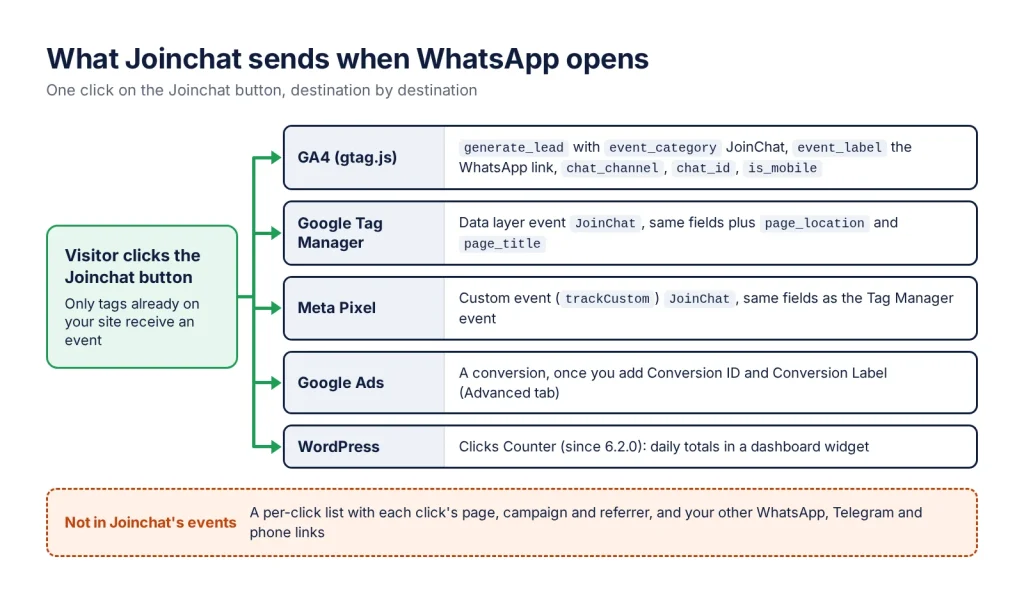
Joinchat detects the tags already on your site; it does not install Google Analytics, Tag Manager, or the Pixel for you. If a tag isn’t on the page, nothing reaches it.
- Google Analytics 4 (gtag.js): the recommended event
generate_lead, withevent_categoryset to JoinChat,event_labelset to the WhatsApp link, pluschat_channel,chat_id, andis_mobile. - Google Tag Manager: a data layer event named
JoinChat, withevent_action,event_label,chat_channel,chat_id, andis_mobile, pluspage_locationandpage_title. - Meta Pixel: a custom event (
trackCustom) namedJoinChat, with the same fields as the Tag Manager event. - Google Ads: a conversion, once you add your Conversion ID and Conversion Label in Joinchat’s settings (Advanced tab).
- WordPress: since version 6.2.0, a Clicks Counter (Advanced tab) that shows daily totals in a dashboard widget.
Find Joinchat clicks in GA4, page by page
Check that the event arrives
- Open your site, click the Joinchat button, and let WhatsApp open.
- In GA4, go to Reports → Realtime and look for
generate_leadin the “Event count by event name” card. Realtime covers the last 30 minutes.
Break it down by page
GA4 attaches the page address (page_location) and title to every web event by default, so you don’t need Joinchat to send them.
- Go to Explore and start a Free form exploration.
- Add the dimensions “Event name” and “Page path and screen class”, and the metric “Event count”.
- Add a filter: Event name exactly matches
generate_lead. - Put “Page path and screen class” in the rows: each row is a page, with its Joinchat clicks.
To report on it as a conversion, mark generate_lead as a key event in GA4’s admin.
When generate_lead is not only Joinchat
Some form plugins send generate_lead too, and then GA4 mixes form leads with WhatsApp clicks. Joinchat lets you rename its GA4 event with a filter, documented on its WordPress.org page. Add it to a code snippets plugin or your child theme’s functions.php:
add_filter( 'joinchat_get_settings', function( $settings ){
    $settings['ga_event'] = 'joinchat_click';
    return $settings;
} );
Joinchat in Google Tag Manager
If you manage tags in Tag Manager, use Joinchat’s data layer event instead of building a click trigger:
- Create a trigger of type Custom Event with the event name
JoinChat. - Create Data Layer Variables for the fields you want, such as
event_label(the WhatsApp link) andchat_channel. - Use the trigger in a GA4 event tag, a Google Ads conversion tag, or both.
- Test it in Preview mode: one
JoinChatevent should appear per click.
If GA4 already receives generate_lead directly from Joinchat, a GA4 tag on this trigger sends the same click a second time. Keep one of the two. For the full Tag Manager setup, see How to Track WhatsApp Button Clicks with Google Tag Manager.
Joinchat clicks as Google Ads and Meta conversions
For Google Ads, Joinchat’s own setting is the simplest route: create a conversion action in Google Ads (Goals → Conversions), then paste its Conversion ID and Conversion Label into Joinchat. Your site still needs the Google tag.
For Meta, Joinchat sends a custom event, not a standard one. To use it in a campaign, create a custom conversion from the JoinChat event in Events Manager. If you would rather send Meta’s standard Contact event, which Meta defines as contact by phone, SMS, email, or chat, see How to Track WhatsApp Clicks as Conversions in Google Ads and Meta Ads.
What Joinchat’s numbers leave out
- A per-click list in WordPress. The Clicks Counter shows daily totals; it does not list each click with its page, campaign, and referrer.
- Per-page data without GA4. The page breakdown above lives in GA4, so it needs the Google tag on the page and, where you use a consent banner, the visitor’s consent.
- Your other contact links. Joinchat counts its own button. A
wa.melink in a page, a Telegram link, or a “Call us” number is outside its events. - The conversation. No tool on your site sees whether the visitor sends the message once WhatsApp opens.
A per-click log next to Joinchat
WhatsLink Click Tracker is tested with Joinchat’s chat button and its chat window and needs no change to Joinchat:
- Install WhatsLink Click Tracker from the WordPress plugin directory and activate it.
- Click the Joinchat button once on your site.
- Open WhatsLink Click Tracker in the admin sidebar: the click is in the log with the page title, page URL, date, UTM source, medium, and campaign, and the referrer.
The dashboard adds a stats bar, a Top Pages table with the five pages that start the most chats, and a 7-day, 30-day, or all-time filter. UTM values come from the address of the page where the visitor clicks, so tag the landing pages of your campaigns. It also logs Telegram and phone links, and stores no IP address or location.
WhatsLink PRO adds report filters by date and UTM, a trend chart, CSV export, and email reports, and can send each click to Google Ads, the Meta Pixel as Contact, and GA4. If Joinchat already sends Google Ads conversions, leave that part of PRO off.
Read next
What WhatsLink adds to Joinchat
- Tested with the Joinchat button and its chat window
- One row per click: page title, URL, date, UTM source, medium, campaign, referrer
- Top Pages: the five pages that start the most chats
- Telegram and phone links in the same log
- No IP address or location stored
- PRO: CSV export, report filters, email reports, Ad Conversions
FAQ
Does Joinchat have built-in analytics?
Yes. Joinchat sends a generate_lead event to GA4, a JoinChat event to Google Tag Manager and the Meta Pixel, can send a Google Ads conversion, and has a Clicks Counter that shows daily totals in a WordPress dashboard widget.
Where do I see Joinchat clicks in Google Analytics 4?
In Reports, Realtime, look for generate_lead in the event list. For clicks by page, build a Free form exploration filtered on Event name generate_lead, with Page path and screen class in the rows.
Why don't Joinchat clicks show up in GA4?
Joinchat sends generate_lead when it detects the GA4 gtag.js tag on the page. If GA4 runs only through Tag Manager, use the JoinChat data layer event with a GA4 event tag. Visitors whose consent choice blocks the Google tag are not counted either.
Can I track Joinchat clicks as Google Ads conversions?
Yes. Create a conversion action in Google Ads, then enter its Conversion ID and Conversion Label in Joinchat's Advanced settings. Your site still needs the Google tag.
Does WhatsLink work with Joinchat?
Yes. WhatsLink Click Tracker is tested with the Joinchat button and its chat window. It logs each click in WordPress without changing Joinchat.