
On this page
- Adding a WhatsApp button without a plugin
- Pick the placement
- Step 1: build your wa.me link
- Add a pre-filled message
- Step 2: choose where the button goes
- A button inside a page or post
- A link in your menu (block themes)
- A link in your menu (classic themes)
- Step 3 (optional): a floating WhatsApp button
- Block themes: add it to the footer template part
- Classic themes: print it with wp_footer
- Step 4: test it on a phone and a computer
- Measuring the clicks
- Read next
- FAQ
- Official sources
Adding a WhatsApp button without a plugin
To add a WhatsApp button to WordPress without a plugin, create a wa.me link with your number in international format and put it in a Buttons block, your menu, or a small floating button snippet.
Pick the placement
A button in a page is the quickest. A menu link and a floating button appear on every page; the floating one needs a few lines of HTML and CSS, given below and tested on mobile.
Step 1: build your wa.me link
Your button needs WhatsApp’s click to chat link, which has this form: https://wa.me/ followed by the phone number in full international format. Write the country code and the number as digits only: no plus sign, no leading zeros, no spaces, brackets or dashes.
- US number +1 (555) 123-4567 becomes
https://wa.me/15551234567 - UK mobile 07700 900123 (country code 44, leading 0 dropped) becomes
https://wa.me/447700900123
The number must have an active WhatsApp account.
Add a pre-filled message
To suggest the first message, add ?text= and the message, URL-encoded: https://wa.me/15551234567?text=Hello%2C%20I%20have%20a%20question. The text appears in the visitor’s message field. They can edit it, and nothing is sent until they press send.
URL-encoding replaces characters that would break or cut the address. The ones that matter most:
| In your message | Write it as | Why |
|---|---|---|
| Space | %20 | Spaces are not allowed in a web address |
| & | %26 | A raw & starts a new parameter and ends the message |
| # | %23 | A raw # cuts off everything after it |
| Line break | %0A | Keeps the line break in the message |
You don’t have to encode by hand. In any browser, open the developer console (F12), type encodeURIComponent('Hello, I have a question') and press Enter. Copy the result after ?text=. Accented letters and emoji are encoded the same way.
Step 2: choose where the button goes
A button inside a page or post
- Open the page in the editor and add a Buttons block where visitors need to contact you.
- Type a clear label, such as “Chat on WhatsApp”.
- Select the button, click the link icon, paste your wa.me link and press Enter.
- Save or update the page.
This button appears only on that page. It is the simplest option for a contact page or a product page.
A link in your menu (block themes)
- Go to Appearance → Editor, open the header (or the template that holds your menu) and select the Navigation block.
- Click + (Add page), then Add block, and choose Custom Link.
- Paste your wa.me link and press Enter, then type the menu text, such as “WhatsApp”.
- Click Save.
A link in your menu (classic themes)
- Go to Appearance → Menus and select your menu.
- Open the Custom Links panel, paste your wa.me link in URL and type the menu text in Link Text.
- Click Add to Menu, move the item where you want it, then click Save Menu.
Step 3 (optional): a floating WhatsApp button
A floating button stays in the bottom-right corner on every page. It is a link with an icon and a few lines of CSS. Replace the number and the message with yours:
<a class="wa-float" href="https://wa.me/15551234567?text=Hello%2C%20I%20have%20a%20question" target="_blank" rel="noopener" aria-label="Chat with us on WhatsApp">
  <svg viewBox="0 0 24 24" width="30" height="30" aria-hidden="true" focusable="false"><path fill="currentColor" d="M17.472 14.382c-.297-.149-1.758-.867-2.03-.967-.273-.099-.471-.148-.67.15-.197.297-.767.966-.94 1.164-.173.199-.347.223-.644.075-.297-.15-1.255-.463-2.39-1.475-.883-.788-1.48-1.761-1.653-2.059-.173-.297-.018-.458.13-.606.134-.133.298-.347.446-.52.149-.174.198-.298.298-.497.099-.198.05-.371-.025-.52-.075-.149-.669-1.612-.916-2.207-.242-.579-.487-.5-.669-.51-.173-.008-.371-.01-.57-.01-.198 0-.52.074-.792.372-.272.297-1.04 1.016-1.04 2.479 0 1.462 1.065 2.875 1.213 3.074.149.198 2.096 3.2 5.077 4.487.709.306 1.262.489 1.694.625.712.227 1.36.195 1.871.118.571-.085 1.758-.719 2.006-1.413.248-.694.248-1.289.173-1.413-.074-.124-.272-.198-.57-.347m-5.421 7.403h-.004a9.87 9.87 0 01-5.031-1.378l-.361-.214-3.741.982.998-3.648-.235-.374a9.86 9.86 0 01-1.51-5.26c.001-5.45 4.436-9.884 9.888-9.884 2.64 0 5.122 1.03 6.988 2.898a9.825 9.825 0 012.893 6.994c-.003 5.45-4.437 9.884-9.885 9.884m8.413-18.297A11.815 11.815 0 0012.05 0C5.495 0 .16 5.335.157 11.892c0 2.096.547 4.142 1.588 5.945L.057 24l6.305-1.654a11.882 11.882 0 005.683 1.448h.005c6.554 0 11.89-5.335 11.893-11.893a11.821 11.821 0 00-3.48-8.413Z"/></svg>
</a>
<style>
  .wa-float {
    position: fixed;
    right: 16px;
    bottom: 16px;
    z-index: 9999;
    display: flex;
    align-items: center;
    justify-content: center;
    width: 56px;
    height: 56px;
    border-radius: 50%;
    background: #1da851;
    color: #fff;
    box-shadow: 0 2px 8px rgba(0, 0, 0, 0.3);
  }
  .wa-float:hover {
    background: #168f45;
  }
  .wa-float:focus-visible {
    outline: 3px solid #075e54;
    outline-offset: 3px;
  }
  @media print {
    .wa-float {
      display: none;
    }
  }
</style>
What each part does:
- aria-label gives the button a name for screen readers, since it shows only an icon. The icon itself is hidden from them with
aria-hidden="true". - position: fixed with
rightandbottomkeeps it in the corner while the page scrolls. Raisebottomif it covers a cookie banner or another floating button. - The colours: a white icon on #1da851, a slightly darker green than WhatsApp’s #25D366, keeps a contrast above 3:1, the minimum WCAG asks for icons. The outline shows when someone reaches the button with the Tab key.
- The icon is the WhatsApp glyph from Simple Icons (CC0). WhatsApp’s brand guidelines still apply to how you use their logo.
- target=”_blank” opens the chat in a new tab on a computer, so your page stays open;
rel="noopener"stops the new tab from controlling your page.
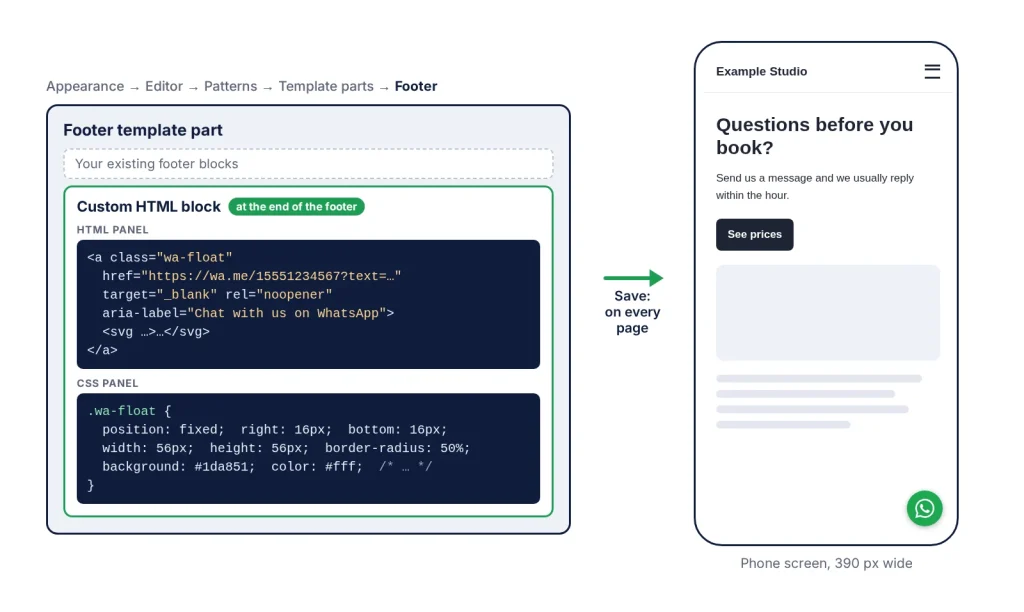
Block themes: add it to the footer template part
- Go to Appearance → Editor → Patterns, open Template parts and edit Footer.
- Add a Custom HTML block at the end of the footer (type
/htmland press Enter). - Paste the snippet into the block. In WordPress 7.0 and later, click Edit HTML first: the editor has separate HTML and CSS panels, so put the link in the HTML panel and the rules between the
<style>tags in the CSS panel, then click Update. - Click Save. The footer appears on every page that uses it, so the button does too.
You need an account that can post unfiltered HTML, such as an Administrator on a single-site install. For other users, WordPress filters the block’s code when saving and can strip parts of it.
Classic themes: print it with wp_footer
In a classic theme, add this to your child theme’s functions.php, below the existing code (don’t repeat the opening <?php tag), and paste the snippet in place of the comment:
add_action( 'wp_footer', function () {
	?>
	<!-- Paste the floating button snippet here -->
	<?php
} );
The wp_footer hook prints the button just before the closing </body> tag on every front-end page. Use a child theme: changes made directly in a theme are lost when the theme updates. Make a backup first, because an error in functions.php can take the site down.
Step 4: test it on a phone and a computer
- Clear your caching plugin or server cache, then open the page in a private window.
- On a phone, tap the button. WhatsApp should open a chat with your number and the pre-filled message, ready to edit.
- On a computer, click it and check that the chat with your number opens (click to chat also works with WhatsApp Web).
- Check that the floating button doesn’t cover the cookie banner, another chat widget or the “Add to cart” bar on mobile.
- Press Tab until the button is selected: the outline should be visible, and Enter should open the chat.
Measuring the clicks
The button works without any plugin. To see how often it is used, note that GA4’s enhanced measurement, when it is on, already records clicks on wa.me links as outbound clicks. For a per-page log with UTM campaign and referrer, the free WhatsLink Click Tracker detects the button you just built, with no changes to it. See How to Track WhatsApp Button Clicks in WordPress (No Code).
Read next
Measure your new button for free
- Detects wa.me links and buttons you built by hand
- Logs page, date, referrer and UTM values for each click
- Also logs Telegram and phone link clicks
- No changes to your button, no Tag Manager
- No IP address or location stored
FAQ
How do I add a WhatsApp button to WordPress without a plugin?
Create a link in the form https://wa.me/ followed by your number in international format, digits only. Add a Buttons block, paste the link into the button's link field and save. For a button on every page, add the floating button snippet to your footer.
What is the correct format for a wa.me link?
https://wa.me/ followed by the full phone number in international format: country code and number, with no plus sign, leading zeros, spaces, brackets or dashes. For example, +1 (555) 123-4567 becomes https://wa.me/15551234567.
How do I add a pre-filled message to a WhatsApp link?
Add ?text= and the URL-encoded message, for example https://wa.me/15551234567?text=Hello%20there. The message appears in the visitor's text field; they can edit it, and nothing is sent until they press send.
How do I make a floating WhatsApp button without a plugin?
Use a link with position: fixed in CSS so it stays in a corner of the screen. In a block theme, paste the snippet into a Custom HTML block in the Footer template part. In a classic theme, print it with the wp_footer hook in a child theme's functions.php.
Does a wa.me link work on a computer?
Yes. WhatsApp's click to chat works on phones and with WhatsApp Web, so test the button on both before publishing.