
On this page
Create a Sticky Menu in WordPress: CSS and Plugins
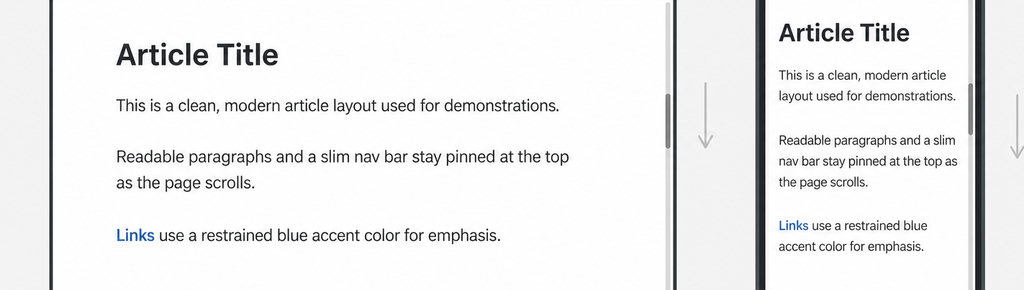
A sticky menu keeps navigation visible while visitors scroll. In WordPress, you can enable it through supported theme settings, add CSS, or use a plugin when you need controls your theme lacks.
Start with existing theme controls: they may solve the problem without another dependency. CSS suits a straightforward navigation bar; a plugin becomes useful when you need element-selection tools or page-specific behavior.
Which Menu or Header Should Stay Visible?
A menu contains navigation links. A header may also include a logo, search, announcements and contact buttons. Keep only what visitors need while scrolling: a tall header can occupy too much of a phone screen.
In compatible block themes, open Appearance → Editor, find the template containing your header, and wrap the Header template part in a top-level Group.
- Select that Group, give it an opaque background, and choose Position → Sticky.
- WordPress introduced sticky positioning support in version 6.2; availability depends on theme support and block placement.
If the setting is missing, check the Group’s placement before installing anything. If you still need to build the navigation, follow WordPress Dropdown Menu & List: 3 Ways, No Plugin Needed first.
If your navigation includes a WhatsApp contact link, keeping it visible and understanding its clicks are separate tasks.
Assign a CSS Class and Make the Menu Sticky
For a CSS sticky menu, target the wrapper that should remain visible. A selector identifies an element: .sticky-navigation targets an element whose class is sticky-navigation. In a block’s Advanced settings, enter the class without the dot. Add the following through Additional CSS in the Customizer or the Site Editor’s Styles interface, depending on your theme.
This is a starting point, not a universal selector or guaranteed stacking value. Avoid editing the parent theme directly; updates can overwrite changes.
- Enough containing space. The wrapper needs enough containing space to move. A menu inside a header that is only as tall as the menu may have nowhere to stick; targeting the outer header can be the correct solution.
- The offset.
top: 0sets the sticking threshold. Increase it if another persistent bar occupies the top edge. - The background. An opaque background keeps scrolling text from showing through the navigation.
How to Check That Your Sticky Menu Works
- Test the published page, both logged in and logged out. The WordPress admin toolbar changes the available space. Scroll through a long page, open dropdowns, and check that navigation remains clickable without covering important content.
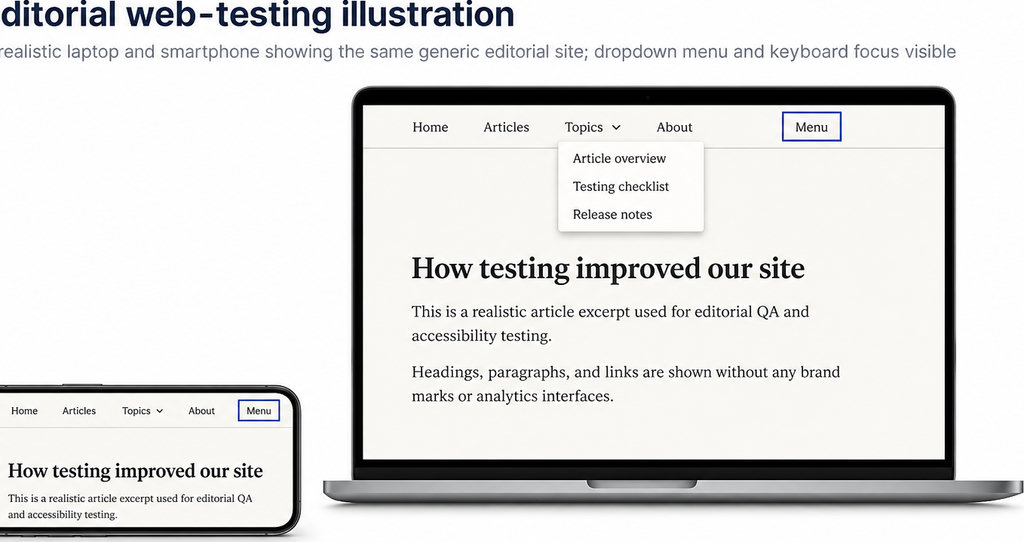
- Test narrow screens. Test landscape orientation, browser zoom and keyboard navigation. Tab through links and confirm that the header never hides the focused control. Disable stickiness at constrained screen sizes if the header leaves too little room.
- If sticking fails, inspect the selector,
topvalue, container height and ancestor overflow. An ancestor usingoverflow: auto,scrollorhiddencan change the scrolling context. Raisingz-indexcannot fix those issues. - Check dropdowns. For broken submenus, use WordPress Dropdown Menu Not Working? Fixes by Symptom.
Visibility also does not prove engagement. If the menu includes WhatsApp, free WhatsLink records each click’s page, UTM parameters and referrer; those records do not prove a message was sent. For broader measurement options, see Track Link Clicks in WordPress Without Google Analytics.
Creating a Sticky Menu with a WordPress Plugin
Sticky Menu & Sticky Header, by WebFactory, makes an existing element sticky using a unique CSS selector. Install and activate it, identify your navigation wrapper, enter its selector in the plugin settings, then test the published page. It does not create the navigation itself.
The free selector-based setup may be enough for one element. WP Sticky PRO adds visual element selection, multiple sticky elements and page exclusions. Pay for a requirement you actually have, not simply because a paid edition exists. Avoid having theme settings, custom CSS and a plugin control the same element. Test changes on staging first. Keep one implementation active so that you can identify which setting causes an overlap or scrolling problem.
Measure the contact link separately
- Explore the WhatsApp tracking guides if your navigation includes a WhatsApp button.
- https://wpsani.store/topics/whatslink-click-tracker/
FAQ
Do I need a plugin?
No. Supported theme controls or CSS can handle straightforward sticky navigation.
Why does my menu stop sticking?
Sticky positioning is constrained by its containing block. Check wrapper height and ancestor overflow before changing stacking values.
Can I keep only desktop navigation sticky?
Yes. Use responsive CSS or supported theme or plugin controls, then test around the chosen breakpoint.
Does sticky navigation improve search rankings?
It is not a guaranteed ranking improvement. Choose it for usable navigation, not as an SEO shortcut.