
On this page
- The short answer
- How to prove it
- Why the email arrives without the file
- A wp_mail attachment that works
- Fix 1: you passed a URL
- A file in the Media Library
- A file on another server
- Fix 2: the path is relative or built for another machine
- Fix 3: the file is not there, or PHP can’t read it
- Attach generated content without saving a file
- Inline images: use $embeds (WordPress 6.9+)
- Log what was really attached
- When WordPress attached it but the recipient never got it
- If visitors choose the file
- FAQ
- Official sources
The short answer
wp_mail() attaches only files that exist and are readable on the server, passed as file system paths. A URL, a wrong relative path or a file that is not there yet is skipped silently.
How to prove it
Check each path with is_readable() before sending and log what PHPMailer accepted in phpmailer_init. The log lines show you which file was dropped and why.
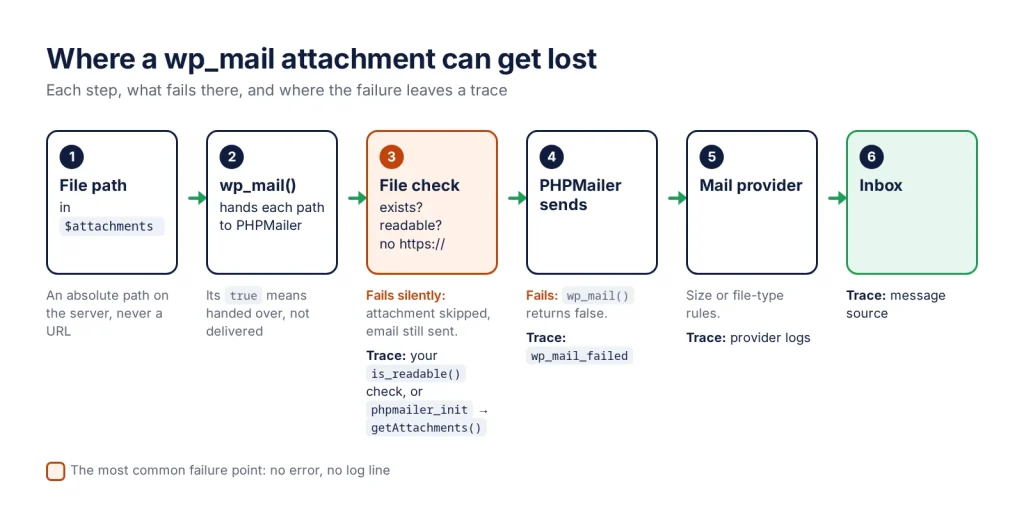
When wp_mail() sends the email but the attachment is missing, the file path was most likely rejected: wp_mail() only attaches files that exist and are readable on the server, given as file system paths, never URLs. A rejected attachment is skipped silently, so the email still goes out, wp_mail() can still return true, and the wp_mail_failed hook does not fire.
Below: why that happens, the fix for each cause, and how to log what was really attached.
Why the email arrives without the file
WordPress hands every entry of $attachments to PHPMailer’s addAttachment(). PHPMailer refuses anything that starts with a scheme such as https://, and anything that is not an existing, readable file. When it refuses, wp_mail() catches the error and moves on to the next attachment. Nothing is logged.
wp_mail_failed only fires when sending itself fails: an invalid From address, or an error from the mail server or mail(). And a true return means only that the message was handed over without errors, not that it reached the inbox.
| What you see | Likely cause | Fix |
|---|---|---|
| Email arrives, no file, no error | URL, relative path or missing file passed in $attachments | Pass an absolute path to a file that exists at send time |
| Works on your computer, not on the server | Path built for another machine, file permissions or open_basedir | Build paths from WordPress constants; check is_readable() on the server |
File arrives as name-Ab12Cd.tmp | Temporary file from download_url() attached as is | Rename it and give it a name with an array key |
| Only some recipients get the file | Size or file-type rules at a mail provider | Check the provider’s logs; send a smaller file or a link |
wp_mail() returns false | Sending failed | Log wp_mail_failed and read the message |
A wp_mail attachment that works
Pass the attachments as the fifth argument: an array of absolute paths. Since WordPress 6.2 a string key sets the file name the recipient sees.
$uploads = wp_upload_dir();
$file    = $uploads['basedir'] . '/reports/report-2026-10.pdf';

if ( ! is_readable( $file ) ) {
    error_log( 'Attachment missing or unreadable: ' . $file );
    return;
}

$sent = wp_mail(
    'client@example.com',
    'Your October report',
    'The report is attached.',
    array(),
    array( 'October report.pdf' => $file ) // key = name shown (WordPress 6.2+)
);
For several files, add more entries to the array. If you pass a string instead of an array, separate paths with new lines, not commas.
Fix 1: you passed a URL
https://example.com/wp-content/uploads/report.pdf is an address for browsers. PHPMailer needs the path of the same file on disk, such as /var/www/html/wp-content/uploads/report.pdf.
A file in the Media Library
Use the attachment ID with get_attached_file(), which returns the path. If you only have the URL of the original file, attachment_url_to_postid() finds the ID first:
$id   = attachment_url_to_postid( $url ); // 0 if not found
$file = $id ? get_attached_file( $id ) : false;
A file on another server
Download it first with download_url(), which saves it to a temporary file and returns its path, or a WP_Error. It lives in wp-admin/includes/file.php, so load that file outside the admin. The temporary file often ends in .tmp, because WordPress gives it a real extension only when the server sends a known Content-Type or a file name: rename it if needed so the attachment gets the right extension, and delete it after sending.
require_once ABSPATH . 'wp-admin/includes/file.php';

$tmp = download_url( 'https://example.com/files/report.pdf', 30 );
if ( is_wp_error( $tmp ) ) {
    error_log( 'Attachment download failed: ' . $tmp->get_error_message() );
    return;
}

// download_url() may save "report-Ab12Cd.tmp": give it the real extension.
$file = preg_replace( '/\.tmp$/', '.pdf', $tmp );
if ( ! rename( $tmp, $file ) ) {
    $file = $tmp;
}

$sent = wp_mail( $to, $subject, $message, array(), array( 'report.pdf' => $file ) );

wp_delete_file( $file ); // download_url() leaves the file for you to delete
Fix 2: the path is relative or built for another machine
A relative path such as uploads/report.pdf is resolved from PHP’s current working directory, which changes between page requests, cron runs and WP-CLI. A hard-coded /Users/you/… path works on one machine only. Build paths from WordPress instead:
wp_upload_dir()['basedir']for files in the uploads folder;plugin_dir_path( __FILE__ )for files shipped with your plugin;get_attached_file( $id )for Media Library items.
Fix 3: the file is not there, or PHP can’t read it
A PDF generated in the same request must be fully written before wp_mail() runs, and a cleanup task must not delete it first. A file can also exist but be unreadable by the PHP user, or sit outside the folders the host’s open_basedir setting allows. Check each attachment where the email is sent, on the server:
function wpsani_check_attachments( array $paths ) {
    $ok = array();
    foreach ( $paths as $name => $path ) {
        if ( ! is_file( $path ) ) {
            error_log( "Attachment not found: $path" );
        } elseif ( ! is_readable( $path ) ) {
            error_log( "Attachment not readable: $path" );
        } else {
            $ok[ $name ] = $path;
        }
    }
    return $ok;
}

$attachments = wpsani_check_attachments( $attachments );
These are the same checks PHPMailer runs, but now a failure leaves a line in your log instead of a silent skip. If an attachment is required, stop and report the problem instead of sending the email without it.
Attach generated content without saving a file
For a CSV or PDF you build in memory, the $attachments argument can’t help: it only takes paths. Use the phpmailer_init action and PHPMailer’s addStringAttachment(), then remove the callback so later emails don’t get the same file:
$csv = "id,name 1,Alice 2,Bob ";

$attach_csv = function ( $phpmailer ) use ( $csv ) {
    $phpmailer->addStringAttachment( $csv, 'export.csv', 'base64', 'text/csv' );
};

add_action( 'phpmailer_init', $attach_csv );
wp_mail( $to, 'Export', 'The export is attached.' );
remove_action( 'phpmailer_init', $attach_csv );
Inline images: use $embeds (WordPress 6.9+)
An image shown inside an HTML email is not an attachment: it is embedded and referenced with a cid: address. Since WordPress 6.9, wp_mail() takes a sixth argument, $embeds. The array key becomes the Content-ID:
$headers = array( 'Content-Type: text/html; charset=UTF-8' );
$embeds  = array( 'logo' => wp_upload_dir()['basedir'] . '/logo.png' );
$html    = '<p><img src="cid:logo" alt="Logo"></p><p>Hello!</p>';

wp_mail( $to, 'Inline image', $html, $headers, array(), $embeds );
The same path rules apply, and a bad path is skipped silently here too. On older versions, call $phpmailer->addEmbeddedImage( $path, 'logo' ) from a phpmailer_init callback instead.
Log what was really attached
Two hooks cover both kinds of failure. phpmailer_init runs after WordPress has added the attachments, so getAttachments() lists the files PHPMailer accepted. wp_mail_failed receives a WP_Error when sending fails:
add_action( 'phpmailer_init', function ( $phpmailer ) {
    $names = wp_list_pluck( $phpmailer->getAttachments(), 2 ); // index 2 = name
    error_log( 'wp_mail attachments accepted: ' . implode( ', ', $names ) );
} );

add_action( 'wp_mail_failed', function ( WP_Error $error ) {
    error_log( 'wp_mail_failed: ' . $error->get_error_message() );
} );
Don’t rely on wp_mail_succeeded for this: it reports the paths you passed, including the ones PHPMailer skipped.
With WP_DEBUG and WP_DEBUG_LOG on, every error_log() line above lands in wp-content/debug.log. You can read it in the dashboard with Quick debug.log Viewer, a free plugin; WordPress debug.log: Location, Size, and How to Clear It covers where the file is and how to keep it private. If you’d rather keep a record of every email with its attachments, a mail-logging plugin such as WP Mail Logging stores them in the dashboard.
When WordPress attached it but the recipient never got it
If the log shows the file was accepted, the problem is after WordPress. Mail servers and providers set their own size limits and may block some file types. To narrow it down:
- Send the same email to a second mailbox at a different provider.
- Open the received message’s source and look for the attachment part.
- Check your SMTP or email-sending service’s logs for rejections.
- For large files, send a download link instead of the file.
Also check whether a plugin has replaced wp_mail(). It is a pluggable function, and the pre_wp_mail filter can take over sending, so with some mail plugins the behaviour described here may differ.
If visitors choose the file
Never attach a path that comes from a form or URL without checking it: someone could request wp-config.php. Resolve the real path and make sure it is inside the folder you allow, then check that this visitor may receive that file:
$uploads = realpath( wp_upload_dir()['basedir'] );
$real    = realpath( $candidate );

if ( false === $uploads || false === $real
    || ! str_starts_with( wp_normalize_path( $real ), wp_normalize_path( trailingslashit( $uploads ) ) ) ) {
    error_log( 'Blocked attachment outside uploads: ' . $candidate );
    return;
}
realpath() resolves ../ and symbolic links before the comparison, and the trailing slash stops a folder such as uploads-old from passing as uploads. For other tools that help when a client site misbehaves, see WordPress Plugins for Developers: Debug & Staging Tools.
Read your wp_mail logs in the dashboard
- Quick debug.log Viewer shows wp-content/debug.log in its own admin screen
- Newest entries first, with Fatal, Warning and Notice filters
- Search recent entries for wp_mail or your plugin's name
- Download a copy, then clear the log and send a test email again
- Free on WordPress.org
FAQ
Can wp_mail attach a file from a URL?
No. The $attachments argument takes file system paths only. PHPMailer refuses anything that starts with a scheme such as https://, and WordPress skips it without an error. Use get_attached_file() for Media Library items, or download_url() for files on another server, then attach the local path.
Why does wp_mail return true when the attachment is missing?
Because the email itself was sent. When PHPMailer refuses an attachment, wp_mail() catches the error and continues with the rest of the message. A true result only means the message was handed over without errors.
Does wp_mail_failed fire when an attachment is missing?
No. It fires when sending fails, for example with an invalid From address or an error from the mail server. To catch a missing file, check each path with is_file() and is_readable() before sending, or log $phpmailer->getAttachments() in a phpmailer_init callback.
How do I attach multiple files with wp_mail?
Pass an array of absolute paths as the fifth argument. Since WordPress 6.2 you can use string keys to set the file name each recipient sees, for example array( 'Invoice.pdf' => $path ).
How do I add an inline image to a wp_mail HTML email?
Since WordPress 6.9, pass the image path in the sixth argument, $embeds, and reference it in the HTML as cid: followed by its array key, for example src="cid:logo". On older versions use addEmbeddedImage() in a phpmailer_init callback.