
On this page
- Migrate WordPress Click-Tracking Data Without Losing History
- Can you switch click-tracking plugins without losing historical data?
- Where is your website’s historical click data stored?
- Map link identifiers and tracking fields before migration
- How to check that your new click tracking works
- Keeping historical and new click logs accessible in WordPress
- Official sources
Migrate WordPress Click-Tracking Data Without Losing History
You can migrate WordPress click tracking plugin data without losing your old reports, even when the replacement cannot import them. The safe approach is to preserve a verified copy first, then choose between a supported import and a separate historical archive.
Can you switch click-tracking plugins without losing historical data?
Preserving history and moving it into a new dashboard are different jobs. An export downloads records; an import loads compatible records into another tool; an archive keeps records accessible outside that tool. A successful switch does not necessarily produce one continuous dashboard.
Before buying a replacement, get a sample export from your current plugin. Ask the destination developer: “Can this edition import this file with its original dates? Which fields survive?” Confirm that “import” means click history, not settings or saved links.
- Check whether the file contains individual clicks or daily totals. A summary can preserve reporting totals, but it cannot recover the page, campaign, or timestamp of each underlying click.
- Check uninstall behavior before removing anything. Deactivation and deletion are different operations, and a plugin may remove its tables during deletion. Keep the old installation intact until you have verified both the archive and the new tracking.
Keep attribution and migration questions separate while choosing your setup. Read more WhatsApp tracking guides
Where is your website’s historical click data stored?
Start with the existing plugin’s tracking settings. Clicks may live in WordPress database tables, an external analytics account, or both. Record the account and property identifiers, reporting filters, timezone, earliest available date, and retention settings. Continuing to use an analytics property does not move its history into a replacement plugin’s dashboard.
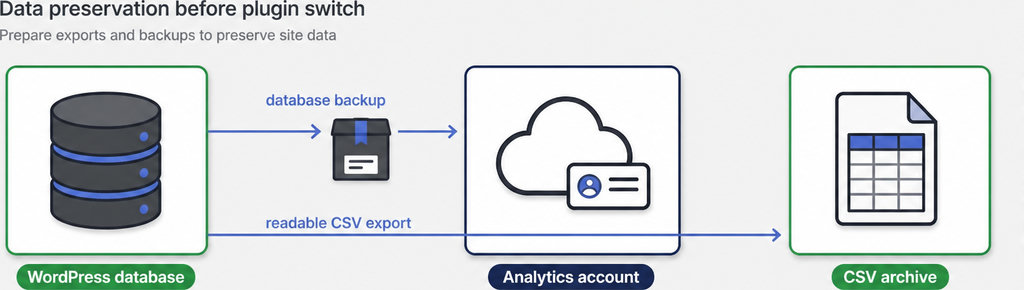
Create a database backup that includes the tracking tables, plus a readable export. WordPress’s Tools → Export feature exports site content; it is not a complete backup of plugin-specific analytics tables. Ask your host or developer to confirm which tables the backup includes.
- Check export completeness: Compare the file against the old report using the same date range and filters.
- Compare totals: Inspect the earliest and latest records.
- Check export limits: Check for pagination limits or date restrictions before accepting the file as complete.
When choosing a replacement for contact-link tracking, distinguish essential context from advertising integrations. As a practical starting point, check whether free WhatsLink records the click context your reporting needs.
Use the free version to evaluate the click context you need before deciding on advertising integrations. Track WhatsApp clicks free with WhatsLink
Map link identifiers and tracking fields before migration
Create a mapping sheet connecting the old fields to the destination’s documented requirements. Include click timestamps and timezones, source-page URLs, destination URLs, link identifiers, event names, campaign parameters, and click counts where applicable. Mark unsupported fields explicitly rather than silently dropping them.
Keep the original export untouched and transform a copy. Watch for spreadsheet software changing dates, stripping leading zeros from identifiers, or altering long values. A file that opens correctly is not necessarily ready to import.
- Preserve stable identifiers wherever possible. If an old event is named
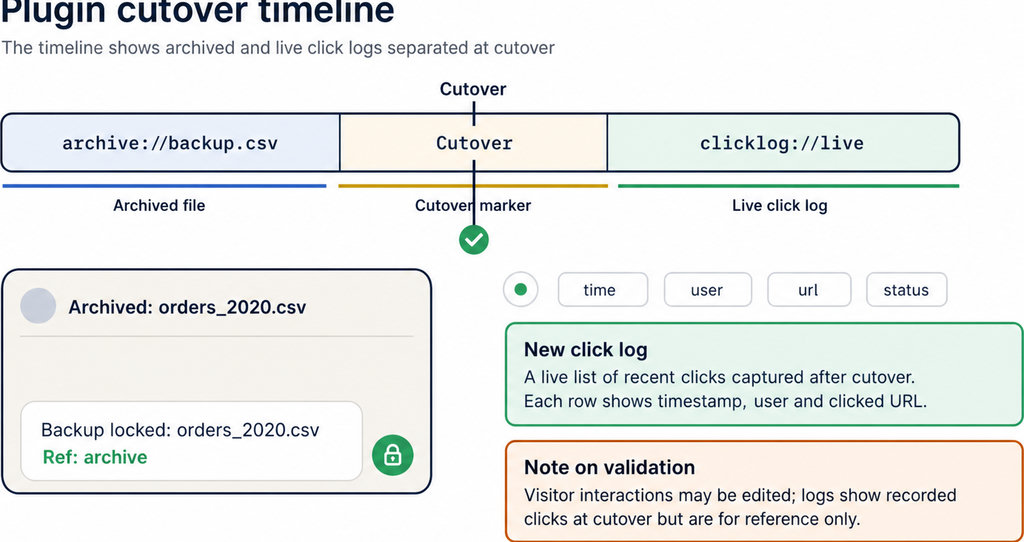
whatsapp_clickand the new tracker uses another name, record that change alongside the cutover date. Otherwise, a reporting change can look like a sudden loss of traffic. - Do not treat GA4 as a universal historical importer. Its Measurement Protocol permits backdating events up to 72 hours, so replaying years of old clicks through it will not faithfully preserve their dates.
- A CSV export alone proves neither import compatibility nor historical reporting support.
How to check that your new click tracking works
- Use a staging site for a small supported import, if available. Compare imported totals, timestamps, and a few individual records with the original file. Confirm whether repeating an import creates duplicates before processing the full dataset.
- Make controlled test clicks from representative pages. Test the contact links you actually use, including mobile buttons and campaign-tagged visits. Confirm that each destination opens correctly and that the expected page and campaign details appear in the log.
- Check duplicate collection separately in each destination. Two plugins may legitimately keep separate local logs while accidentally sending the same click twice to one analytics property. Review tag-manager triggers and theme scripts as well as plugin settings.
- Validate GA4 events. Use DebugView with debug mode enabled and account for consent settings rather than relying only on immediately refreshed standard reports.
If you need setup guidance before testing, follow How to Track WhatsApp Clicks on WordPress. Record a cutover timestamp, including its timezone, once validation passes.
Keeping historical and new click logs accessible in WordPress
Use a supported import workflow only when the destination explicitly accepts your historical records. Otherwise, keep a protected CSV archive alongside the database backup. A database dump supports recovery; a readable file supports everyday reference.
Store the historical archive outside publicly accessible uploads, restrict access, and document its date range, timezone, filters, and column meanings. Apply your retention policy, especially if records contain identifying information. Keep a second protected copy and verify that it opens.
Leave a handover note explaining where old and new reports live. For a report spanning the cutover, combine comparable totals only after checking event definitions and excluding overlapping collection periods. Do not disguise missing fields as complete history.
For a local-only setup, Track Link Clicks in WordPress Without Google Analytics explains the alternative to external analytics. Before deleting the old plugin, confirm the backup is restorable and the archive is readable.
Running ads after the switch?
Check which advertising integrations, export options, and notifications WhatsLink PRO supports. Treat these as ongoing tracking features, not evidence that another plugin’s history can be imported.
Send WhatsApp clicks to your ads and your team with WhatsLink PRO
What WhatsLink records for each click
- The page and post type where the click happened
- The WhatsApp, Telegram or phone link clicked, with its pre-filled text
- UTM source, medium and campaign of that page
- The referrer and the date and time
- No IP address, location or device