
On this page
Early-Access WordPress Plugins: A Production Checklist
An early-access WordPress plugin production checklist starts with one rule: test on staging, a separate copy of your website, before installing on the real site customers use. If the developer explicitly says not for live sites, passing your own tests does not override that warning.
“Early access” is not a standard maturity guarantee. Ask whether it means an unfinished beta, a limited release, or a usable product with documented gaps. Your decision should depend on evidence of readiness, the consequences of failure, and a tested recovery plan—not the release label alone. A dashboard convenience and a checkout dependency deserve different thresholds. If a failure could block orders, lose inquiries, or change customer data, wait until you can verify the affected workflows and restore them reliably.
What evidence shows this plugin is ready for your website?
Start with documented requirements: supported WordPress and PHP versions, required extensions, installation instructions, and hosting restrictions. Compare them with your actual environment. “Tested up to” identifies a tested WordPress version; it does not certify your theme, payment gateway, caching setup, or other plugins.
Read the release history for fixes, upgrade instructions, and unresolved problems. A known limitation may be acceptable if it affects something you do not use. An undocumented dependency on a business-critical feature is a reason to pause.
- Ask about the support route before paying: where to report problems, what information to include, whether response expectations are stated, and how security issues should be reported privately.
- Check how updates arrive, what renewals cover, and whether moving to the stable release requires another purchase or a data migration. Treat unanswered questions as uncertainty, not implied promises.
Define your acceptable failure before testing. A missing admin filter might be tolerable; interrupted checkout is not.
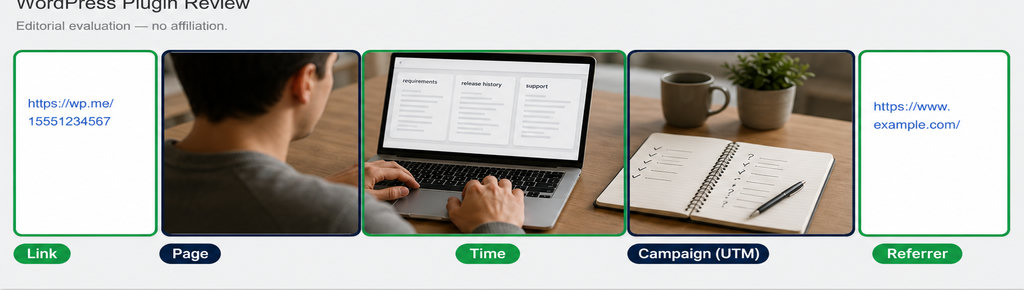
Read more WhatsApp tracking guides
If tracking customer inquiries is your use case, understand what click records can—and cannot—tell you before evaluating a plugin. Read more WhatsApp tracking guides
Give each test a version and reference code
Create an evaluation reference, such as the code below, in a maintained document or support ticket. Record the plugin version, WordPress and PHP versions, active theme, relevant plugins, test date, and tester. That context makes a bug reproducible instead of merely memorable.
For every important action, write an expected result and the actual outcome. “Contact button works” is too vague. “Tapping the mobile contact button opens the intended conversation and records one click” gives you something to verify.
- For a tracking plugin, test the page, UTM parameters, and referrer recorded for each click. Compare them with a known test URL and document missing values; a direct visit may have no referrer. Use a recognisable campaign tag to distinguish test traffic from real inquiries.
- Keep the issue reference beside failures, screenshots, and retest results. After an update, rerun affected tests rather than assuming the release note proves the fix on your site.
Track WhatsApp clicks free with WhatsLink. For this tracking workflow, check which fields the free plugin documents recording. Verify those records against your controlled test visits. Track WhatsApp clicks free with WhatsLink
How to check that an early-access plugin works
- Take a complete backup before installation. WordPress’s backup guidance covers both files and the database; saving only one leaves recovery incomplete. Ask your host how restoration works, then rehearse it on staging. A backup you cannot restore is not a recovery plan.
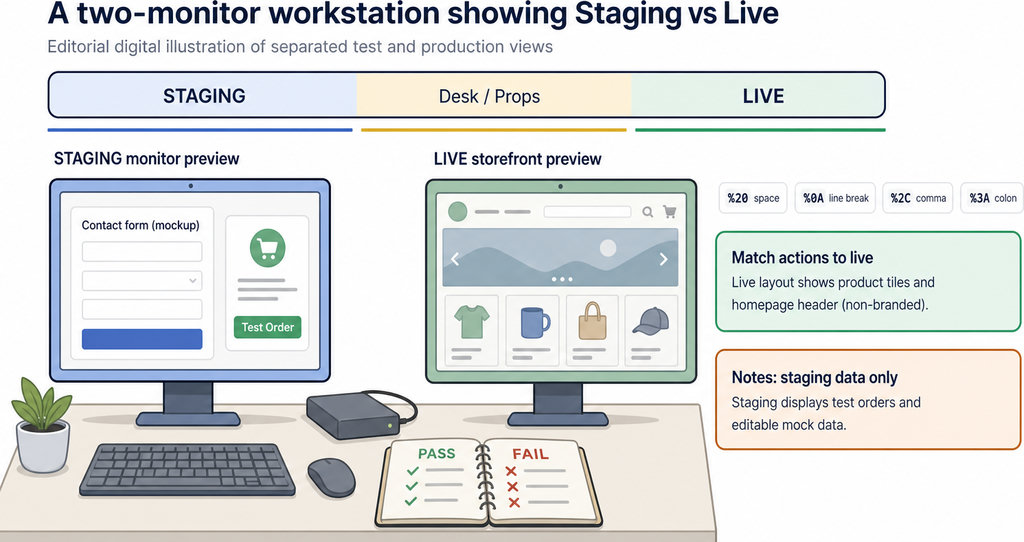
- Make staging reflect the live site’s relevant configuration: PHP version, theme, plugins, caching, and scheduled tasks. Protect the copy from public access and search indexing. Disable real payment collection and customer notifications, using sandbox integrations where available.
- Test the whole customer journey, not just activation. Submit an inquiry, complete a test checkout if applicable, check account access, and try mobile layouts. Repeat relevant actions while logged out and with caching enabled. For integrations, confirm the destination receives the expected event—not merely that WordPress reports success.
- Exercise settings, permissions, activation, deactivation, and an available update. Check whether existing data survives. WordPress distinguishes deactivation from uninstalling: deleting a plugin can trigger cleanup of its settings or tables. Establish the plugin’s documented behaviour before testing deletion.
Write down the rollback procedure: who can disable the plugin, where the previous package comes from, and whether database restoration is necessary. Automatic update recovery is not a general undo button for later failures. Restoring an older live database can also discard new orders or inquiries, so plan around incoming data.
Keeping the evaluation record in WordPress
Use the Plugins screen to confirm the installed version before each test. Keep your approval record in a checklist or ticket; WordPress does not provide a built-in early-access approval log. On staging, inspect diagnostic evidence alongside visible results. WordPress advises against using its debugging tools on live sites. Save relevant errors before clearing the log, and do not mistake an empty log for proof that every workflow passed. For client-site preparation, WordPress Plugins for Developers: Debug & Staging Tools covers the supporting tools.
Make a go/no-go decision against your recorded criteria. Wait if critical tests fail, production use is discouraged, or support and recovery remain unclear. Otherwise, choose a quiet deployment window, name the person responsible, and repeat essential checks immediately after launch. Keep advertising integrations separate from basic click logging: test each destination before relying on its reports. Send WhatsApp clicks to your ads and your team with WhatsLink PRO. For sites running ads, check PRO’s documented integrations and reporting options before purchasing. Explore WhatsLink PRO
What WhatsLink records for each click
- The page and post type where the click happened
- The WhatsApp, Telegram or phone link clicked, with its pre-filled text
- UTM source, medium and campaign of that page
- The referrer and the date and time
- No IP address, location or device