
On this page
WordPress Settings Link Expired? Check Admin Page Caching
If your WordPress plugin settings page says “The link you followed has expired,” check whether an admin page is cached before blaming the plugin. A saved copy can contain an outdated security token, but the message alone does not prove caching caused the failure.
WordPress uses a temporary security token, called a nonce, to check forms and action links. It is tied to an action, user session, and time window. By default, validity varies from approximately 12 to 24 hours; signing out can invalidate a token sooner. The WordPress nonce documentation explains why an old dashboard tab can fail even when you are currently logged in. First identify the exact triggering action: opening settings, saving changes, or uploading a plugin ZIP. An upload failure needs separate checks for request-size limits; those are not the first thing to change when an ordinary settings screen will not open. A newly installed plugin can encounter an old page or changed session. Installation timing is not enough to identify the extension as defective.
Which Cache Could Be Serving an Old Admin Page?
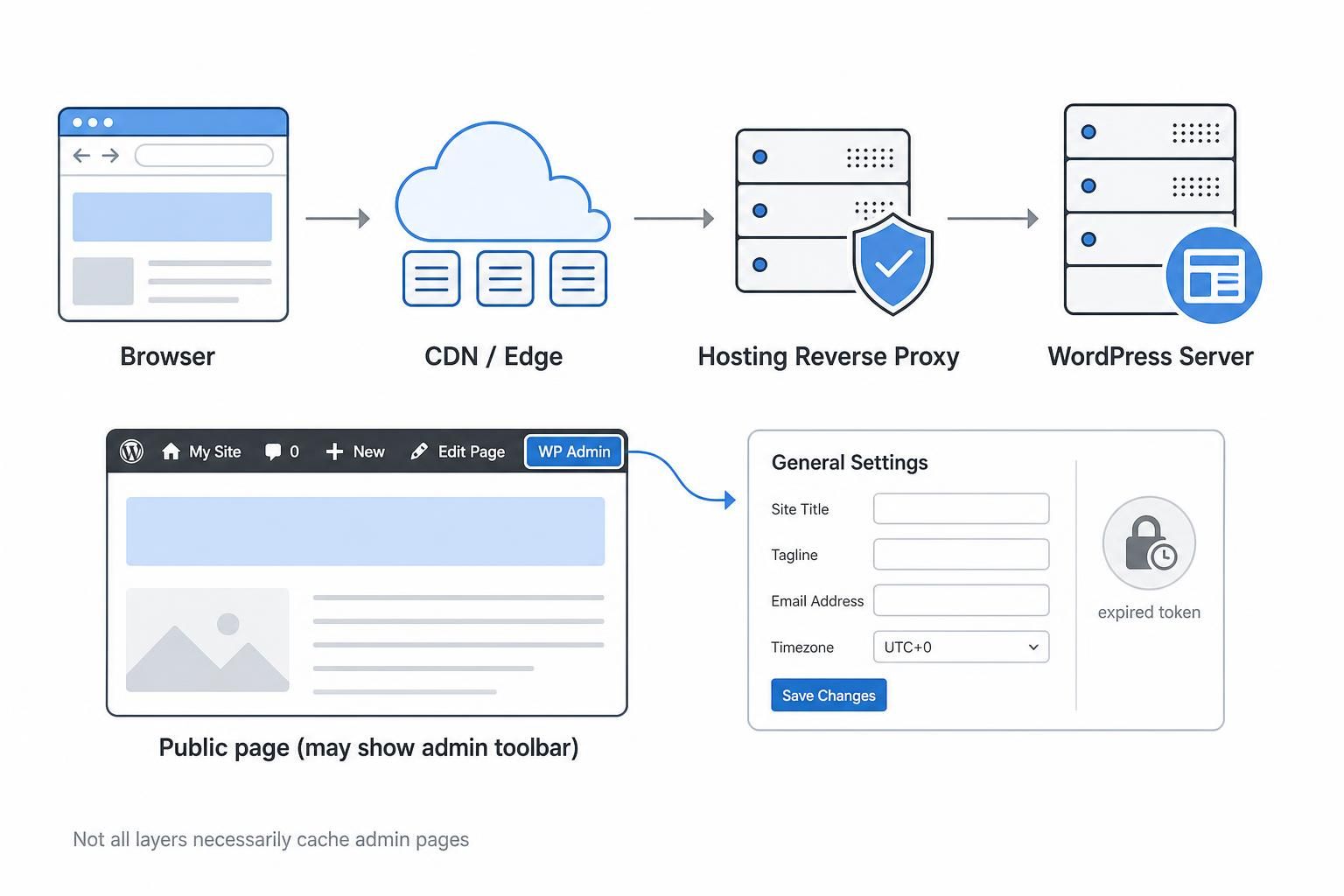
A saved copy of a page can come from your browser, a WordPress page-cache plugin, your hosting platform’s reverse proxy, or a CDN. Identify which layers your client’s site actually uses before changing settings.
The problematic copy is not always the settings screen itself. A cached administration-toolbar link on a public page can carry an old token into the dashboard. Open the plugin’s settings from the dashboard menu instead of reusing a toolbar shortcut, bookmark, or previously copied action URL.
- Distinguish full-page caching from caching images, scripts, or database objects. Cached CSS does not, by itself, explain an expired token in a settings form. Do not disable every performance feature because one administrative action failed.
- Change one layer at a time. Record the active cache layers. Otherwise, a successful retry will tell you little about what fixed the problem.
Looking for WhatsApp tracking guidance instead? The separate guide collection covers WhatsApp click tracking on WordPress. Read more WhatsApp tracking guides
Check the Security Token and Refresh Your Session
Before refreshing anything, preserve unsaved work by copying entered settings somewhere safe. Then sign out, sign back in, and close old dashboard tabs. Open a new settings screen through the WordPress administration menu.
This gives the form an opportunity to receive a fresh token for your current session. Logging in again does not update forms already loaded in other tabs.
- Repeat the same action that failed. If saving now works, the result is consistent with stale page state or a session change; it does not yet identify a cache layer. If the error immediately returns on a newly opened screen, move on to a controlled cache test.
- Do not disable nonce validation in plugin code or manually replace
_wpnoncevalues in URLs. That removes a security safeguard rather than fixing the source of stale content. - Keep the test action consistent. Opening settings successfully is not equivalent to saving successfully, so verify the operation that originally failed.
How to Check Whether Admin Pages Are Cached
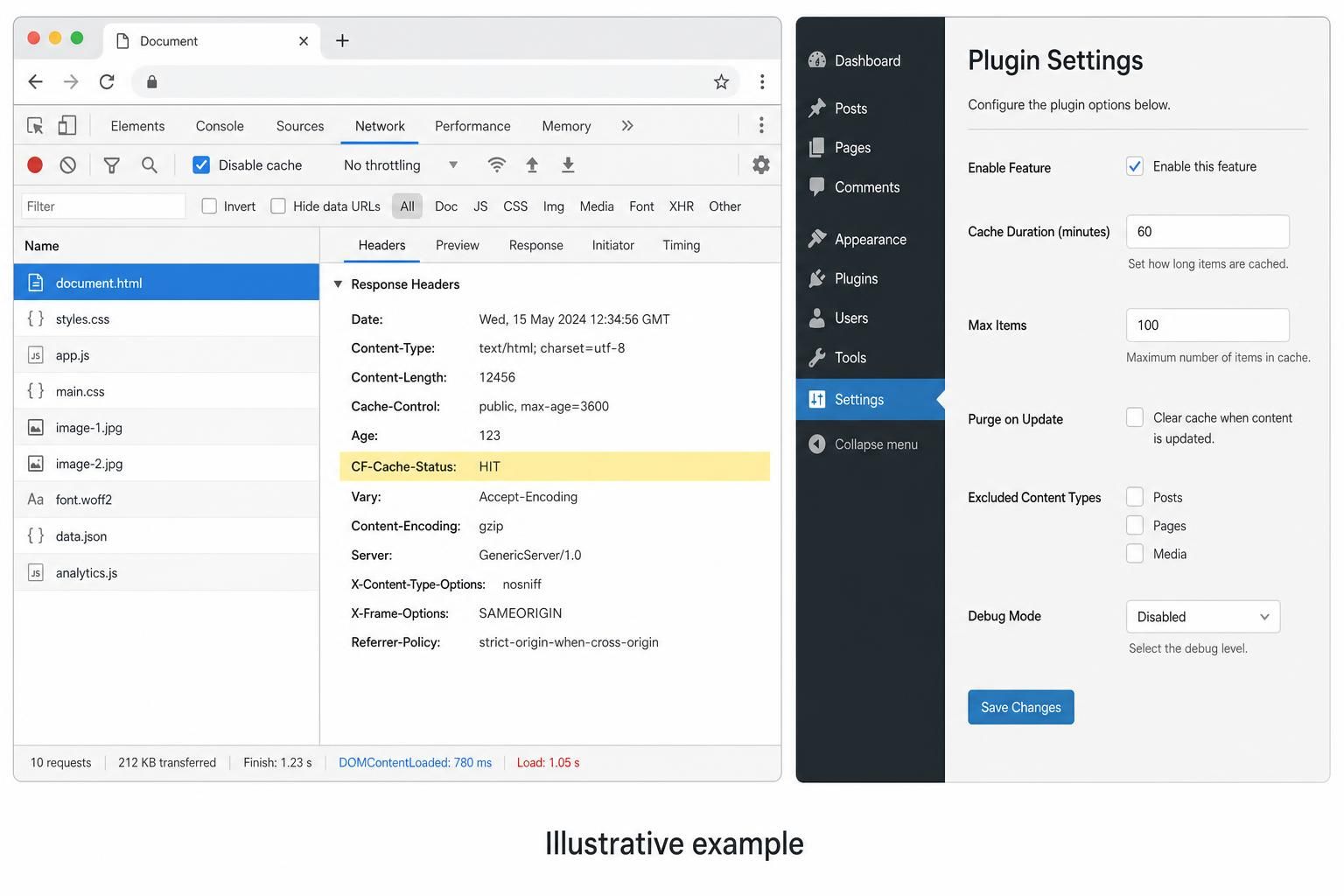
In Chrome, open Developer Tools, select Network, enable Disable cache, and keep Developer Tools open while reloading the settings screen. This switch controls browser caching; it does not purge your hosting cache or CDN. The Chrome Network reference explains the cache control and response-header views. Select the main HTML document, not an image, stylesheet, or script. Inspect its response headers for cache-status information from your provider. If saving triggers another request, inspect that request too, without sharing its form data.
For Cloudflare, CF-Cache-Status: HIT means that response came from its cache. Seeing that on authenticated administration HTML is evidence to investigate. However, DYNAMIC or BYPASS does not prove that a separate hosting cache was bypassed, as the Cloudflare cache-status documentation makes clear about its own response statuses.
- Test one server-side cache layer. Repeat the reload and save test after temporarily bypassing it through its supported controls.
- A single miss is not proof that subsequent responses cannot be cached. Ask your host to inspect origin caching if the headers are unclear.
- Treat a successful bypass test as evidence, not a complete diagnosis: record which layer changed and whether the same action then succeeded.
Fix Cache Rules and Collect Evidence in WordPress
- Check exclusions for the site’s actual administration path, login endpoint, and authenticated sessions. On a standard installation, review
/wp-admin/and/wp-login.php; account for any custom routing. Ask the host or CDN provider to verify logged-in-cookie bypass rules rather than copying an unrelated configuration. - Purge affected cached copies after correcting rules, reopen settings, and repeat the original action. A purge alone is temporary if the rules still allow administrative responses to be cached.
- Send support sanitized evidence if the failure remains: the triggering action, timestamp and timezone, affected screen, WordPress and plugin versions, cache layers, and results after fresh login and bypass testing. Never share passwords, session cookies, or security tokens. Use the WordPress troubleshooting guides for further isolation steps.
- Test the plugin’s actual task separately once settings work. For WhatsApp tracking, recording each click’s page, UTM parameters, and referrer helps identify where contacts originate; it does not diagnose expired admin tokens.
Need that click context after setup? WhatsLink’s free version records the page, UTM parameters, and referrer of each click. Track WhatsApp clicks free with WhatsLink
For paid campaigns, clicks are not confirmed conversations or sales. Keep that distinction when deciding which actions to report as advertising conversions.
Running ads and sharing click activity with your team? WhatsLink PRO sends clicks to Google Ads, the Meta Pixel, and GA4 as conversions, exports clicks as CSV, and emails every click. It does not connect directly to a CRM. Send WhatsApp clicks to your ads and your team with WhatsLink PRO
What WhatsLink records for each click
- The page and post type where the click happened
- The WhatsApp, Telegram or phone link clicked, with its pre-filled text
- UTM source, medium and campaign of that page
- The referrer and the date and time
- No IP address, location or device