
On this page
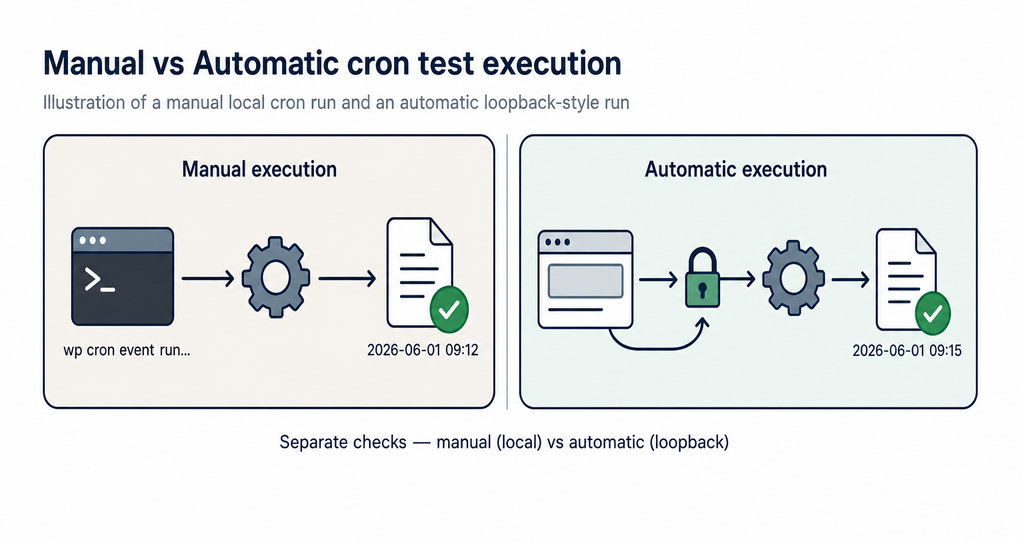
To test a WordPress plugin cron task on a password-protected staging site, run the specific event, check its actual result, then test automatic execution separately. A successful manual run proves something different from a task running unattended at its scheduled time.
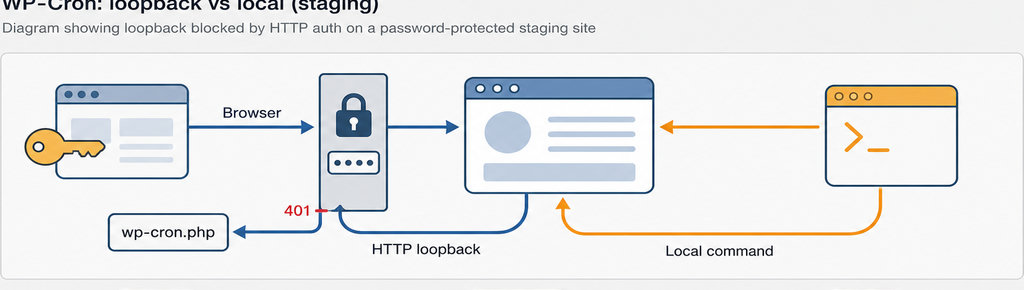
WordPress normally starts background processing through a loopback request: the website contacts its own wp-cron.php endpoint. Whole-site HTTP password protection can block that request even while the dashboard works in your browser. An ordinary WordPress administrator login is not the same restriction, and not every privacy tool blocks cron.
Test WordPress Plugin Cron on Password-Protected Staging
Separate task execution from automatic triggering before blaming the plugin.
WP-Cron also depends on requests reaching the site, so a quiet staging installation can run events late even without an authentication problem. WordPress explains this request-based mechanism in its WP-Cron reference.
Which Plugin Task Ran on Your Staging Site?
Start in Tools → Cron Events if you use WP Crontrol. Find the plugin’s event and note its hook name, arguments, recurrence, and next scheduled run. The plugin’s public name may not resemble its hook, so check its documentation or ask its developer rather than guessing.
With terminal access, run wp cron event list from the staging WordPress installation. Confirm you are targeting staging, especially when production and staging share a hosting account. On multisite, select the intended site with the appropriate --url argument.
- Registration: An event appearing in the list proves only that it is registered. It does not prove its callback completed or produced the expected result.
- Callback and arguments: Check the callback associated with the hook where available; multiple events can share a hook but have different arguments. Avoid treating them as interchangeable.
If your staging copy reports an activation problem, check whether one plugin license covers staging and production before interpreting a missing event as a scheduling defect.
Read more WhatsApp tracking guides
If the plugin you are evaluating tracks WhatsApp interactions, these guides explain the click-tracking side of your test.
Read more WhatsApp tracking guides
Tag the Test Run with a Reference Code
Use a reference code such as the example below in a supported test record, filename, or developer-added log message. This is a testing convention, not a feature every plugin provides.
Record the timestamp and expected result before execution. For example, identify the test record a cleanup job should remove or the sandbox destination that should receive a notification. A distinctive marker separates your run from older staging activity.
- Do not change cron arguments. Do not insert that marker into cron arguments unless the plugin explicitly supports it. Those arguments are inputs to the callback; changing them can alter the task or invalidate the test.
- Keep click evidence separate. For a WhatsApp tracking test, record the page, UTM parameters, and referrer of the test click where available. A captured click confirms tracking, not that an unrelated scheduled task ran.
Track WhatsApp clicks free with WhatsLink
Check click evidence independently of scheduled tasks.
Track WhatsApp clicks free with WhatsLink
How to Check That the Scheduled Task Works
- Back up staging and choose safe test data. Disable real customer notifications or use sandbox destinations where the plugin supports them. Staging may still contain production email addresses, API credentials, or payment connections.
- Run the specific event. From the staging installation, run
wp cron event run your_plugin_hook, replacingyour_plugin_hookwith the actual hook. Prefer a targeted run over--due-now, which runs every due event. If several events share that hook, inspect their arguments and use an event-specific approach before executing anything destructive. - Check the expected result. Look for the generated file, changed test record, or sandbox notification, not just the command’s success message. WordPress documents the command’s behavior in its cron event run reference. Local WP-CLI execution avoids the website’s HTTP password gate, so success here does not validate normal spawning.
- Test automatic spawning. Next, run
wp cron test. A 401 response points toward authentication; a 403 indicates forbidden access and needs investigation of access or security rules. Give hosting support the staging hostname, timestamp, hook name, and exact error. Ask whether the server can reach its ownwp-cron.phpendpoint.
Ask for a narrowly scoped access solution rather than removing staging protection. An external HTTP scheduler still needs authorization; a local server-side runner uses a different route. If DISABLE_WP_CRON is enabled, identify the intended replacement scheduler instead of assuming visitor requests should trigger it.
Finally, leave a fresh test pending, allow its scheduled time to pass, and verify its result without manually running it. A passing Site Health loopback check alone is not end-to-end proof.
Getting the Test Log in WordPress
Temporarily configure WP_DEBUG and WP_DEBUG_LOG as true, with WP_DEBUG_DISPLAY set to false in wp-config.php. Edit existing definitions rather than duplicating them. These settings enable background error logging without displaying errors to visitors, as described in WordPress’s debugging documentation.
The default file is wp-content/debug.log. It captures errors and explicit logging, not a complete execution history. A developer can add start, completion, and failure messages containing your reference code. No log entry does not necessarily mean no execution.
If the plugin uses Action Scheduler, inspect its scheduled-action records for starts, completions, and failures. Viewing debug.log does not create missing task instrumentation. Protect logs from public access and restore debugging settings after testing.
For broader client-site troubleshooting, use the WordPress debug and staging tools guide to choose tools around the evidence you need.
Keep advertising conversions separate from staging checks: a test click should not become a real campaign conversion.
Send WhatsApp clicks to your ads and your team with WhatsLink PRO
For production campaigns, PRO sends WhatsApp clicks to your ads and your team. Keep staging tests outside production measurement.
Explore WhatsLink PRO