
On this page
WordPress Plugin Requires Newer PHP: Upgrade or Go Older?
When a WordPress plugin requires newer PHP, prefer upgrading PHP to a supported version that passes testing on your website. Install an older plugin version only as a temporary exception, after checking its compatibility, security maintenance and available support.
PHP is the language your hosting server runs to execute WordPress. Updating WordPress does not update PHP: that change normally happens through your hosting control panel or hosting support. The decision is not simply “new versus old.” You need a plugin release that works, a PHP version receiving security fixes, and a website whose other components remain compatible. Meeting the plugin’s minimum requirement answers only the first question. An older release may unblock installation while leaving you without security fixes or features you need. A PHP upgrade may support the new plugin while breaking an outdated theme or custom integration. Test the complete setup, not just the plugin that triggered the warning.
Which part of your WordPress setup needs newer PHP?
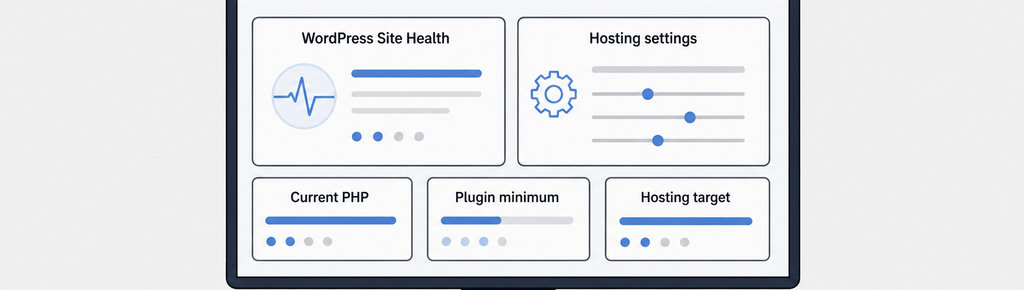
Open Tools → Site Health → Info → Server in WordPress and find the PHP version. Compare it with the exact plugin release’s “Requires PHP” value, shown on its WordPress.org listing or in the developer’s documentation.
Check the website’s actual PHP version, not only the hosting account’s default. Different sites under one account can use different settings. If the hosting panel and WordPress disagree, ask the host which PHP version serves that website.
- Choose a supported PHP branch. Choose a target from the PHP branches still receiving support, with your host’s current security patches installed. The plugin’s minimum is a compatibility floor, not necessarily a sensible long-term destination.
- Check your other components. Your theme, other plugins and custom code also need checking. If one abandoned component blocks a supported PHP version, replacing that component may be more sustainable than holding the whole site back.
Do not edit “Requires PHP” to bypass the warning. Changing a declaration does not rewrite incompatible code.
Read more WhatsApp tracking guides
If this requirement appeared while setting up WhatsApp tracking, these guides explain the tracking side separately from hosting compatibility. Read more WhatsApp tracking guides
Record the exact versions and test your chosen fix
Write down the current and proposed versions of PHP, WordPress, your active theme and the affected plugin. Include important dependencies, such as an ecommerce plugin or an add-on required by the plugin you want to install. Send those details to the developer before buying or selecting an older release. Ask: “Does your current release support this setup? Is an older compatible branch still maintained? Does that release include the features I need?” Look for explicit maintenance information, not just a downloadable ZIP. A release date alone does not tell you whether security fixes are still provided. Ask whether fixes reach the older branch and whether support covers it. If you choose an older version, set a migration deadline and identify what must change before then. “Until the checkout extension supports the new PHP version” is actionable only if someone owns that work and there is a review date. If neither route has a defensible maintenance plan, choose a different plugin or dependency rather than bypassing requirements.
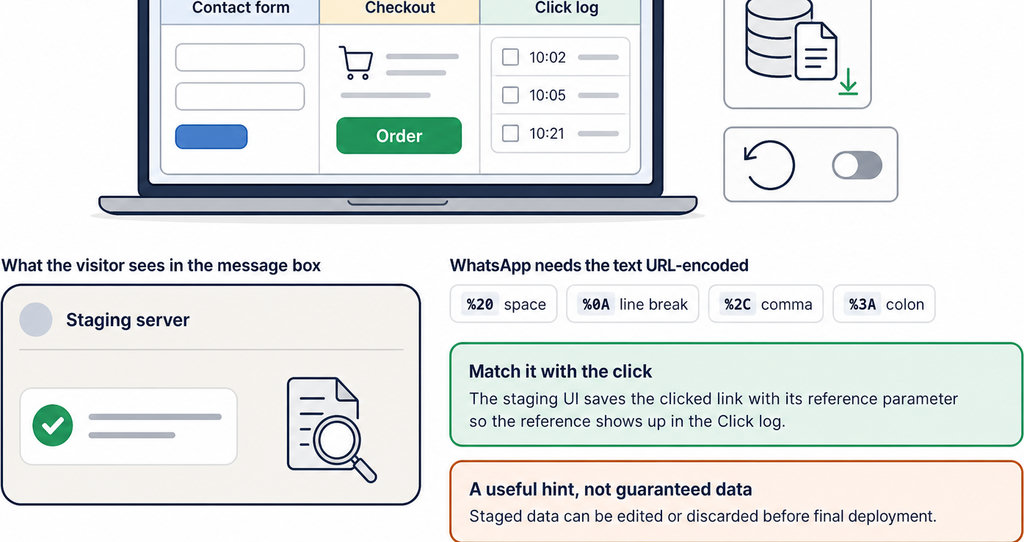
Use a staging copy of the website with the same relevant configuration as production. Before changing anything, take a restorable backup of both files and database, and confirm how your host lets you restore the previous PHP setting. A website backup does not itself reverse a hosting-level PHP change; WordPress’s PHP update guidance treats these as separate recovery steps. Change one variable at a time. Test the PHP upgrade with existing components first, then install the intended plugin release. For an older release, test that exact ZIP rather than assuming all releases in the same series behave alike. Check activation, administration, forms, scheduled tasks and any purchase or payment flow your site uses. Review PHP error logs as well as visible pages. A clean homepage does not prove that checkout or background processing works. For a WhatsApp tracking setup, test whether a click records the page, UTM parameters and referrer when available. Check the saved record, not merely whether WhatsApp opens. Browser privacy settings and the visitor’s route can affect available attribution.
Track WhatsApp clicks free with WhatsLink. When testing your setup, check that click tracking works as expected. Track WhatsApp clicks free with WhatsLink. Compatibility scanners can help identify problems, but working site flows are the decisive check.
Installing the compatible plugin version in WordPress
- For an upgrade, switch production PHP only after testing, then repeat the essential checks. Keep your recovery procedure available during the change.
- For an older plugin, use WordPress.org’s Advanced View, where previous releases are available, or a download supplied by the developer. WordPress.org explicitly warns that previous versions may be insecure or unstable. An official archive establishes provenance, not continued maintenance.
- Test the replacement through Plugins → Add New → Upload Plugin on staging first. Downgrading an existing installation deserves extra care: an older release may not understand database changes made by a newer one. Ask the developer before replacing files, and retain the matching database backup.
- Check missing dependencies separately. If activation then reports a missing dependency, follow WordPress Cannot Activate a Plugin: Missing Required Plugins; that is a separate requirement, not evidence that PHP is still wrong.
Before purchasing, send the seller your tested versions and required features. Confirm compatibility before committing, rather than assuming a legacy download will solve the problem.
Send WhatsApp clicks to your ads and your team with WhatsLink PRO
For sites running ads, confirm that WhatsLink PRO meets your tracking requirements before purchasing. Explore WhatsLink PRO
What WhatsLink records for each click
- The page and post type where the click happened
- The WhatsApp, Telegram or phone link clicked, with its pre-filled text
- UTM source, medium and campaign of that page
- The referrer and the date and time
- No IP address, location or device