
On this page
- WordPress Dynamic Number Insertion: Fix the tel: Link
- Dynamic Number Insertion in WordPress: Keep the Number and tel: Link in Sync
- Which phone button did visitors click on your website?
- Tag each phone link with a stable reference
- How to check that your dynamic phone link works
- Getting a reliable phone-click log in WordPress
- Official sources
WordPress Dynamic Number Insertion: Fix the tel: Link
Dynamic Number Insertion in WordPress: Keep the Number and tel: Link in Sync
If WordPress dynamic number insertion changes the displayed number but the tel: link is not changing, your replacement is updating only part of the phone link. The visible text and the dialing destination are separate values; both must receive the tracking number.
For example, <a href="tel:+12025550123">202-555-0199</a> displays a number ending in 0199 but calls one ending in 0123. The anchor’s href determines the destination, not the text between its tags.
- Inspect the live link after number replacement runs. Right-click the number, choose Inspect, and find the surrounding
<a>element. Compare itshrefwith the displayed number, ignoring formatting such as spaces and hyphens. Inspect the rendered page, not just View Source: JavaScript replacements happen after the original HTML loads. - Check the Elementor Link field. For an Elementor phone button, check the widget’s Link field as well as its text. Updating a heading or text widget does not necessarily update a separate button elsewhere.
Understand what click tracking can tell you
Explore the related guides to measuring WhatsApp button clicks and understanding their limits.
Read more WhatsApp tracking guides
Which phone button did visitors click on your website?
Number replacement chooses the telephone number a visitor sees and dials. Click tracking records an interaction with a link. A successful analytics event does not prove that the replacement worked: your event can fire while the button still calls the original number.
Distinguish your header number, footer link, sticky mobile button, and contact-page button. Otherwise, a report showing “phone click” cannot tell you which placement needs attention.
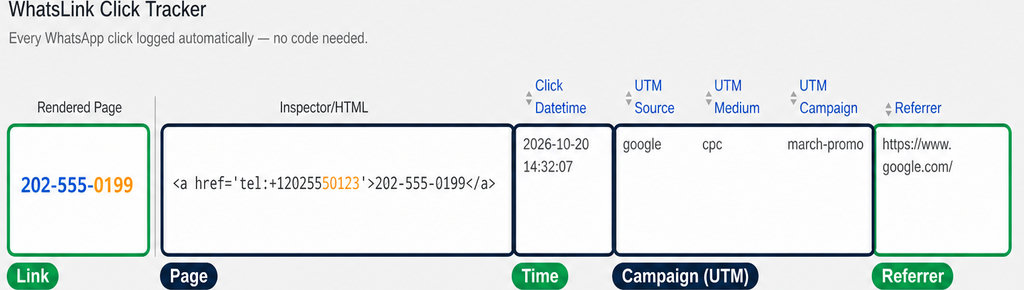
For attribution, the useful context includes the page URL, campaign UTM parameters, and the referrer when available. A referrer may be absent because of browser or privacy settings; an empty field is not automatically a tracking fault.
A phone-link click is not a connected call. Visitors can cancel the dialing prompt, and a call can go unanswered. Google distinguishes these conversion categories in its conversion documentation. Use your call-tracking provider’s call records when you need evidence of actual calls, rather than treating every button press as a conversation.
Tag each phone link with a stable reference
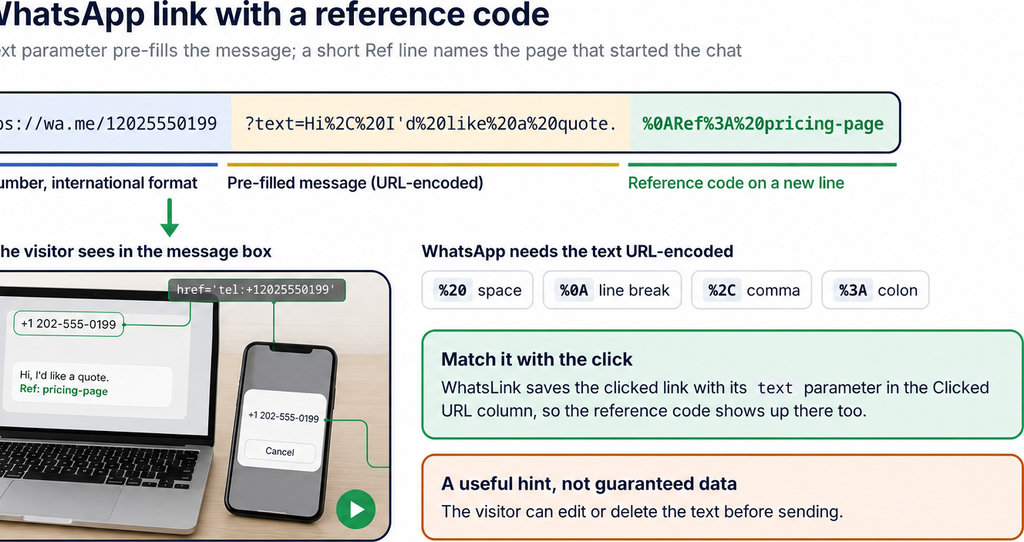
Give each placement a stable identifier, such as data-phone-location="header". This lets a developer target the intended anchor without relying on its current number, which changes during replacement. The attribute alone does not trigger replacement or create analytics reports.
Keep the identifier outside the telephone destination. Do not append campaign codes or placement names to tel:; those belong in tracking metadata, not the number being dialed.
- Use one provider-selected number to update both values. Google Ads demonstrates this in its clickable-number callback example: the callback updates the displayed number and assigns a
tel:destination. Use the callback and number formats documented by your own provider, rather than copying a Google-specific function into another service. - Preserve the button’s existing content. Replacing an entire anchor’s
textContentcan remove icons or nested labels. If the link contains “Call us” and a separate number span, update that span and the anchor’shref. A button labeled only “Call us” needs its destination updated, not its label replaced with digits.
How to check that your dynamic phone link works
- Test under your provider’s replacement conditions. If numbers change only for qualifying advertising visits, an ordinary direct visit may correctly show the original number. Follow the provider’s test procedure before assuming replacement has failed.
- Compare the displayed number, live href, and dialing prompt. After replacement, compare the displayed number, the live
href, and the destination shown by an actual phone’s dialing prompt. Cancel before calling unless you intend to make a test call. Repeat for the header, footer, sticky button, and any separate mobile layout. - Open popups before inspecting them. Content inserted after the initial scan may require another replacement pass. For example, CallRail documents
CallTrk.swap(nodeOrSelector)for rescanning content. Other services have different APIs. - Prefer documented callbacks or rescanning to an arbitrary delay. A developer can use a
MutationObserverfor dynamically inserted elements, but it must be scoped to avoid repeated updates or loops.
If behavior differs between logged-in and logged-out visits, investigate page caching and delayed or deferred scripts on staging. Temporarily disable the relevant optimization, retest, and restore settings individually. Clearing caches cannot repair code that never updates href.
Getting a reliable phone-click log in WordPress
Repair the dialing destination first, then verify that your logger captures the intended links, including buttons added after page load. Do not assume that supporting ordinary telephone links guarantees compatibility with every popup or replacement integration.
For a lightweight attribution log, check whether WhatsLink Click Tracker Free supports the interactions and context you need.
Record where contact clicks come from
Review the free plugin’s documentation for compatibility with your intended setup before testing it.
Track WhatsApp clicks free with WhatsLink
Keep click reports and call records separate when judging campaign results. A click log helps diagnose placements and attribution; your number provider remains responsible for number assignment and call reporting.
If you advertise, check that your conversion definition describes a click rather than a completed call before using those events to evaluate campaigns.
Use contact-click data in your advertising workflow
Review WhatsLink PRO’s documentation to check whether it supports your advertising and team-reporting needs.
Send WhatsApp clicks to your ads and your team with WhatsLink PRO