
On this page
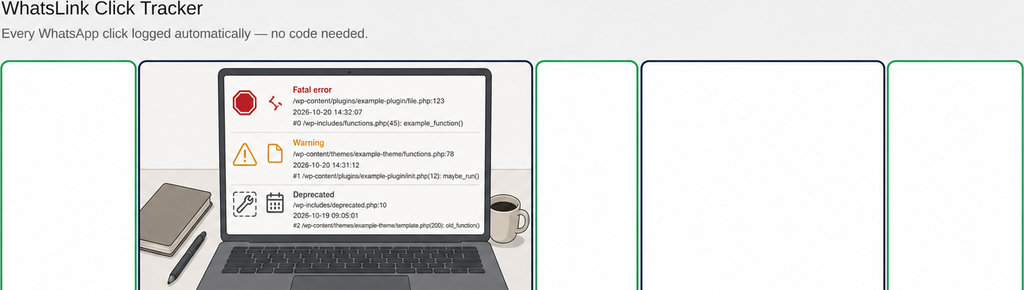
When WordPress debug.log contains a warning, deprecated notice, or fatal error, fix current fatal errors first, then warnings connected to broken features, then compatibility notices. That order is a practical starting point, not an absolute rule: a warning breaking checkout matters more than a fatal error from last month that never returned.
A fatal error stops the affected PHP request. It does not necessarily take down the whole website: the failed request might handle checkout, a dashboard action, or scheduled work while your homepage still loads.
A warning allows execution to continue, but the result may still be wrong. A failed file operation, for example, can leave an expected output missing. A deprecated notice flags code that needs future compatibility work; it does not mean the feature has already been removed. PHP documents these distinctions in its error-level definitions. Ordinary notices generally come after functional failures, unless they help explain one.
Check the timestamp and the affected operation before choosing your next task. If access is broken now, restore it before tackling compatibility maintenance. If deprecations appeared after a PHP upgrade, schedule testing and component updates rather than assuming every new entry represents a new outage.
Which plugin, theme, or process triggered the message?
Start with the full message, not just its severity label. Read the timestamp, reported file, line number, and any following stack trace together. A path containing wp-content/plugins/example-plugin/ identifies code involved in the failure, but it is not conclusive proof that this plugin caused it.
The stack trace can show how execution reached that file. A theme might pass an unsuitable value to a plugin, or an extension might call a WordPress function incorrectly. An error reported inside WordPress core is therefore not a reason to edit core files.
- Identify the affected process. Did the message appear during login, a form submission, an import, or a scheduled task? WordPress debugging covers requests beyond ordinary page views, so a working homepage is not a complete health check; see the WordPress debugging documentation.
- Collect useful support details. For a useful support request, collect the exact error, reproduction steps, WordPress and PHP versions, and relevant plugin or theme versions.
- Redact sensitive information before sharing logs: paths, query strings, and message content can reveal details that do not belong in a public support thread.
Match the log entry to a specific action
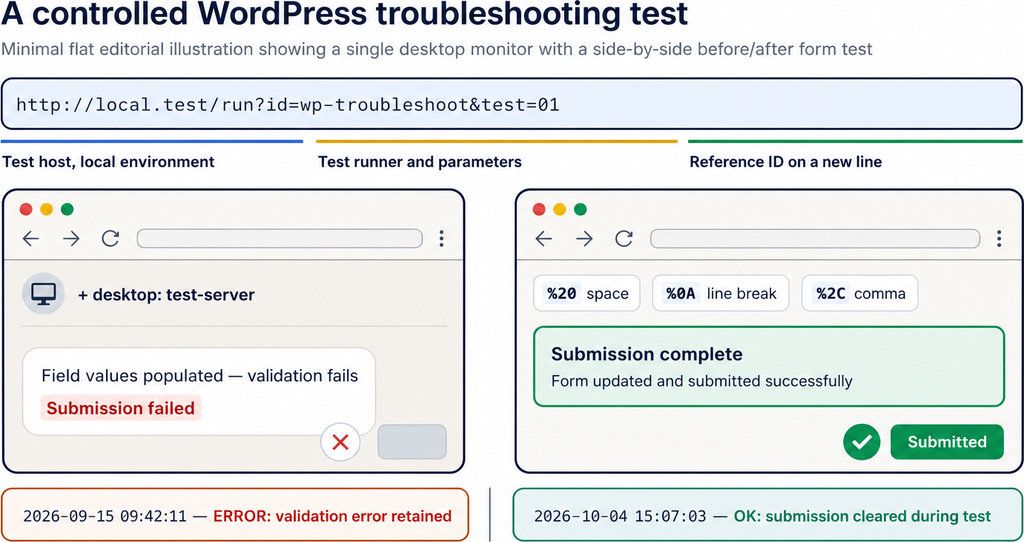
Record the reproduction time, including its timezone, then perform the failing action once. Note the page, button, expected result, and actual result. Compare that moment with fresh log entries instead of treating everything already in the file as part of the same incident.
Suppose clicking a contact button fails at 14:32. A matching warning is a lead, not proof. Repeat the action under controlled conditions and look for the same message. If it also appears when nobody clicks the button, a background task or unrelated request may be responsible.
- Distinguish the PHP error log from the click record. For a WhatsApp journey, recording the page, UTM parameters, and referrer helps identify the contact journey you tested; it does not establish that a conversation happened or explain a PHP failure. The timestamp links those two investigations.
Track WhatsApp clicks free with WhatsLink. Use WhatsLink to track WhatsApp clicks when checking a contact journey. Track WhatsApp clicks free with WhatsLink. A developer can add a non-sensitive diagnostic marker for a difficult reproduction, but site owners do not need to edit PHP to make a useful report.
How to check that your fix actually works
- Take a current backup before updates or troubleshooting changes, and use staging when available. Change one component at a time so you can tell whether an update, configuration adjustment, or plugin replacement made the difference. Avoid disabling checkout dependencies on a live shop just to test a theory.
- Repeat the original failing action, not merely a homepage refresh. For checkout, verify that the order completes as expected; for a scheduled task, check its output after the task runs. A page loading successfully does not establish that the underlying operation succeeded.
- Compare fresh log entries from the retest. Historical messages remain historical evidence; they do not disappear because the code is fixed. Conversely, silence in the log is insufficient if the feature still fails or logging has been disabled.
- Keep errors hidden from visitors while investigating. Turning off public error display protects visitors from diagnostic output, but suppressing a message is not a repair. For deprecations, test the updated component against your intended PHP version before changing production.
Reviewing these messages in WordPress
If dashboard access is available, Quick debug.log Viewer is a practical way to inspect the log without switching to FTP. Its documented tools include search, Fatal/Warning/Notice filters, and grouped stack traces. Check compatibility with your installation before installing it; the plugin directory listing provides its current status. Use search for deprecated messages rather than expecting a dedicated Deprecated filter. A viewer helps inspect evidence; it does not repair code or guarantee that the reported file identifies the root cause.
For the dashboard workflow, follow How to View WordPress debug.log Without FTP. If file growth is obstructing the investigation, WordPress debug.log: Location, Size, and How to Clear It covers that separate task. Once the affected feature works, verify its business reporting separately. Resolving a PHP error does not prove that advertising conversions are reaching their destinations. Send WhatsApp clicks to your ads and your team with WhatsLink PRO. WhatsLink PRO sends WhatsApp clicks to your ads and your team. Explore WhatsLink PRO.
What WhatsLink records for each click
- The page and post type where the click happened
- The WhatsApp, Telegram or phone link clicked, with its pre-filled text
- UTM source, medium and campaign of that page
- The referrer and the date and time
- No IP address, location or device