
On this page
- Exclude Staff WhatsApp Test Clicks Without IP Filters
- Can you exclude staff WhatsApp test clicks without an IP filter?
- Which WhatsApp clicks belong to staff rather than customers?
- Tag the pre-filled message with a test reference code
- How to test the WhatsApp button without losing customer clicks
- Getting a clean WhatsApp click log in WordPress
- Official sources
Exclude Staff WhatsApp Test Clicks Without IP Filters
To exclude staff WhatsApp test clicks in WordPress without an IP filter, identify the tester’s account or browser, then apply that identification to your click-tracking logic. This keeps customers on the same Wi-Fi eligible to be counted instead of excluding everyone behind the connection.
Can you exclude staff WhatsApp test clicks without an IP filter?
Yes, but the exclusion must use a signal your tracking setup can recognise: a designated staff account or a deliberately marked browser. A public IP address is a network identifier, not an employee identifier. A shop’s staff laptop and a customer’s phone can share the same outward-facing address.
Decide what “exclude” means before changing anything.
- Preventing collection stops the click reaching a particular destination.
- Labelling a click as a test retains it for inspection but lets you leave it out of production reports. An analytics processing filter discards matching events within that analytics platform.
These approaches do not clean the same places. Blocking a GA4 event does not necessarily stop a WordPress plugin recording the click locally. For initial testing, a test label is easier to inspect than an event that disappears entirely.
Read more WhatsApp tracking guides
Explore related guides on measuring website clicks and understanding what those clicks tell you.
Read more WhatsApp tracking guides
Which WhatsApp clicks belong to staff rather than customers?
For logged-in testing, ask your developer to expose a staff-testing flag based on designated accounts or an appropriate WordPress capability. WordPress capability checks provide a building block, not a ready-made WhatsApp exclusion. Do not exclude everybody logged in: customers may have accounts too.
For logged-out testing, use a browser marker, such as a first-party cookie named staff_test with the value 1. A custom implementation should:
- Enable the marker explicitly. Provide a deliberate way to turn it on.
- Read the marker. Make the click handler or Tag Manager read it.
- Provide a way to remove it. Define its expiry and verify it in every browser used for testing.
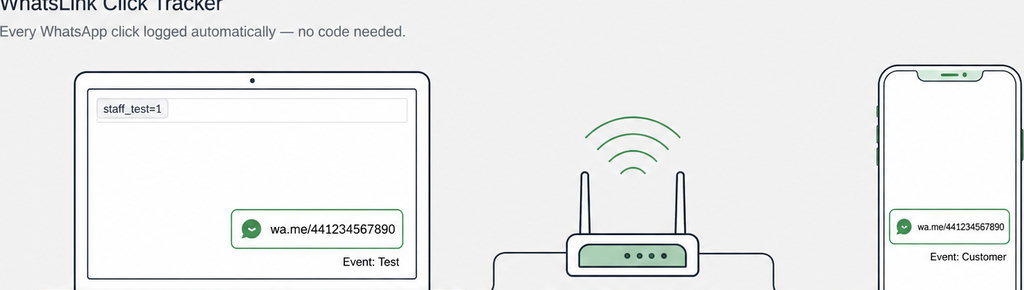
Google Tag Manager’s cookie and data-layer variables can expose the signal. Your developer must still connect it to the relevant event trigger or exception. Keep the marker separate from permissions: it identifies a testing session, not an authenticated employee.
- Apply the rule to the WhatsApp click event if that is all you need excluded. Do not disable unrelated measurement unnecessarily, and ensure cached pages cannot serve one visitor’s staff flag to another.
- For page and campaign context, check which click details WhatsLink Click Tracker Free records. Use that context to inspect tests, but do not assume it supplies the account or cookie exclusion described here.
Track WhatsApp clicks free with WhatsLink
Check which click details are available to help you inspect where button clicks originate.
Track WhatsApp clicks free with WhatsLink
Tag the pre-filled message with a test reference code
A pre-filled message helps the person answering WhatsApp recognise a test. Use a distinctive reference such as STAFF-TEST, rather than a realistic customer enquiry that someone might follow up. For example, a test link could use:
https://wa.me/15551234567?text=Hi%2C%20I'd%20like%20a%20quote.%0ARef%3A%20pricing-pageReplace the example number with your own full international number. WhatsApp’s click-to-chat instructions explain how URL-encoded text populates the chat’s message field.
- That reference is not an exclusion rule. Unless your tracking implementation explicitly checks it, the website still records the click normally.
- Prefer an account or browser signal so staff can also test the unchanged customer-facing link.
- Opening the chat does not establish that a message was sent. A staff member can check the destination and draft without sending anything; a customer can abandon the chat at exactly the same point.
How to test the WhatsApp button without losing customer clicks
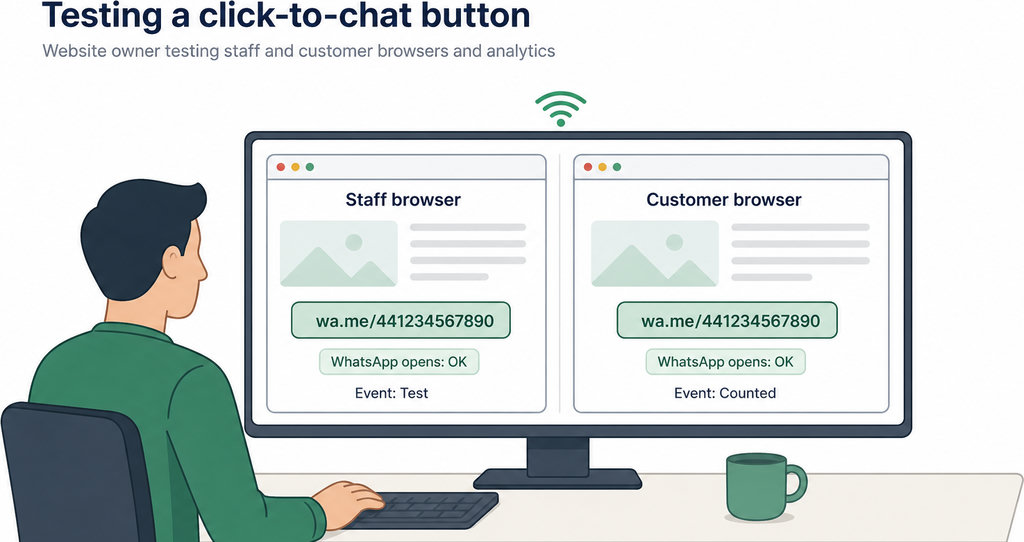
- Run a paired test on the same Wi-Fi. First, enable the staff marker or sign into the designated staff account. Click the button and confirm that WhatsApp opens the intended number with the expected draft. Check that the event is suppressed or labelled at each destination you intended to change.
- Next, use an unmarked browser on the same connection. A separate browser profile is useful, provided it has no staff login or test cookie. Repeat the click and verify that this customer-like event reaches the production count.
- Check the tracking result, not just whether WhatsApp opens. Record the test time and source page so you can distinguish your two clicks from real visitors. Consent choices and browser blocking can also affect whether an event arrives.
- If using GA4 debug mode, enable it only for the tester. DebugView does not itself exclude events from reports. Validate the Developer Traffic filter in Testing before activation; Google explains that active exclusion filters permanently discard matching data.
Getting a clean WhatsApp click log in WordPress
Treat the local WordPress log and external analytics as separate destinations. Before implementing an exclusion, establish where the plugin records the click and whether it offers a documented hook or exclusion control. Do not assume a Tag Manager exception changes the plugin’s database entries.
If local exclusion is unavailable, retain identifiable test records and remove them from your reporting only where the reporting tools support that distinction. Do not describe the raw log as customer-only.
For the initial recording setup, follow Track WhatsApp Button Clicks in WordPress (No Code). Then verify the exclusion separately rather than assuming installation handles it.
For advertising measurement, repeat the destination-by-destination check after changing tags or tracking settings. A clean local count does not prove that ad platforms received the same filtered events.
Send WhatsApp clicks to your ads and your team with WhatsLink PRO
Check PRO’s documented tracking destinations, export options and notifications. Verify your staff-test handling for each destination before using those conversions to assess campaigns.
Explore WhatsLink PRO
What WhatsLink records for each click
- The page and post type where the click happened
- The WhatsApp, Telegram or phone link clicked, with its pre-filled text
- UTM source, medium and campaign of that page
- The referrer and the date and time
- No IP address, location or device