
On this page
To check WordPress plugin accessibility before buying, test its live demo without a mouse, inspect its labels, and deliberately trigger form errors. These checks can reveal barriers that screenshots and feature descriptions cannot, but they cannot certify the plugin or your website as accessible.
Start with the exact interface you intend to use: the contact button, booking form, popup, or checkout component. A vendor’s accessible homepage tells you little about a separate product demo. If customers and staff use different interfaces, request access to both. Treat “accessible” or “WCAG compatible” as a claim requiring supporting evidence. Ask what version, configuration, and tasks were tested. W3C describes preliminary accessibility checks as a starting point rather than a comprehensive evaluation. Your purchasing goal is to identify blocking problems and unanswered questions before committing.
Can visitors use the plugin’s controls?
Open the demo and put the mouse aside. Press Tab to move forward and Shift+Tab to move backward. You should reach every interactive control in an understandable order. The focus indicator, usually an outline or other highlight, shows which control will receive keyboard input; it must remain visible, including beneath sticky headers.
Activate links with Enter and buttons with Enter or Space. Check menus, date pickers, and other controls involved in the task, not just the opening button. If an essential control cannot be reached or operated, record the failure rather than assuming your theme will fix it.
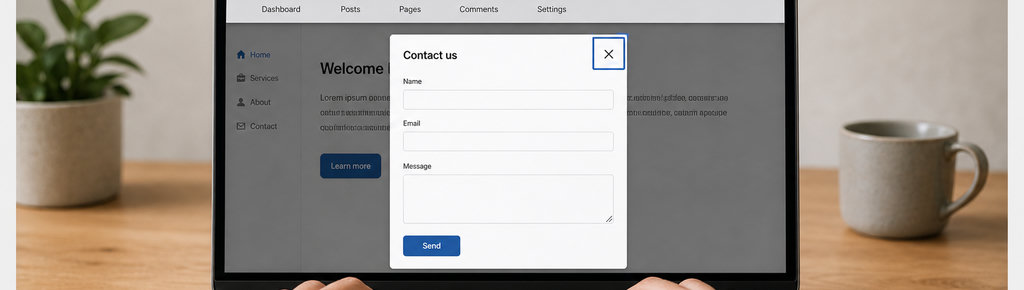
- Test modal focus. For a modal dialog, focus should move inside when it opens, remain inside while it is active, and return appropriately when it closes.
- Check for a keyboard trap. Keeping focus inside an open modal is intentional; being unable to close it and continue is a keyboard trap. Test the close control and Escape behavior.
Read more WhatsApp tracking guides
- If the interface you are evaluating opens WhatsApp, explore how contact links and click tracking work.
Give each accessibility test a reference code
Assign a short identifier such as FORM-01 to each finding. Record the demo address, plugin version if available, browser, device, and exact steps. Describe the expected result and what actually happened: “Submitting an empty email field shows a red border but no explanation” is actionable; “form inaccessible” is not.
Separate results into passed, failed, and not verified. An unavailable payment demo is untested, not a pass. Use the same tasks when comparing candidates, and retain screenshots or a short recording alongside your written findings.
- Keep click analytics separate. For contact buttons, keep accessibility findings separate from click analytics. Recording the page, UTM parameters, and referrer helps establish where contact attempts originate; it does not prove someone could operate the button or complete a conversation.
- Track WhatsApp clicks free with WhatsLink
- If you also need click tracking, explore WhatsLink Click Tracker’s free version. Keep your accessibility test notes separate from click analytics.
How to check that the plugin’s interface works
- Check labels before entering data. Fields need meaningful names that assistive technology can identify; nearby text is not necessarily associated with the input. Placeholder text disappears during typing and is not a substitute for a persistent label. Icon-only buttons also need names that explain their action.
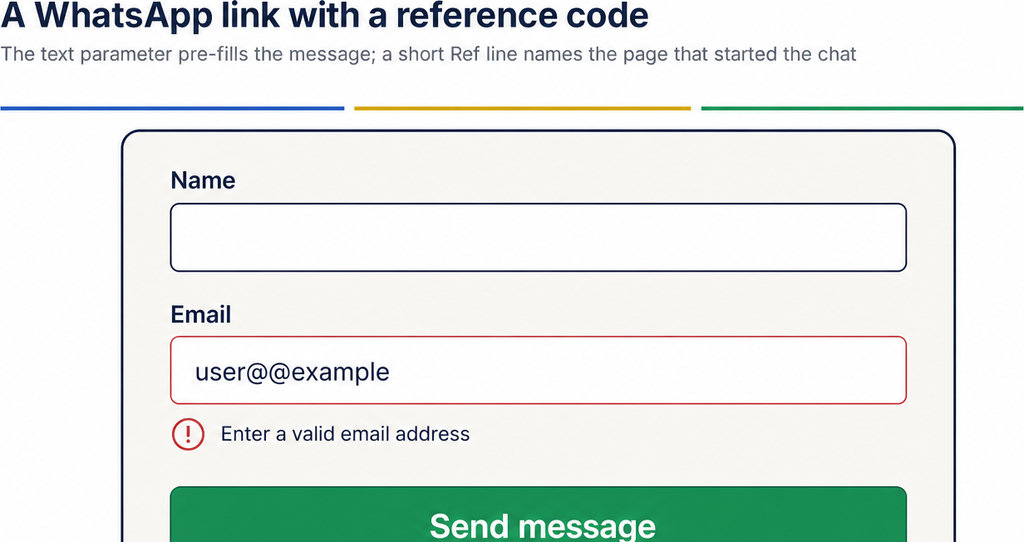
- Inspect error messages. In a safe demo, leave a required field empty and enter an invalid email address. Submit the form and inspect the error messages. They should identify the affected field and explain the correction, not rely on a red outline alone. Confirm that valid entries remain intact so users do not have to start again.
- Check success feedback. Complete a valid submission with test data where permitted. Look for understandable success feedback. With a screen reader such as NVDA or VoiceOver, check whether control names, required status, errors, and completion feedback are conveyed. If you are unfamiliar with screen readers, request a demonstration from an experienced tester rather than treating silence as proof of failure.
- Test zoom, layout, and contrast. Increase browser zoom to 200%, then inspect the interface on a narrow viewport. Check for clipped labels, overlapping controls, unreadable text, and buttons hidden outside the visible area. Use a contrast checker for text and control boundaries.
Run an automated scan on the demo as an additional check. Google explains that Lighthouse’s accessibility score excludes manual audits, so even a perfect score cannot validate the interaction you just tested.
Keeping an accessibility test log for WordPress
Keep your findings in a shared document or issue tracker. A test log is your purchasing evidence, not a feature you should assume the plugin supplies. Send unresolved findings to the vendor. Request version-specific evidence, known limitations, the accessibility reporting contact, and any planned fixes. An accessibility report is useful only if it covers the interface you will buy. This follows accessibility procurement guidance that recommends gathering documentation and testing access before selection.
Ask for a sandbox or trial to repeat your tasks with your theme and intended configuration; do not assume either is offered. For an early-release candidate, use the production checklist to assess deployment risks beyond accessibility. Make the purchase decision around essential tasks. If visitors cannot submit an enquiry, obtain a verified fix or choose another candidate. If a task remains untested, keep that uncertainty explicit.
What WhatsLink records for each click
- The page and post type where the click happened
- The WhatsApp, Telegram or phone link clicked, with its pre-filled text
- UTM source, medium and campaign of that page
- The referrer and the date and time
- No IP address, location or device