
On this page
- WordPress Plugin Broken by JavaScript Delay? Find Exclusions
- Can you find which script JavaScript delay breaks?
- Which script powers the broken feature on your website?
- Add a specific exclusion for the script and its dependencies
- How to check that your JavaScript exclusion works
- Keeping the fix in WordPress
- Official sources
WordPress Plugin Broken by JavaScript Delay? Find Exclusions
If a WordPress plugin breaks when JavaScript delay is enabled, the right script exclusion may restore it without disabling the whole optimization. The target is usually the feature’s script plus anything it needs first—not every JavaScript file on your site.
Can you find which script JavaScript delay breaks?
Start with a controlled comparison. Save your current optimization settings, preferably on staging. Test the affected page with delay enabled, then disable only delay, clear the relevant caches and repeat exactly the same action. Leave minification, defer and other settings unchanged for this comparison.
If the feature works only with delay disabled, you have evidence of a timing conflict, not proof that the plugin is defective. A menu needing two taps, a form appearing after scrolling and a button ignoring its first click can all reflect initialization happening too late.
- Delay is not defer. Deferred scripts normally execute after HTML parsing; interaction-based delay holds scripts until a trigger such as a click or scroll. Exact triggers depend on the optimizer. WP Rocket documents that its delay feature affects external files and inline scripts, so identifying a filename may solve only part of the problem.
- Treat disabling delay as a diagnostic test. If it changes nothing, investigate the plugin, consent settings or another optimization instead of adding speculative exclusions.
Which script powers the broken feature on your website?
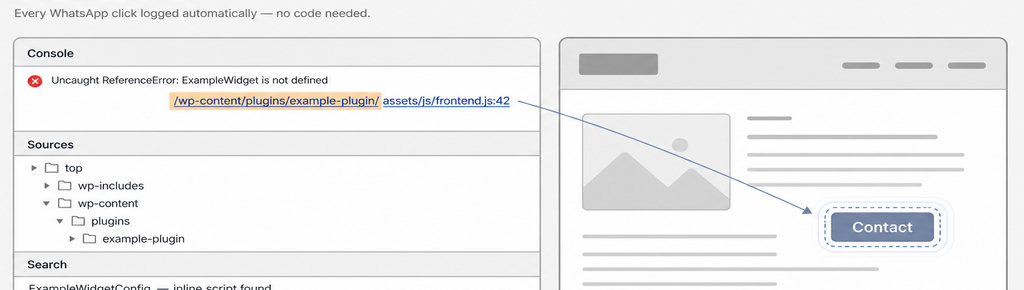
Open browser developer tools before reloading the broken page. In Chrome, open Console, reproduce the failure and inspect the first relevant error. Click its linked filename and line number. An error such as jQuery is not defined suggests code ran before its required library; it does not automatically justify excluding all jQuery-related files.
Use the working, non-delayed version for comparison:
- Find the plugin path. Inspect its scripts for a path such as
/wp-content/plugins/example-plugin/. A shared library may live elsewhere, and a combined optimization file may conceal the original path. - Search loaded resources. When the Console is silent, use DevTools Search to find a distinctive button class, configuration name or function associated with the feature. Chrome’s Search panel searches across loaded resources. Searching the working version can reveal initialization code that has not loaded in the broken version.
- Inspect the Network panel. It shows requested resources and their initiators. A successful download does not prove that a script executed at the right time.
- Check whether the script belongs on the page. If you are unsure whether the plugin belongs on that page, check WordPress plugin scripts on pages without a shortcode before excluding unrelated assets.
Read more WhatsApp tracking guides
For contact-button troubleshooting, browse the guides on WhatsApp click tracking. Read more WhatsApp tracking guides
Add a specific exclusion for the script and its dependencies
Open your optimizer’s delay exclusion field, not its minification or defer exclusions. These controls solve different problems. Check the optimizer’s documentation because matching rules are not universal WordPress syntax. For WP Rocket, a stable path fragment can identify an external file. An illustrative entry is:
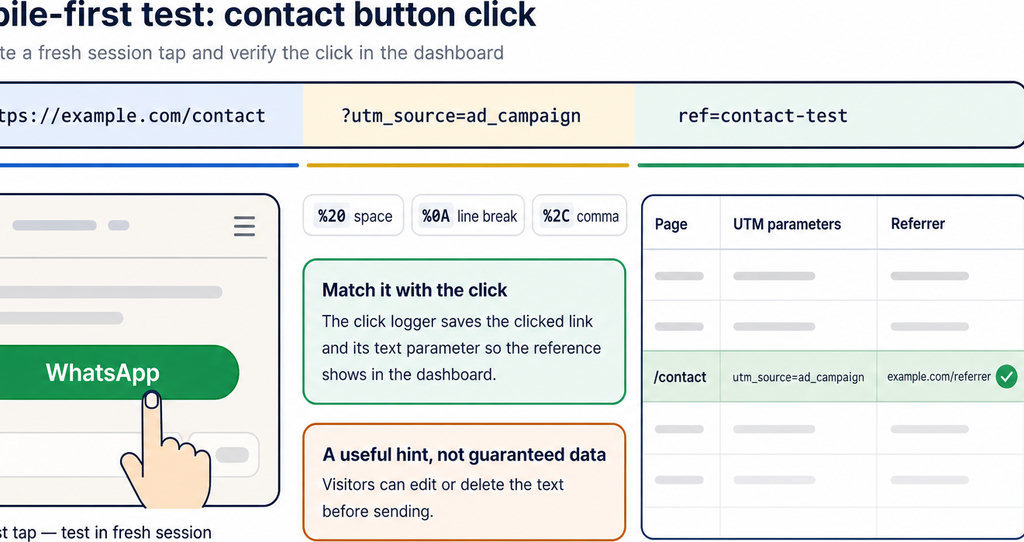
https://wa.me/15551234567?text=Hi%2C%20I'd%20like%20a%20quote.%0ARef%3A%20pricing-pageReplace it with the path you actually found. Avoid version query strings such as ?ver=1.2.3, which can change after updates. A unique string can identify an inline script.
- Test the feature script first. If it still fails, inspect its dependencies: another script it needs before it can work. A feature may require a library, an inline configuration object and an initialization block. Perfmatters documents failures involving missing jQuery and delayed inline code, including cases where excluding plugin files alone is insufficient.
- Find inline configuration. For example, if the file expects
ExampleWidgetConfig, search for the inline block defining that name. Exclude a distinctive identifier only when the optimizer supports inline matching. This is an example, not a ready-made exclusion for your plugin. - Change one exclusion at a time and record the result. A temporary plugin-directory exclusion can help establish ownership, but narrow it afterward. Avoid broad entries such as
js,jqueryor an entire shared library directory without evidence: they can exempt unrelated code.
How to check that your JavaScript exclusion works
- Start with a fresh private session. Save the exclusion, clear the optimizer’s generated cache and purge any page or CDN cache serving old HTML. Test with developer tools’ cache disabling enabled while tools are open. This reduces the chance of mistaking an already-initialized page for a successful fix.
- Test the first interaction without first scrolling or clicking elsewhere. On desktop and mobile, try the affected control, keyboard access where applicable, and the complete task—not just its appearance. A form must submit; a filter must update results; a contact button must open its intended destination.
- Verify both the action and the record. For tracked contact links, opening WhatsApp successfully does not prove the tracking handler ran. Check that one deliberate click produces the expected entry, without duplication.
- Check your tracking records. If you need that verification in WordPress, use the records to distinguish a repaired tracking flow from a button that merely opens correctly.
Keeping the fix in WordPress
Keep the final exclusions in the optimizer’s settings; do not edit plugin JavaScript files, because updates can overwrite those changes. Record which feature each exclusion protects and which dependency required it.
After plugin or optimizer updates, repeat the fresh-visit test. Renamed files or changed initialization code can make an old exclusion ineffective. Remove diagnostic exclusions that proved unnecessary rather than keeping them “just in case.”
If the smallest working set remains unclear, send support the affected URL, optimizer settings, exact exclusions, Console error and enabled-versus-disabled result. That evidence is more actionable than “the button is broken.”
For advertising sites, restoring the button is only the first check: verify the conversion destination too.
Send WhatsApp clicks to your ads and your team with WhatsLink PRO
Send WhatsApp clicks to your ads and your team with WhatsLink PRO. Explore WhatsLink PRO