
On this page
- Check WordPress Plugin Scripts on Pages Without a Shortcode
- Can a WordPress plugin load scripts without its shortcode?
- Which plugin loaded the scripts on your page? Identify each script by its URL and WordPress handle
- How to check that your script-loading test is reliable
- Checking enqueued scripts inside WordPress
- Official sources
Check WordPress Plugin Scripts on Pages Without a Shortcode
To check whether a WordPress plugin loads scripts on pages without its shortcode, open a page without the shortcode and inspect its JavaScript requests in Chrome DevTools. Compare it with a page that uses the shortcode: matching plugin files show that the plugin adds downloads to both tested pages.
Can a WordPress plugin load scripts without its shortcode?
Yes: shortcode presence does not automatically control script loading. A plugin can enqueue JavaScript across the site, restrict it to certain pages, or load it after an interaction. Scripts are JavaScript files; CSS stylesheets are separate assets worth checking too.
WordPress distinguishes registering a script, which makes it available under a name, from enqueueing it, which schedules its inclusion through WordPress’s dependency system. A registered file has not necessarily been downloaded.
- Choose two similar public pages: one containing the shortcode and one without it. Check that a shared header, footer, widget, or page-builder template does not display the plugin’s feature on the second page.
- Finding a script there proves loading on that page under those conditions, not on every page of your website. Nor does it prove waste: a plugin may support a site-wide button or another feature unrelated to its shortcode.
For background on measuring website contact actions rather than file downloads, browse the related guides. Read more WhatsApp tracking guides
Which plugin loaded the scripts on your page? Identify each script by its URL and WordPress handle
Open Chrome DevTools using your browser’s menu, select Network, and reload the page. The panel records requests: files and other resources the browser asks for. Select the JS filter to focus on JavaScript.
Click a request and inspect its full URL. A path such as /wp-content/plugins/example-plugin/assets/front.js points toward a plugin directory. This is an illustrative path, not a naming rule; optimized files may instead appear under a cache directory or CDN address.
- Use the Initiator column or request tab to investigate what triggered a download. A plugin’s first script may request another file later. Chrome’s Network documentation explains these request details and filters.
- Record the transferred size, not just the filename or request count. Compression and caching affect bytes transferred.
- Inspect CSS separately if you want the broader asset cost, and remember that a network download alone does not measure JavaScript execution time.
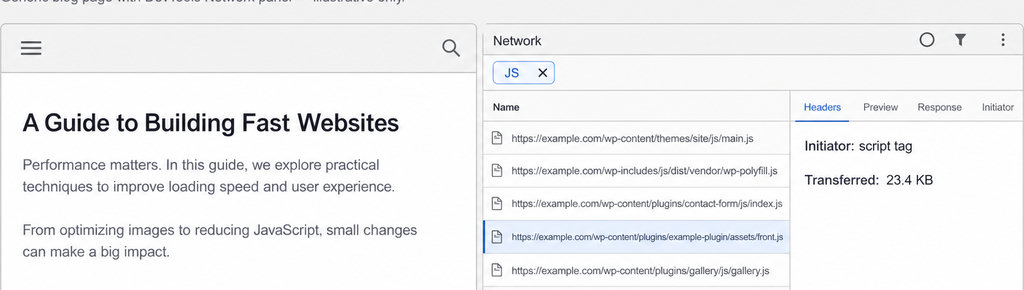
Keep a comparison note containing the page URL, whether the shortcode is present, the script’s full URL, transferred bytes, and test conditions. Record whether you tested logged out, accepted cookies, or interacted with the page; these can change what loads.
- When available, add the WordPress handle: the name WordPress uses to identify a registered script. Handles help connect browser findings with WordPress’s asset information, especially when an optimization tool changes filenames.
- Distinguish a plugin-specific file from a shared dependency, meaning a file another script needs. If multiple plugins require the same library, disabling one plugin may not remove that download.
Keep asset evidence separate from click records. For example, if you are evaluating a WhatsApp button, Network shows which files load; it does not provide a durable contact-click history. For that separate task, WhatsLink’s free version tracks WhatsApp clicks. Need click records as well as an asset check? Use WhatsLink’s free version to track WhatsApp clicks. Track WhatsApp clicks free with WhatsLink
How to check that your script-loading test is reliable
Use a staging copy before deactivating plugins or changing optimization settings. Start with the plugin enabled and keep the same browser, consent choice, login state, and interaction sequence for both pages.
Open Network before reloading and enable Disable cache for a cold-browser-cache comparison while DevTools remains open. This does not clear your server’s page cache or CDN cache. Keep those layers consistent, and clear the request list between tests.
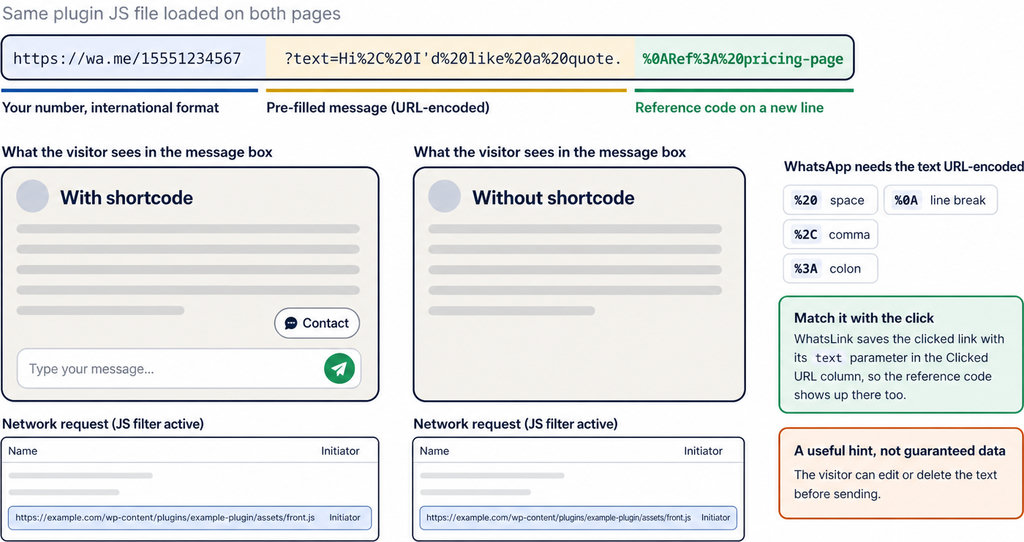
- Repeat the same actions. Reload each page, wait for delayed activity, scroll, and operate relevant controls. Some plugins load scripts only after a click or consent. Record matching file URLs and sizes after the same actions on both pages.
- If attribution remains unclear, deactivate only the suspected plugin on staging and repeat. Combined bundles may need rebuilding or cache clearing before the comparison becomes meaningful.
- Treat loaded and unnecessary as different findings. A deferred script still downloads. Chrome’s Coverage tool reports code used during the recorded session, but an unused result cannot prove that removal is safe for untested interactions.
Checking enqueued scripts inside WordPress
- For a second view, use Query Monitor’s Scripts and Styles panels. Its asset inspection documentation describes handles, URLs, dependencies, dependents, and information about the registering component.
- These panels describe assets handled through WordPress’s dependency system, not every request the browser makes. JavaScript inserted directly or fetched dynamically may need browser inspection. Also check the public page logged out: an administrator’s session can load different assets.
- If unnecessary loading is confirmed, check documented plugin settings or send the developer your comparison notes. Before conditional unloading, identify dependencies and test affected interactions; removing a shared library can break unrelated features.
- When comparing extensions, judge the observed cost and required functionality together. A plugin that loads one useful site-wide script is not automatically a worse choice than one with fewer requests.
Running ads and sharing contact results with your team?
WhatsLink PRO sends WhatsApp clicks to your ads and your team. These reporting features are separate from the script-loading check. Send WhatsApp clicks to your ads and your team with WhatsLink PRO
What WhatsLink records for each click
- The page and post type where the click happened
- The WhatsApp, Telegram or phone link clicked, with its pre-filled text
- UTM source, medium and campaign of that page
- The referrer and the date and time
- No IP address, location or device