
On this page
- Network-Activated WordPress Plugin: Missing Subsite Settings
- Why Network-Activated WordPress Plugin Settings Are Missing on a Subsite
- Who can see the plugin’s settings in WordPress Multisite?
- Identify the plugin’s settings location and required permissions
- How to check that the plugin works on a subsite
- Getting the right plugin settings in WordPress Multisite
- Official sources
Network-Activated WordPress Plugin: Missing Subsite Settings
Why Network-Activated WordPress Plugin Settings Are Missing on a Subsite
A network-activated WordPress plugin can have settings missing on a subsite and still be running correctly. Network activation makes the plugin active across the network; it does not require a settings page in every website’s dashboard.
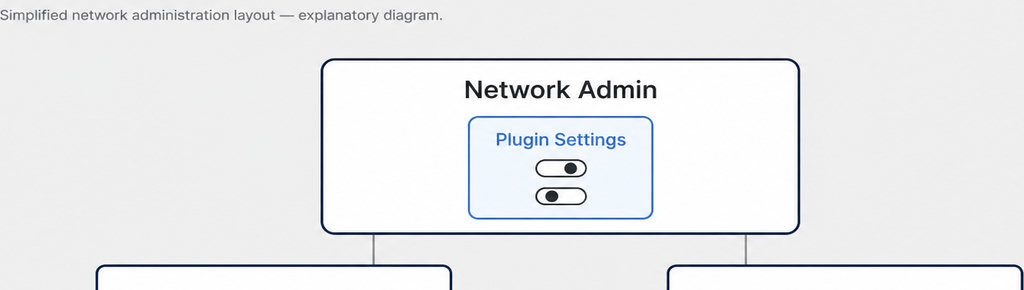
A subsite is one website within a WordPress Multisite installation. Its plugin controls might live in Network Admin, appear locally only for authorized users, or not exist because the plugin needs no configuration. A missing menu alone does not establish a fault.
Separate three questions: where the plugin runs, where you configure it, and who can change its configuration. According to the WordPress Multisite administration documentation, activation across a network does not determine how settings are stored. Per-site settings can remain separate after network activation, while network-wide settings can govern every site. The plugin’s implementation decides.
Who can see the plugin’s settings in WordPress Multisite?
A subsite Administrator manages one website. A Super Admin manages the network and has additional permissions. Being an administrator on your client’s site therefore does not mean you can access every network-activated plugin’s controls.
WordPress distinguishes capabilities such as manage_options, commonly used for site settings, from manage_network_options, used for network settings. Plugins can add their own restrictions. The WordPress roles and capabilities documentation explains this separation; the exact requirement for your plugin still needs checking.
- Ask an authorized Super Admin to open My Sites → Network Admin and inspect the plugin’s documented menu location.
- The main site’s dashboard is not Network Admin: changing an option on the main site does not automatically change it for every subsite.
- Also distinguish the Plugins menu from the plugin’s configuration page.
- Allowing site administrators to access plugin management does not force every plugin to display settings locally.
- A plugin may place its controls under Settings, Tools, its own menu, or network administration.
Working on a WhatsApp contact button? The related guides explain what a click can tell you and how to check your tracking.
Read more WhatsApp tracking guides
Identify the plugin’s settings location and required permissions
Before changing anything, record the plugin name and version, WordPress version, affected subsite, and whether activation is network-wide or individual. Include your account’s role and whether a Super Admin can see controls that you cannot.
Describe the exact symptom. “No menu appears” differs from “the menu opens an access-denied message” or “the page opens but changes do not save.” Those observations point to different checks and make a support request more useful.
- Look for the plugin’s Multisite documentation, especially its supported activation mode, menu location, and permissions. Do not assume instructions written for a single-site installation apply unchanged to a network.
- For developers, inspect menu registration and capability checks:
admin_menuregisters menus in site administration, whilenetwork_admin_menutargets network administration. Conditional checks may deliberately suppress a local page when the plugin is network-active.
Give support a reproducible report through the plugin’s documented support channel. Include the dashboard location you checked and screenshots with passwords, license keys, and private customer information removed. Avoid requesting Super Admin access merely to expose one page; ask which supported permission arrangement is appropriate.
How to check that the plugin works on a subsite
- Test the plugin’s documented behavior, not just its menu. For a front-end feature, visit the affected subsite and perform the action it is supposed to handle. For a background task, use its documented status indicator or output. A visible settings page does not prove the feature works, either.
- Compare access using an authorized Super Admin and a site administrator on the same subsite. If only the Super Admin sees the controls, investigate permissions first. If neither sees them, confirm the documented location and prerequisites before assuming a conflict.
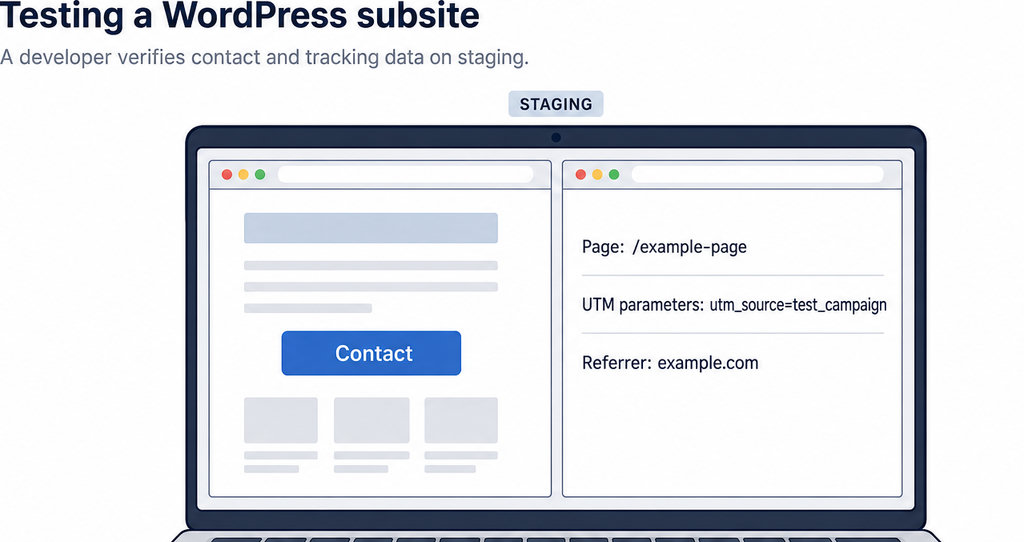
- For a click-tracking plugin, a useful test is whether a click produces a record with the page, UTM parameters, and referrer, where available. Check which details your plugin records; use a test visit with a recognizable campaign parameter so you can distinguish it from ordinary traffic. Missing UTM parameters or referrer information alone does not prove failure: the visit may not supply them.
- If that is the record you need, evaluate the free plugin after confirming its suitability for your Multisite setup. Track WhatsApp clicks free with WhatsLink
If troubleshooting requires activation changes or conflict tests, make a backup and use staging. Network-deactivating a plugin affects every site that depends on that network activation. Do not experiment on a live client network just to make a menu appear.
Getting the right plugin settings in WordPress Multisite
The resolution should follow the diagnosis. Use the intended network controls when configuration is centralized. Request a permission review when local controls exist but your account cannot access them. If the plugin does not support your required setup, ask its developer for a documented configuration or evaluate an alternative.
Consider per-site activation only when the plugin supports it. WordPress notes that not every plugin works with Multisite, and some require network activation. Changing activation mode is not a universal repair.
Before choosing a replacement, confirm Multisite compatibility for your actual requirement: separate settings, shared settings, delegated access, or separate records for each site. A plugin working on one subsite does not establish all of those capabilities.
For advertising measurement, distinguish recording clicks from forwarding conversion events. Confirm the required behavior and supported network configuration before deploying either across client sites.
Running ads? WhatsLink PRO sends WhatsApp clicks to your ads and your team. Confirm your Multisite requirements before choosing it.
Send WhatsApp clicks to your ads and your team with WhatsLink PRO
What WhatsLink records for each click
- The page and post type where the click happened
- The WhatsApp, Telegram or phone link clicked, with its pre-filled text
- UTM source, medium and campaign of that page
- The referrer and the date and time
- No IP address, location or device