
On this page
- Test a WordPress Plugin on One Multisite Subsite
- How to Test a WordPress Plugin on One Multisite Subsite Before Network Activation
- Which Multisite subsite has the plugin activated?
- Identify the test subsite and record a baseline
- How to check that the plugin works on one subsite
- Getting a test error log in WordPress
- Official sources
Test a WordPress Plugin on One Multisite Subsite
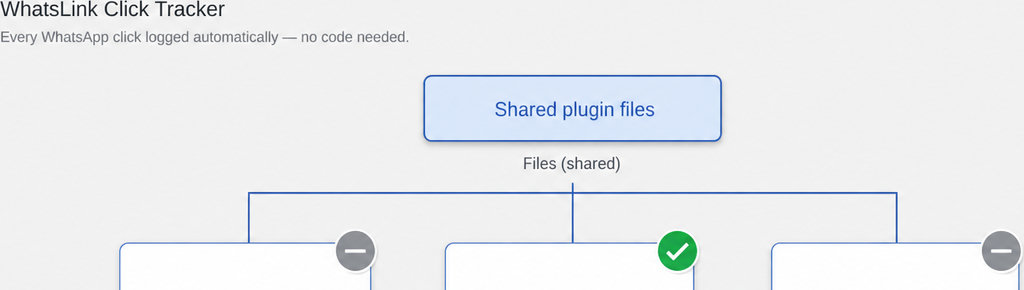
A test subsite is not an isolated server. All subsites share plugin files, so updating a plugin already used elsewhere changes those files for every site using it.
How to Test a WordPress Plugin on One Multisite Subsite Before Network Activation
Test updates on a separate staging copy of the network, not by uploading a replacement version to a production test subsite. Take a restorable backup before making changes.
You can test a WordPress plugin on one Multisite subsite before network activation if the plugin supports individual-site activation. Install it through Network Admin, leave it network-inactive, then open the chosen subsite’s dashboard and select Plugins → Installed Plugins → Activate.
The distinction is between installation, which adds files to the shared WordPress installation, and activation, which enables the plugin. Choosing Network Activate enables it across the network instead of just your test site. WordPress’s Multisite administration documentation explains these scopes and the associated administrator controls.
Which Multisite subsite has the plugin activated?
Sign in as a Super Admin and confirm that you are viewing the intended site’s dashboard: check both the dashboard URL and the site name in the toolbar. Open its Plugins screen and choose Activate, not the Network Activate action in Network Admin.
Check the administrator controls and the plugin’s Multisite requirements before proceeding:
- Plugins menu: If a site administrator cannot see it, a Super Admin can enable it under Network Admin → Settings → Network Settings → Menu Settings. Network administrators already have access to site plugin management. A network-active plugin cannot be deactivated from an individual subsite’s Plugins screen.
- Network-only plugins: Check the developer’s Multisite instructions. A plugin may declare
Network: trueor otherwise depend on network activation. Test it on a separate staging Multisite network; do not edit its header or force activation to bypass that requirement. Must-use plugins also sit outside this normal activation workflow.
Network activation does not necessarily mean shared settings. A plugin can run everywhere while keeping configuration separately for each site.
Identify the test subsite and record a baseline
Create a short test record before activation. This is your own testing record, not a report WordPress automatically creates.
Include the following details:
- Subsite URL: Record the site you intend to test.
- Plugin version: Record the version being evaluated.
- Environment: Record the WordPress and PHP versions.
- Current settings and date: Capture the existing page and configuration so you can distinguish a new problem from something already present.
- Expected result: Write it in observable terms. For a WhatsApp click-tracking plugin, that might mean clicking a button on a particular page and finding a corresponding record with the correct source information.
- Tracking comparison: For that example, compare the recorded page, UTM parameters and referrer with your test visit. A direct visit may have no referrer, so an empty field is not automatically a defect.
Also document your restore plan:
- Backup coverage: Record who can restore the backup, what it covers, and whether restoring it would overwrite newer activity.
- License terms: If you need a separate staging network for a paid plugin, check the license terms first.
Same WordPress Plugin License on Staging and Production? explains what to verify before activating another copy.
How to check that the plugin works on one subsite
Test the plugin’s actual function, not just whether WordPress displays an activation confirmation. Save its settings, open the affected pages, and complete the relevant interaction. For a form plugin, submit a form; for a contact-button plugin, click the button and verify both its destination and any expected record.
Repeat the interaction as a logged-out visitor as well as an administrator. Check another subsite before and after activation for unexpected changes to output, settings or performance. This comparison can reveal problems, but it does not prove complete isolation.
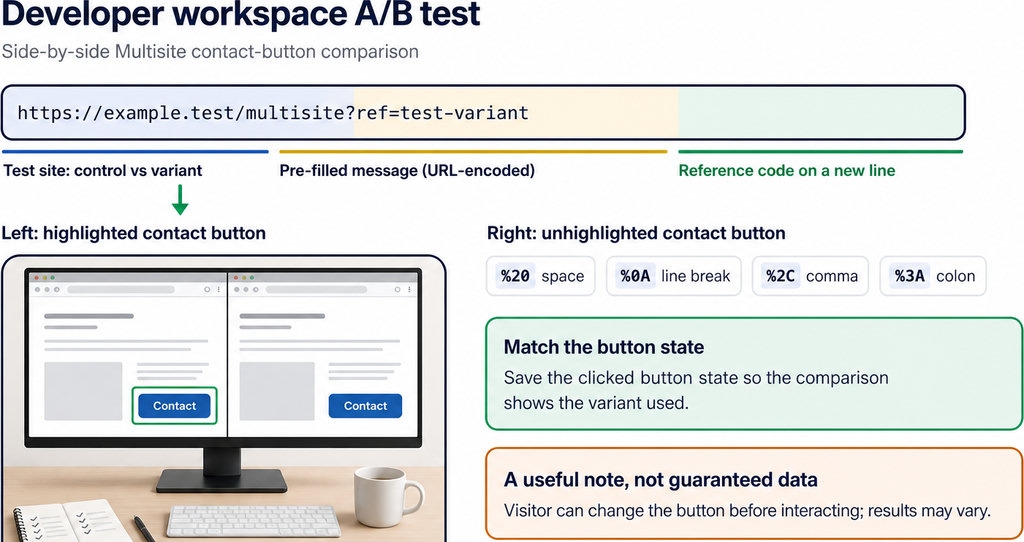
- Network compatibility: A successful individual-site test is not proof of network compatibility. Activation hooks can create defaults or tables, and network activation has a distinct scope, as explained in the WordPress activation and deactivation documentation. Rehearse network activation on staging, including an existing subsite with different settings.
- Record failures: Include the URL, action and time.
- Rollback: Deactivation stops normal plugin loading but does not necessarily reverse database changes. Deleting the plugin may invoke uninstall routines that remove settings or tables; it is not a substitute for restoring a backup.
Getting a test error log in WordPress
- Enable debugging on staging. Enable
WP_DEBUGandWP_DEBUG_LOG, and setWP_DEBUG_DISPLAYtofalse. Edit existing definitions rather than adding duplicates. This records errors without deliberately displaying debugging output to visitors. - Locate and protect the log. The default destination is
wp-content/debug.log; WordPress also supports a custom log path. Follow the official WordPress debugging instructions and protect logs from public access because they can contain sensitive details. - Reproduce one action at a time and compare timestamps. The log is not a complete test report or an automatically separated per-subsite activity history. No new errors does not prove correct behaviour. The log does not provide test isolation.
- Verify integration delivery. For an advertising integration, also verify that the intended destination receives the test event; a local click record alone does not establish that delivery worked.
Send WhatsApp clicks to your ads and your team with WhatsLink PRO. If you run ads, test the plugin’s intended integrations and check the results. Explore WhatsLink PRO