
On this page
When WordPress cannot activate a plugin because required plugins are missing, install and activate the plugins named in its warning, then try the original plugin again. If a requirement is already installed but inactive, activate the existing copy rather than downloading it again.
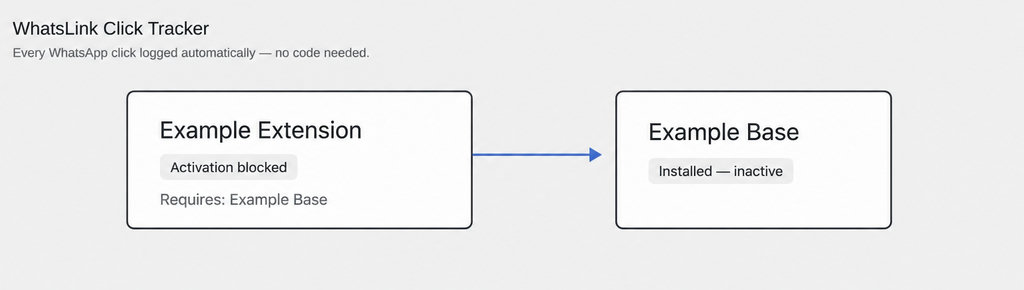
The plugin you want to use depends on functionality supplied by another plugin. WordPress calls that relationship a dependency. For example, an extension may need its underlying platform before it can run; installing the extension alone does not provide that platform.
WordPress Cannot Activate a Plugin: Missing Required Plugins
This warning is not automatically a request to buy an upgrade. A plugin’s price, license status, and technical requirements are separate questions. Check the named requirement before purchasing anything else.
WordPress introduced native plugin dependency handling in version 6.5. Developers can declare the plugins their software needs, allowing WordPress to block activation when those requirements are unmet, as explained in the WordPress feature announcement. Plugins may also display their own requirement notices, so read the actual message rather than assuming every activation failure has this cause.
Which required plugins are missing or inactive on your website?
Open Plugins → Installed Plugins and find the plugin you are trying to activate. Its Requires information identifies declared dependencies. Look for those plugins elsewhere on the same screen to determine whether they are absent or simply inactive.
An installed dependency may show Required by, which describes the relationship in the opposite direction: these are the plugins that rely on it. Neither label means that you need every plugin offered by the same developer.
- Verify the requirement. Follow the dependency’s linked details where available, checking the plugin name and author. Avoid installing the first similarly named result from a broad search.
- Use the official supplier. If WordPress cannot offer an installation route, consult the original developer’s documentation; a requirement distributed outside WordPress.org may need a ZIP downloaded from its official supplier.
- WordPress Multisite: Your account may not have permission to install or activate the requirement in the necessary context. Send the warning to the network administrator instead of trying to work around that restriction.
Working on a WhatsApp contact button?
For the separate task of measuring contact clicks, browse our WhatsApp tracking guides. Read more WhatsApp tracking guides
Identify the required plugin by its name and slug
A plugin’s display name helps you recognize it, but WordPress’s dependency declaration uses its slug: an identifier such as example-base. Matching the correct plugin matters more than finding a product with a similar title.
Developers put these identifiers in the Requires Plugins header of the plugin’s main PHP file. You do not need to edit that file to resolve an ordinary missing-dependency warning. Use the dashboard information and the developer’s installation instructions to identify the right download.
- Check version requirements separately. The official plugin header documentation distinguishes this declaration from Requires at least, which specifies the minimum WordPress version, and Requires PHP, which specifies the minimum PHP version. Installing another plugin will not fix an incompatible PHP version.
- Check compatibility. The dependency header also does not specify minimum or maximum versions of the required plugins. A recognized, active dependency therefore does not guarantee compatibility between every release.
- Ask support about recognition problems. If the expected plugin is installed and active but remains unrecognized, ask support to check its identity and installation path. A renamed plugin folder can cause recognition problems in some setups; do not rename folders or delete working plugins as your first troubleshooting step.
How to check that your plugin can now activate
- Activate the required plugin first. Install the missing requirement from its verified source, then activate it. Return to the plugin you originally wanted and try Activate again. If the requirement has dependencies of its own, resolve those before continuing.
- Confirm activation. WordPress checks whether required plugins are both installed and active, according to its activation validation reference. The important result is that the original plugin now shows as active, without the missing-dependency warning.
- Activation is not configuration. Next, test the feature you installed it for. You may still need to enter settings, connect an account, or complete the plugin’s setup instructions.
- Record any different error. If a different error appears, treat it as a separate diagnosis. A PHP compatibility message or fatal error is not evidence that you should keep installing more plugins. Record the exact wording before changing anything else.
For a WhatsApp tracking setup, a useful functional test is whether a click records the page, UTM parameters, and referrer, where available. For WhatsApp click tracking, consider WhatsLink Free.
Managing plugin dependencies in WordPress
WordPress protects recognized dependency relationships in the dashboard. You cannot normally deactivate a required plugin while active plugins depend on it. To remove that functionality, deactivate the dependent plugins first. Deletion has a different condition: WordPress prevents you from deleting a required plugin while its dependent plugins remain installed. Deactivating an extension is not the same as removing it. Check what depends on a plugin before planning cleanup, particularly on client sites.
If activation remains blocked, send the developer the exact warning, plugin versions, WordPress version, and whether the site uses Multisite. Mention any custom installation paths. If two plugins require each other, circular dependencies need developer intervention, not repeated installation attempts. Keep technical requirements separate from feature choices when selecting paid tools. Resolve the named dependency first; only then decide whether additional reporting or integrations serve your workflow.
Check which pages and campaigns produce WhatsApp clicks.
- Use WhatsLink Free to track WhatsApp clicks.