
On this page
To check your WhatsApp link, paste the exact address into your phone’s browser and confirm that it opens the intended conversation. Repeat on a computer, then test the published WordPress button: a valid-looking URL or a recorded click does not prove that visitors reach the right account.
Find where the WhatsApp link stops working
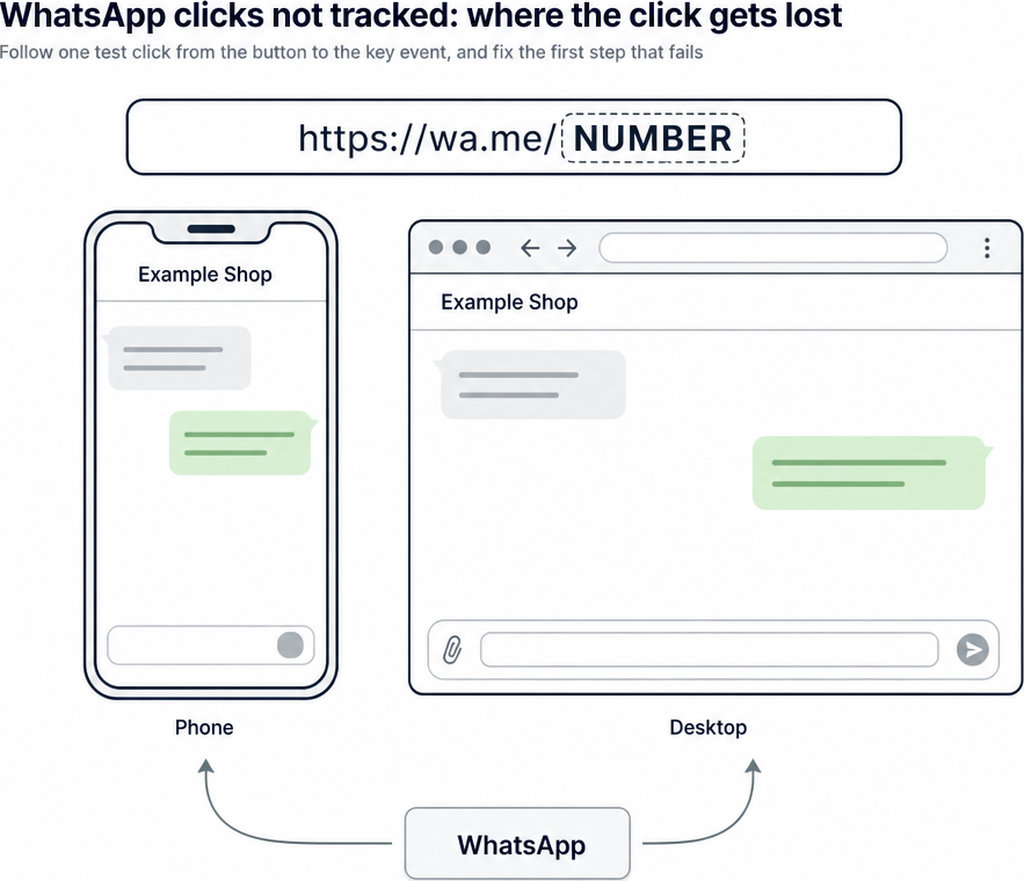
Start outside WordPress. Copy the link you plan to publish into your phone’s browser, rather than tapping an existing website button. This separates problems with the destination from problems with the page.
- Follow the browser’s prompt to open WhatsApp, if shown. Check the recipient’s details against the business account you intend to use; seeing a familiar profile name alone is not enough if you manage several numbers.
- Test from another WhatsApp account, rather than relying only on the phone that owns the destination number. With the recipient’s agreement, send a short test message and confirm it arrives. Opening the conversation and receiving a message are separate checks.
- Repeat the same URL on a computer. WhatsApp supports Click to Chat on phones and WhatsApp Web, according to its official Click to Chat instructions. Complete the normal sign-in or device-linking process if required; a login screen is not, by itself, a broken link. If the same address fails before you reach WordPress, investigate the number, account or device first. If it works directly but fails from your website, focus on the button.
Make sure the WordPress button contains your tested link
Once the standalone address works, paste that same URL into the Link control of your WordPress Button block. Include https://; do not paste only the phone number or put the address in the button’s visible label.
- Save the page and open its preview. Before making the button available to visitors, check the destination it actually uses. On a computer, right-clicking a linked button usually offers a way to copy its address. On a phone, a long press may show the destination.
- Compare that address with your tested version, including the number and any message parameter. A green button labelled “WhatsApp” can still point to an old employee’s number, an empty address or another page.
WordPress checks URL formatting, but does not verify that the destination exists or loads. Treat editor acceptance as a formatting check, not a successful contact test.
Check the WhatsApp address, number and prefilled message
The basic format is https://wa.me/NUMBER, with NUMBER replaced by the recipient’s full international phone number. Use digits only: no plus sign, spaces, brackets or hyphens. Include the country code. Do not put an international dialling prefix such as 00 before it. Equally, do not delete every zero from the number: some zeros belong to the actual international number. If uncertain, confirm the full international form with the account owner instead of guessing from a locally written number. Correct formatting cannot make an inactive account reachable. If WhatsApp reports that the number is unavailable, check for a typing mistake and confirm that the intended number has an active WhatsApp account. Test the plain number link before adding a message. Once it opens the right chat, append an encoded message, for example:
?text=Hello%2C%20I%20have%20a%20questionHere %20 represents a space. Encode the message value rather than the whole URL. Characters such as & can otherwise be interpreted as URL syntax instead of message content; MDN explains how URL-component encoding handles these characters. Open the complete link again and inspect the draft. Check punctuation, line breaks and any product reference. Prefilled text does not send itself: the visitor must press Send. A message-only link without a recipient number opens contact selection rather than taking visitors directly to your business.
Test both the WhatsApp icon and the button label
On the preview and then the published page, tap the icon and label separately. Also test the button’s padded area if the whole shape is meant to be clickable.
- If the label opens WhatsApp but the icon does nothing, the address may already be correct. The icon might sit outside the link, or another page element might cover part of the button. Rebuilding the
wa.meaddress will not repair that layout problem. - Repeat these checks on mobile, where overlapping elements can differ from the desktop layout. The useful result is consistent behaviour across the intended clickable area, not merely one successful tap.
Only after those checks should you consider click recording. Free WhatsLink can record website clicks. It does not verify the recipient or confirm that a message was sent.
Check that WordPress serves the updated WhatsApp link
After changing the number or message, inspect the published destination again. An editor preview can contain your correction while a cached public page still serves the previous address.
If visitors still receive the old link, clear the relevant WordPress or hosting page cache, plus any CDN cache serving that page. Reload and copy the destination again. A private browser window helps avoid reusing your normal browser session, but does not bypass a server-side cache.
- If the copied address is current and works directly, yet the button remains unresponsive, investigate the page’s button behaviour or script optimisation. Change one setting at a time and repeat the same test rather than disabling several tools without knowing which mattered.
- If WhatsApp Web itself fails, check connectivity, refresh it and try another network before changing a link that already works on your phone.
When the chat opens correctly but tracking fails, use WhatsApp Button Not Tracking? Causes and Fixes in WordPress for the separate checks involving triggers, consent, optimisation and empty logs.
Running ads to your WhatsApp contact page?
- WhatsLink PRO lets you send WhatsApp clicks to your ads and your team.
- These are click records, not proof of a conversation or sale.