
On this page
How to Give WordPress Plugin Support Temporary Access Safely
To give WordPress plugin support temporary access, create a separate support account or an expiring login link rather than sharing your own password. Verify the recipient, grant only the permissions needed, and remove access when troubleshooting finishes.
Start by asking whether screenshots, error messages, or instructions for reproducing the problem will suffice. The WooCommerce marketplace support guidelines require vendors to exhaust alternatives before requesting access; that is a sensible standard even outside its marketplace.
If access is necessary, offer a staging copy first. Reproduce the fault there before inviting support, and remove customer information that is not needed. A staging site containing copied orders and customer records still holds sensitive data.
Before granting access to a live site, take a current backup and confirm how to restore it. Agree on the task and the access deadline in the support ticket. Installing a plugin should never be treated as permission for its developer to enter your website.
For a WhatsApp tracking issue, the page containing the button and a description of the expected result may resolve the question without dashboard access. Troubleshooting a WhatsApp button? The tracking guides can help you distinguish a broken link from a recording or attribution problem before granting access. Read more WhatsApp tracking guides
Who Can Access Your WordPress Site During Support?
Confirm the request through the vendor’s official support channel, preferably the existing ticket. Do not send credentials to an unexpected email address simply because its sender knows the plugin’s name.
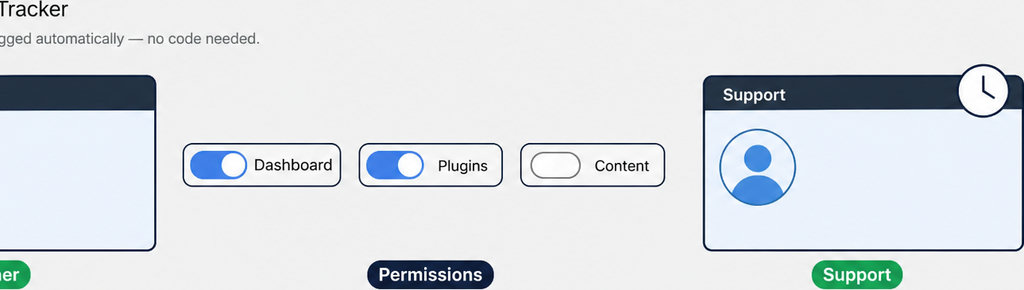
Separate access duration from account permissions. A login that expires tomorrow can still make consequential changes today. Under WordPress roles and capabilities, an Administrator on a standard single-site installation can manage plugins, settings, themes, and users. An Editor mainly manages content; it is not a general-purpose technical support role.
- Ask which screen or operation requires access. Use a narrower supported role if it covers the task, but do not choose Editor merely because it sounds safer.
- If Administrator access is justified, ask support to describe the intended changes and obtain approval before disabling plugins or changing live-site settings.
- WordPress access does not automatically require hosting, database, or file-transfer credentials. Treat those as separate requests with separate justification.
- On Multisite, distinguish site administration from network administration rather than granting Super Admin by default.
Label the Temporary Account With a Support Reference
Use a recognisable account name such as plugin-support-4821, with the number matching your support ticket. Keep the customer’s name, order details, and other sensitive information out of the username. Record the agreed role and removal deadline in the ticket; the label itself does not enforce either.
For a standard account, open Users → Add New, choose the agreed role, and use a unique password with an email address agreed with support. Deliver credentials through the vendor’s approved private channel. An ordinary WordPress account does not expire because you call it “temporary”: schedule its removal yourself.
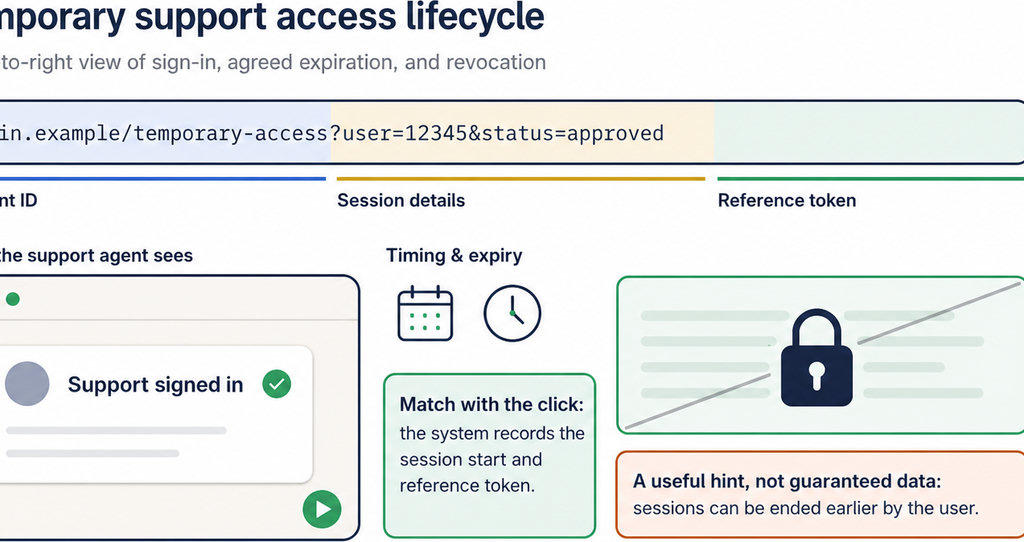
- Alternatively, use an access tool.Temporary Login Without Password offers role selection, configurable expiration, and manual deactivation. Set the shortest practical troubleshooting window.
- Treat its login link as a password: anyone holding it may be able to enter the account. Never paste it into a public forum or screenshot.
- For a WhatsApp tracking ticket, attach a concrete test case: the button’s page, the campaign URL, and the expected record. Compare the available click records with your test rather than simply reporting that tracking “looks wrong”.
Check the click record before opening your dashboard to support. Use the available click records to narrow down a WhatsApp tracking problem. Track WhatsApp clicks free with WhatsLink
How to Check That Temporary Access Works
- Test access in a private browser window, not the browser session where you are already signed in as the owner. Confirm that the login opens the intended website and account, then check that the required plugin screen is available.
- For an expiring link, inspect its expiration setting rather than assuming a default deadline suits the ticket. If a security plugin or hosting restriction blocks the test, resolve that specific obstacle instead of broadly disabling protection.
- When troubleshooting ends, revoke the link or delete the dedicated account immediately. Before deleting a user, check whether it owns content: reassign anything that must remain rather than deleting it with the account.
- Open another private window and confirm that the old credentials or link no longer work. If your access tool distinguishes revoking links from ending active sessions, check both controls. Record completion in the ticket, including any changes support says should remain.
Recording Support Activity in WordPress
A login record tells you that an account entered the site; it does not explain everything the person changed. If you need an action history, configure appropriate logging before granting access. A logger cannot retrospectively reconstruct events it never recorded.
For example, Simple History documents logging for user logins, role changes, plugin changes, and settings changes. Check its coverage against the work being authorised. No activity log should be assumed to capture every database edit, external request, or hosting-level action.
A debug.log file serves a different purpose: it records diagnostic messages, not a complete account history. Keep logs private because they can expose paths, technical details, or personal information. Ask support for a written change summary and compare it with the available records before closing the ticket.
For advertising-related tracking problems, distinguish a website click from a message or sale. Conversion reporting needs its own verification after access is removed.
Running ads to generate WhatsApp enquiries?
Send WhatsApp clicks to your ads and your team with WhatsLink PRO. These report clicks, not proof that a conversation happened.
Send WhatsApp clicks to your ads and your team with WhatsLink PRO