
On this page
- Store a WordPress Plugin API Key in wp-config.php?
- Can You Store a WordPress Plugin API Key in wp-config.php Instead of the Database?
- Where Does Your WordPress Plugin Read Its API Key?
- Define the API Key With a Supported Constant or Filter
- How to Check That Your Plugin Uses the Configured API Key
- Managing Plugin API Keys Across WordPress Environments
- Official sources
Store a WordPress Plugin API Key in wp-config.php?
Can You Store a WordPress Plugin API Key in wp-config.php Instead of the Database?
Yes, but only if the plugin supports it, or custom integration code connects the two. To store a WordPress plugin API key in wp-config.php instead of the database, the plugin must read that configuration. Adding an arbitrary constant does not override its settings.
This matters when you clone a live site into a test environment. Credentials saved alongside ordinary settings can travel with the database, allowing the test copy to contact the production account. Separating environment-specific credentials from copied settings helps prevent that mistake—but only if your deployment process also keeps each environment’s configuration separate.
A constant is simply a named value defined in PHP. WordPress loads wp-config.php during startup, but it does not automatically match constants to plugin fields. The WordPress configuration documentation explains the file’s role; each plugin determines which additional constants it recognises.
Moving a key into a file is not encryption. Anyone who can read that file or its backups may still obtain the credential.
Where Does Your WordPress Plugin Read Its API Key?
Start with the documentation for your installed plugin version. Look for configuration constants, environment variables, API-key filters, and instructions for staging sites. Confirm whether an extra switch enables constant-based settings and which value wins when both a constant and a saved key exist.
For a concrete example, WP Mail SMTP’s source includes WPMS_ON and provider-specific constants such as WPMS_SENDGRID_API_KEY. Those names belong to that plugin. They are not conventions that other extensions automatically understand.
- Ask the developer if documentation is unclear: “Can this version read its credential outside the database, what takes precedence, and will saving settings write a copy back?”
- Trace the actual API request. A developer inspecting the code can search for
defined(),constant(),getenv(),get_option(), andapply_filters(). Finding one is only a starting point: trace the actual API request to see where its credential originates. A filter that changes an admin field may not affect outgoing requests.
Also check configuration precedence. A plugin may display an old saved key while using a constant, or show an empty field because the credential comes from elsewhere.
Read more WhatsApp tracking guides
If this configuration work supports a WhatsApp contact workflow, explore the related tracking guides.
Read more WhatsApp tracking guides
Define the API Key With a Supported Constant or Filter
With native support, use the exact documented constant name and place the definition before WordPress loads, above the line that requires wp-settings.php. Follow any plugin-specific enablement instructions.
For the WP Mail SMTP SendGrid example, the configuration uses define( 'WPMS_ON', true ); together with define( 'WPMS_SENDGRID_API_KEY', 'YOUR_SENDGRID_API_KEY' );. These statements illustrate that plugin’s supported configuration, not a universal recipe. Configure its other required mailer settings separately.
- Supply the value securely: An environment variable or host-managed secret can supply the value instead of embedding it directly in the file, provided the hosting environment makes it available to PHP.
- Protect configuration: Keep secrets out of version control, and ask your host how configuration files and backups are protected.
- Without native support: A developer may use a dedicated credential filter.
- Another possible fallback: WordPress’s
pre_option_{$option}hook can replace an option’s retrieved value when the callback returns something other thanfalse. - Preserve the option’s structure: That fallback requires care. If the option contains an array of settings, returning only an API-key string can break the plugin.
- Keep integration code separate: Integration code belongs in a small custom plugin or, when early loading is necessary, a must-use plugin—not in edited vendor files that updates replace.
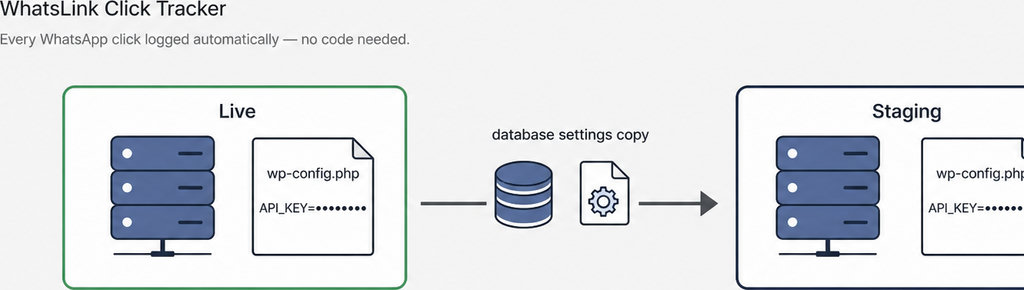
Crucially, an override changes retrieval. It does not erase stored credentials or necessarily prevent later writes.
How to Check That Your Plugin Uses the Configured API Key
Test on staging with a staging-specific credential, ideally tied to a sandbox account or restricted permissions. Use the plugin’s connection check or a harmless request, then verify in the provider’s dashboard which account received it. “The request succeeded” does not establish which key was used.
Next, save the plugin’s settings and repeat the test. This catches implementations where a settings update changes precedence or writes a credential back into storage.
Check the database separately. Inspect the relevant option or plugin-specific storage without printing secrets into screenshots, support tickets, or logs. Confirm whether an old key remains, whether a new copy appeared, and whether cleanup would affect other settings.
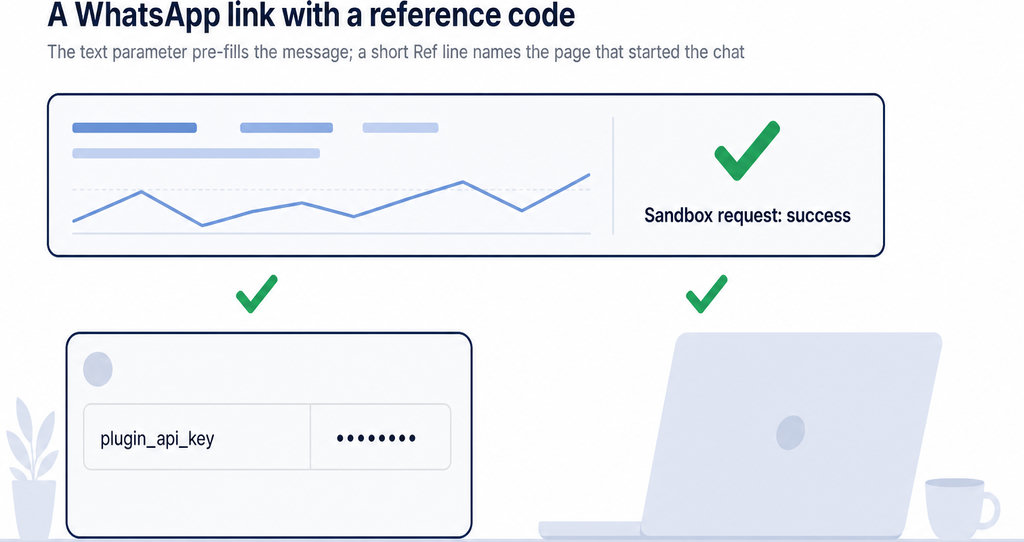
Keep functional testing distinct from credential-storage testing. For a contact-tracking setup, confirming that clicks record the page, UTM parameters, and referrer checks the tracking workflow—not where an unrelated integration stores its API key.
Track WhatsApp clicks free with WhatsLink
Explore WhatsLink’s free plugin for WhatsApp click tracking. Treat credential storage as a separate configuration question.
Track WhatsApp clicks free with WhatsLink
Managing Plugin API Keys Across WordPress Environments
- Make credential separation part of deployment: Exclude environment-specific secrets from database migrations, preserve each destination’s configuration, and avoid copying production configuration files onto staging. Use separate provider credentials wherever available.
- Remove obsolete database copies only after verifying the override. Prefer the plugin’s supported cleanup method; deleting an entire settings option may also remove unrelated configuration. Historical exports and backups can retain the old key, so rotate credentials when exposure is suspected.
- When choosing a plugin: Ask about documented constants or filters, precedence, staging behaviour, and settings-save behaviour. Do not assume a plugin supports external secrets because another product does.
- For advertising workflows: There is also a separate decision: whether you need an on-site click record or conversion reporting to advertising platforms. Neither capability establishes how a plugin stores credentials.
Send WhatsApp clicks to your ads and your team with WhatsLink PRO
Send WhatsApp clicks to your ads and your team with WhatsLink PRO.
Explore WhatsLink PRO
What WhatsLink records for each click
- The page and post type where the click happened
- The WhatsApp, Telegram or phone link clicked, with its pre-filled text
- UTM source, medium and campaign of that page
- The referrer and the date and time
- No IP address, location or device