
On this page
- WordPress debug.log Not Created With WP_DEBUG_LOG Enabled
- Where is debug.log?
- No debug.log at all?
- Is your debug.log public? How to block it
- Apache: block it in .htaccess
- Nginx: block it in the server block
- Or move the log outside the web root
- Why debug.log gets so large
- Read a huge debug.log without opening all of it
- From the WordPress dashboard
- Over SSH, with any file size
- Find the error that matters
- How to clear debug.log safely
- Stop it from growing back
- Official sources
WordPress debug.log Not Created With WP_DEBUG_LOG Enabled
If your WordPress debug.log is not created despite WP_DEBUG_LOG being true, that does not automatically mean logging is broken. WordPress also needs WP_DEBUG enabled, a request that produces a log message, and permission to write at the configured destination.
Where is debug.log?
The usual WordPress debug log location is wp-content/debug.log, inside your installation’s filesystem. Look through your hosting file manager, SFTP, or SSH—not just a browser address.
With WP_DEBUG_LOG set to true, WordPress uses WP_CONTENT_DIR, so a relocated content directory changes the destination. A string value instead of true can specify a completely different path.
Check the active installation’s wp-config.php, especially when production and staging share a hosting account.
No debug.log at all?
Test an actual write before changing permissions. Enabling logging does not immediately create an empty file; creation happens when something writes to it. Back up wp-config.php, or work on staging. Edit existing definitions rather than adding duplicates: PHP constants cannot be redefined. Place these settings before WordPress loads, conventionally above the “stop editing” comment:
define( 'WP_DEBUG', true );
define( 'WP_DEBUG_LOG', true );
define( 'WP_DEBUG_DISPLAY', false );
Use boolean true and false, without quotation marks. As the WordPress debugging documentation explains, WP_DEBUG_LOG depends on WP_DEBUG; hiding on-page errors does not prevent logging. Reproduce the failing action. A cached page may never reach PHP, so merely refreshing your homepage is not a reliable test. Have a developer temporarily run error_log( 'WordPress logging test' ); after WordPress initializes, through a request known to execute that code. Then remove the test. Look for that exact marker at the configured destination. Do not treat a successful function return as proof that the file received it. If nothing appears, check filesystem ownership and permissions for the user running PHP—not just your FTP account. PHP needs permission to create files in the parent directory, or write to the existing log. Do not use 777 as a shortcut. Also check available storage and any host-imposed filesystem restrictions. Ask hosting support: “Please confirm this site’s effective PHP error_log destination, log_errors setting, PHP-user write access, and any locked PHP-FPM settings.” PHP-FPM administrative settings can prevent WordPress from overriding the logging configuration. An error occurring before WordPress initializes logging, including a syntax error in wp-config.php, may appear only in the host’s PHP or server log.
Is your debug.log public? How to block it
Hiding errors is not access protection.WP_DEBUG_DISPLAY=false prevents WordPress from displaying debug messages on pages; it does not block visitors from downloading a publicly reachable log.
Logs can reveal server paths and diagnostic details. Protect the file before generating more entries. A browser 404 does not prove that logging failed: the file might exist behind an access rule. Verify existence through the filesystem.
If your troubleshooting also involves WhatsApp buttons, keep click measurement separate from PHP error logging. Read more WhatsApp tracking guides
Apache: block it in .htaccess
On Apache 2.4, add the following three lines to the relevant .htaccess, outside WordPress’s generated rules. These are separate configuration lines, not one combined command. Your host must allow the relevant .htaccess overrides. The rule blocks HTTP access to that filename; it does not prevent PHP from writing the file. If you use another log filename, adapt the rule accordingly.
<Files "debug.log">
    Require all denied
</Files>
Nginx: block it in the server block
Nginx does not read .htaccess. An administrator must add this rule inside the appropriate server block:
location = /wp-content/debug.log { deny all; }Adjust the URI if WordPress lives in a subdirectory or the content directory has another public location. Have the administrator validate and reload the configuration, then check that direct requests are blocked. Editing an unused configuration file will not protect the log.
Or move the log outside the web root
A private filesystem path avoids relying on a public-file access rule. Replace the existing WP_DEBUG_LOG definition with an administrator-approved absolute path, for example:
define( 'WP_DEBUG_LOG', '/private/site-logs/wordpress-debug.log' );This path is illustrative, not a directory every host provides. The parent directory must exist and be writable by PHP. Keep WP_DEBUG enabled during testing, and check this new destination rather than expecting wp-content/debug.log to appear. Confirm that any log viewer you use supports the custom path before moving it.
Why debug.log gets so large
Once writing works, repeated messages accumulate. One warning triggered on every request can produce many entries without representing many different faults. Scheduled jobs and background AJAX requests can keep adding messages while nobody is visibly browsing the affected page.
A PHP debug log is not a click analytics report. If you need to record the page, UTM parameters, and referrer associated with each WhatsApp click, use dedicated tracking rather than adding diagnostic messages indefinitely. Track WhatsApp clicks with WhatsLink’s free plugin, separately from PHP error logging. Track WhatsApp clicks free with WhatsLink
Read a huge debug.log without opening all of it
Start with recent entries, not a download of the entire file. A viewer that loads chunks or an SSH command that reads the end of the file avoids opening everything in a desktop editor. If file size becomes the next problem after restoring logging, use the guide to locating, reading, and clearing large logs for the maintenance workflow.
From the WordPress dashboard
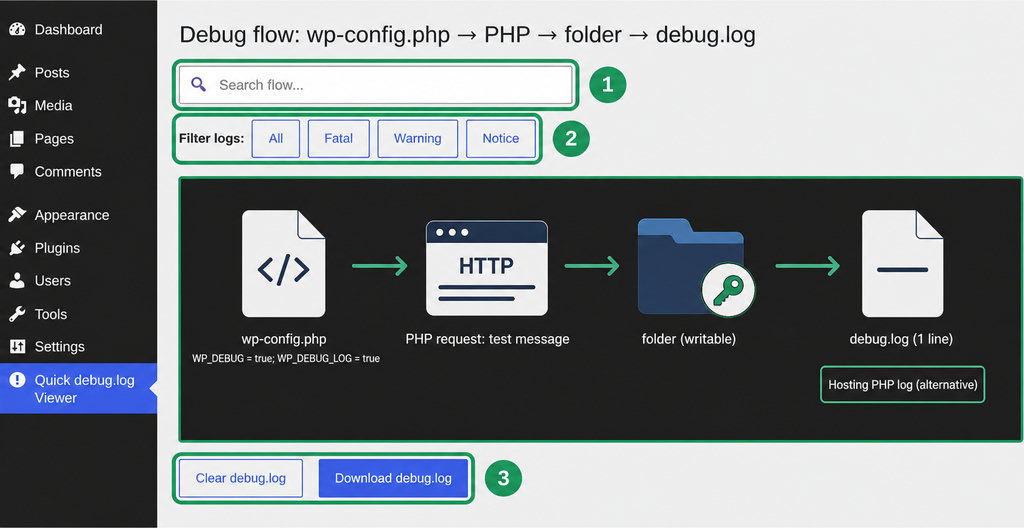
Once a readable file exists, Quick debug.log Viewer is a practical dashboard option. Its plugin listing documents chunked loading, searching, severity filters, downloading, and clearing. Check compatibility with your WordPress version before installing.
It can read an existing log with debugging switched off; it cannot repair missing write permissions or make WordPress generate entries. For that dashboard workflow, follow How to View WordPress debug.log Without FTP.
Over SSH, with any file size
To inspect the last 100 lines, run the first command below, replacing the example path with the verified destination. With GNU tools, tail -F follows the filename and retries if it is missing or replaced. This helps while reproducing an error or waiting for the first write.
tail -n 100 /actual/path/debug.log

tail -F /actual/path/debug.log
Watching a nonexistent file does not create it. These commands avoid loading the entire log, although server resources and extremely long individual lines can still affect inspection.
Find the error that matters
Match entries to the time you reproduced the problem.
- Read the message, file path, and surrounding stack trace together.
- Search for the affected plugin or theme, but do not assume a component caused the fault merely because its name appears.
- If the controlled test appears but the expected error does not, the destination works.
- Investigate the failing request: whether it reaches the same installation, executes PHP, or fails before WordPress logging starts.
How to clear debug.log safely
Preserve the evidence first: save relevant messages and traces before clearing anything.
- Clear the file. Then use the viewer’s clear function or, with appropriate SSH access, run
truncate -s 0 /actual/path/debug.log. - Verify the path before executing that command. Truncating empties the existing file rather than deleting it.
- Repeat the controlled test afterward. Manually creating an empty log can change ownership and still proves nothing about whether PHP can write.
Stop it from growing back
- Fix recurring errors, remove temporary test code, and disable temporary debugging when diagnosis is complete.
- Turn logging off when you no longer need it. Set
WP_DEBUGandWP_DEBUG_LOGtofalsein their existing definitions. - If ongoing diagnostics are necessary, ask your host about retention and rotation. Disabling WordPress debug logging does not necessarily disable separate hosting logs.
Running ads to WhatsApp? Send WhatsApp clicks to your ads and your team with WhatsLink PRO. Send WhatsApp clicks to your ads and your team with WhatsLink PRO
What Quick debug.log Viewer does
- Reads an existing log from the dashboard
- Loads entries in chunks
- Provides searching and severity filters
- Downloads and clears the log
- Can read an existing log with debugging switched off