
On this page
To check CDN caching of WordPress plugin REST API responses, inspect the actual API request, repeat it, and compare its cache headers with the returned data. An outdated dashboard does not prove the plugin failed: a saved response may be coming from the browser, hosting cache, or CDN.
Test the request behind the affected feature, not the homepage. WordPress REST routes usually start with /wp-json/; sites without pretty permalinks can use ?rest_route=.... Keep the request’s method, parameters, and login context intact.
Check CDN Caching of WordPress Plugin REST API Responses
A cache hit establishes that a cache supplied the response, not that its contents are wrong. Compare a specific expected value with the response body. If the API returns current data but the interface shows old data, investigate the interface instead.
For WhatsApp click reports, distinguish the click being recorded from the request retrieving the report. They are separate operations; evidence about one does not establish what happened to the other.
Read more WhatsApp tracking guides
For questions about click tracking rather than API delivery, browse the other WhatsApp tracking guides.
Read more WhatsApp tracking guides
Which Cache Served Your Plugin’s API Response?
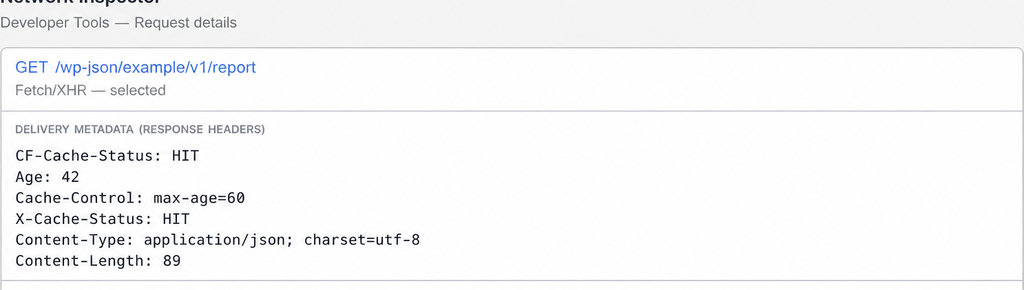
Response headers are delivery information accompanying the data. Inspect Cache-Control, Age, and any provider-specific cache-status header.
For Cloudflare, CF-Cache-Status: HIT means the response came from its cache. MISS means it was not found there for that request; a later identical request could hit. BYPASS and DYNAMIC describe different uncached outcomes. These labels are not universal HTTP statuses, and JSON is not automatically cached simply because Cloudflare is installed.
- Cache policy and cache outcome differ.
Cache-Control: max-age=60describes a freshness lifetime;s-maxageapplies specifically to shared caches. Neither proves a CDN stored or served that response. - Under the HTTP caching standard,
no-cacheallows storage but requires validation before reuse.no-storeprohibits storage, whileprivateprevents shared-cache storage; it does not mean encrypted. Ageis not the age of your business data. It estimates seconds since response generation or successful validation. Increasing values across repeated requests support a caching diagnosis, but a missingAgedoes not rule caching out. Browser indicators such as “from memory cache” identify a different layer.
Tag a Test Request with a Reference Code
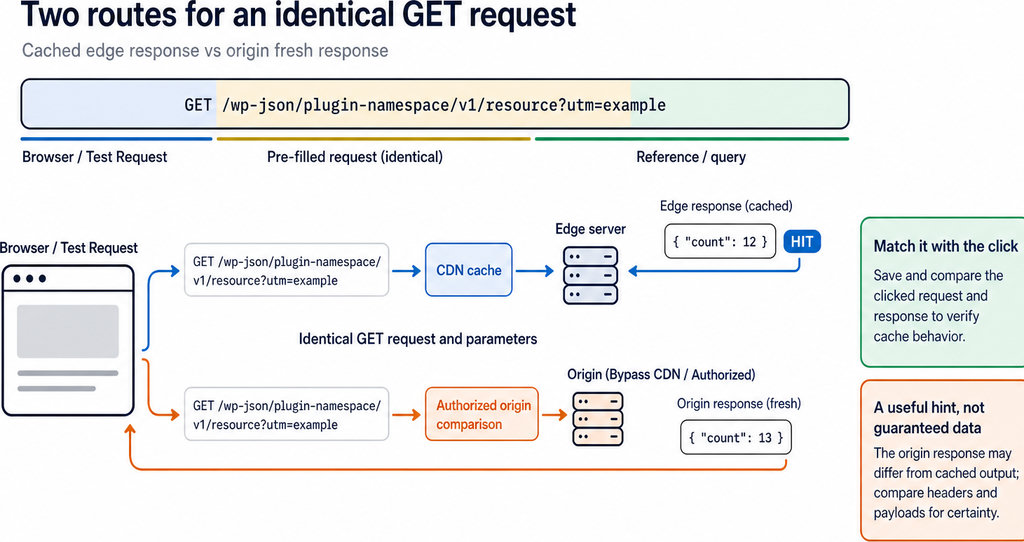
If the endpoint accepts extra parameters, add a harmless test marker such as cdn_probe=test1. Preserve existing parameters: use &cdn_probe=test1 when the URL already contains a query string.
Compare the original response with the marked response, then repeat the marked request unchanged. A fresh marked response followed by a hit is useful evidence, but not a guaranteed bypass. The CDN can include, exclude, or ignore query parameters in its cache key.
- Do not add markers to signed URLs or replay actions that create records without checking with the developer. A diagnostic marker should not alter the operation being tested, and it is not a permanent fix for incorrect cache rules.
- For a tracking report, choose a known test click and compare its page, UTM parameters, and referrer, where available, with the report response. A click alone is insufficient to diagnose delivery: record when you made it and which report request should show it. Referrers may be absent because of browser or site privacy policies.
Track WhatsApp clicks free with WhatsLink
If you need a click record to compare with your report, explore WhatsLink’s free version.
Track WhatsApp clicks free with WhatsLink
How to Check That Your REST API Test Works
- Open browser Developer Tools, select Network, and enable Disable cache while the tools remain open. Reload the page or trigger the feature, filter Fetch/XHR, and select the plugin’s request. Inspect its URL, method, status, response headers, and Response tab.
- Disabling browser cache removes a local variable; it does not disable the CDN. Repeat the same safe GET request and save both responses. Keep authentication and parameters consistent: a logged-in request may behave differently from a public one.
- For an optional terminal test, this address is illustrative:
curl -sS -D headers.txt -o response.json 'https://example.com/wp-json/plugin-namespace/v1/resource'. Replace it with the actual endpoint. Run it twice, saving or renaming the files between runs so the second test does not overwrite your evidence. - Use GET rather than
curl -I, which sends HEAD and may behave differently. An authenticated endpoint also needs the appropriate credentials; a login error is not a valid comparison. Never publish cookies, tokens, or nonces.
Ask your host to compare the same request directly against the origin, bypassing the CDN with authorization. Curl’s --resolve can retain the hostname while targeting an origin IP. Fresh origin data alongside stale edge data is stronger evidence than a query-string test alone.
Getting a Diagnostic Log in WordPress
WP_DEBUG_LOG is not a complete request log. It records PHP errors and messages explicitly written to it, as described in WordPress debugging documentation. Ask a developer to add a temporary, route-specific timestamp when the endpoint executes.
Correlate that entry with the response and CDN headers. An edge-served request may never reach WordPress, so a missing entry alone proves little: logging might also be misconfigured.
Use staging where possible, keep error display disabled, protect logs from public access, and remove temporary instrumentation afterward. Avoid logging credentials or personal response contents.
For a useful support handoff, provide the endpoint, method, test time and timezone, expected and actual values, both responses’ headers, and request identifiers. Redact secrets.
Once caching is confirmed, review the matching CDN rule with the host. Personalized or authenticated data needs particular care: do not force it into a shared cache to improve speed. Purging removes an existing object; correcting the rule prevents recurrence.
Send WhatsApp clicks to your ads and your team with WhatsLink PRO
For advertising workflows, explore WhatsLink PRO.
Explore WhatsLink PRO
What WhatsLink records for each click
- The page and post type where the click happened
- The WhatsApp, Telegram or phone link clicked, with its pre-filled text
- UTM source, medium and campaign of that page
- The referrer and the date and time
- No IP address, location or device