
On this page
You can use the same WordPress plugin license on staging and production if the plugin vendor permits it under your plan. Some vendors exclude recognized staging sites from activation limits; others allow testing without connecting a license key. A single-site purchase does not automatically guarantee either arrangement.
Same WordPress Plugin License on Staging and Production?
Staging is a test copy where you check changes before publishing them. Production is your live website. Although both copies serve the same business, a licensing system may see two separate installations.
Also distinguish plugin activation from license verification. Clicking Activate in WordPress switches the plugin on; entering a paid license key connects that installation to the vendor’s licensing service. Whether premium features, downloads, support or automatic updates require that connection depends on the product.
Before paying, establish whether you can test the features you need without consuming an additional paid activation—not simply whether the plugin can be installed twice.
Does Your Staging Site Count as Another Activation?
The deciding factor is the vendor’s staging policy, not whether you own both websites or host them together. Check the documentation for your exact plugin and plan, including any restrictions on local installations, development sites and temporary hosting addresses.
For example, Elementor documents recognized staging address formats that do not consume an additional activation. Its exemption does not extend to subfolder installations. That is an Elementor rule, not a rule every WordPress plugin follows.
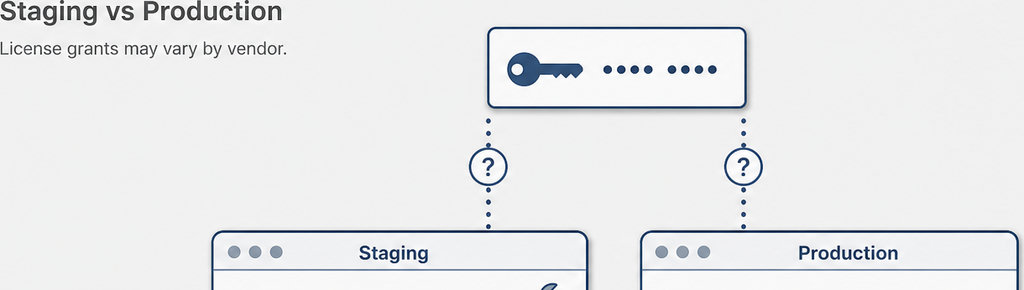
There is another model: WPBakery allows staging use without license activation. This illustrates why permission to use a plugin and permission to connect its key are separate questions.
- Ask support if the documentation is unclear. Send both exact addresses and ask: “Does this plan cover these production and staging installations simultaneously? Does staging consume an activation, and will updates and the premium features I need work there?”
- Ask before purchase if testing is essential. A staging allowance applies to using a license you already own; it is not automatically a free trial or a refund entitlement.
Learning how to test WhatsApp tracking too? Browse the WhatsApp click-tracking guides for practical explanations of links, clicks and measurement. Read more WhatsApp tracking guides
Use a Recognized Staging Address or Environment Setting
Your staging site’s exact address can determine how the license server classifies it. A vendor might recognize staging.example.com but treat example.com/staging as another installation. Calling a hosting environment “staging” in its dashboard does not prove the plugin will recognize it.
Choose a supported address format from that plugin’s documentation before cloning the live site, where possible. Do not copy another vendor’s accepted domain patterns and assume they apply. If your host assigns a temporary address, give support that address rather than describing it only as a test site.
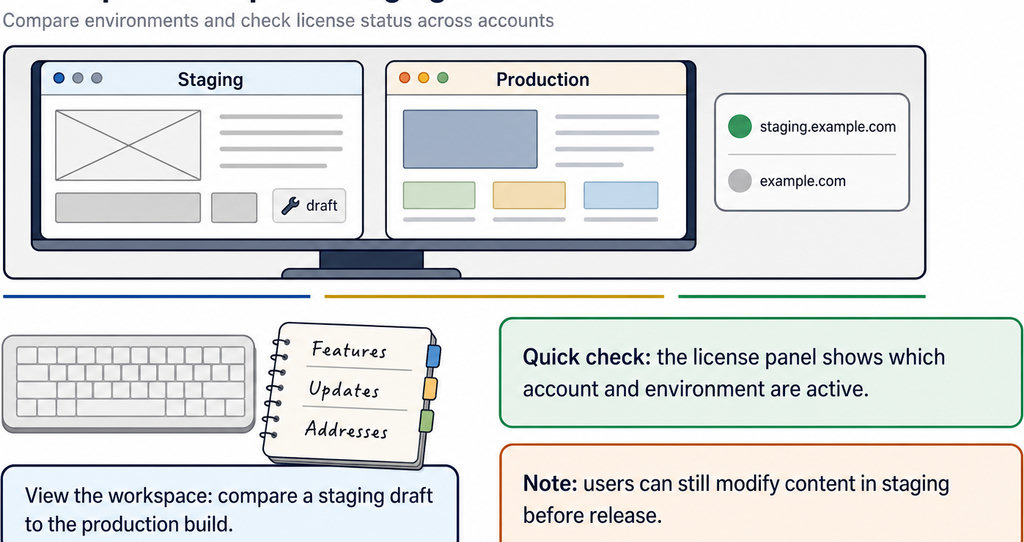
- WordPress provides an environment type. Through
WP_ENVIRONMENT_TYPE, the WordPress developer reference defines local, development, staging and production values; when unset, the default is production. - It is not a licensing override. A developer can configure this value as
staging, but it helps only when the vendor’s licensing implementation uses that signal. Do not change it expecting WordPress itself to grant extra activations.
If neither the address nor the environment setting qualifies, ask for the vendor’s supported alternative before changing domains or buying another seat.
How to Check That Your Plugin License Works on Both Sites
- Start with the documented workflow. Then check the result in both WordPress and your vendor account. Simultaneous coverage means the two installations can coexist under your plan; moving one activation between them is a different arrangement.
- Inspect the activation count and registered addresses. After connecting the staging installation as instructed, check these in your account. If staging unexpectedly uses your last seat, stop and ask support to confirm its classification. Avoid repeatedly disconnecting and reconnecting keys without knowing the consequences.
- Test premium features and updates separately. A plugin opening successfully does not establish that automatic updates or every paid function are available. Check the license status, any displayed errors and the particular functionality you intend to deploy.
- For a tracking plugin, test what is recorded as well as whether the button opens. If you are testing WhatsApp click tracking, you can try free WhatsLink Click Tracker. Keep test clicks separate from real reporting wherever your measurement setup allows.
Check the click details before testing paid integrations. Try the free WhatsLink Click Tracker plugin. Track WhatsApp clicks free with WhatsLink
Managing Your Plugin License in WordPress
There is no universal license screen in WordPress. A plugin may put its key field in its own settings, use an account-connection button or direct you to the vendor’s website. Follow that product’s instructions rather than looking for a standard WordPress licensing menu.
Keep a record of registered addresses, the plan owner and who controls the vendor account. For client sites, agree whether the agency or client handles renewals and activation changes.
After a migration or staging-to-live deployment, check the production license status again. A copied database can carry settings from the source installation; it does not prove the destination has been recognized correctly. Remove obsolete activations through the vendor’s supported process.
Do not disconnect the live site as your first response to an activation-limit error. Confirm the effect on features and updates first. The useful support question is whether your two addresses qualify for concurrent use, not merely whether a key can be transferred.
Running ads after your staging checks? Send WhatsApp clicks to your ads and your team with WhatsLink PRO. Confirm staging coverage before purchasing if you need both installations connected. Send WhatsApp clicks to your ads and your team with WhatsLink PRO
What WhatsLink records for each click
- The page and post type where the click happened
- The WhatsApp, Telegram or phone link clicked, with its pre-filled text
- UTM source, medium and campaign of that page
- The referrer and the date and time
- No IP address, location or device